

Settings → Members in your OpenCX dashboard. Viewing the page requires the Members or Settings permission (Read). Inviting, deactivating, reactivating, and removing members requires Members (Write). See the permissions reference.
Invite members
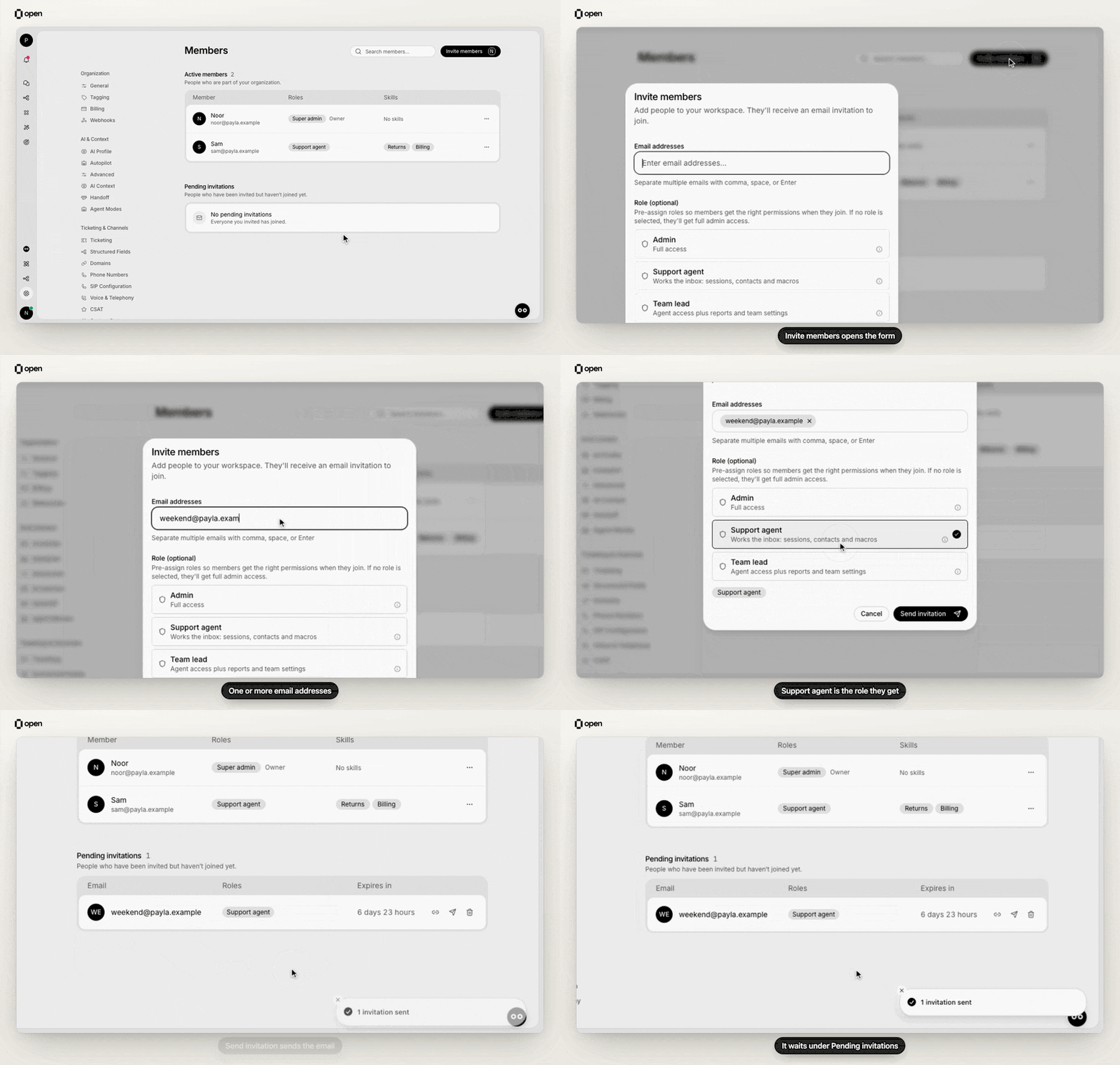
Invite an address with the Support agent role, and it appears under Pending invitations.
1
Open the invite dialog
In Settings → Members, select Invite members.
2
Add email addresses
Type or paste addresses into Email addresses. Separate them with a comma, a space, or Enter. You can invite up to 20 people at once.
3
Pick roles
Under Role (optional), select one or more roles. Everyone in this invite gets the same roles. The picker appears once your organization has at least one role.
4
Send
Select Send invitation. Each person receives an email and joins by signing in with the invited address. See accepting an invitation.
Manage pending invitations
The Pending invitations table shows each invited email, the roles it will receive, and how long until it expires. With Members (Write), each row has these actions:Change a member’s teams, roles, and profile
Open the three-dot menu on a member’s row. You only see the actions your permissions allow.
The organization owner is labeled Super admin and Owner. Their roles can’t be changed, and they can’t be deactivated or removed.
Deactivate, reactivate, or remove a member
Deactivate someone who may come back, such as a teammate on leave. Remove someone permanently.Neither action reassigns open sessions. Reassign the member’s open sessions before you deactivate or remove them.
Link teammates to Zendesk or Intercom accounts
Settings → Linked Accounts appears only when your ticketing system is Zendesk or Intercom. It links each OpenCX member to their account in that helpdesk. Syncing and changing links require Integrations (Write).1
Sync the helpdesk roster
In Settings → Linked Accounts, select Sync. OpenCX fetches your Zendesk agents or Intercom teammates and links any unlinked member whose email matches.
2
Review each member
For each member, pick their helpdesk account from the list, or choose Not linked. An account removed from the roster since the last sync shows as not in roster.
- Zendesk: replies a member sends from OpenCX appear in Zendesk under their linked agent. Without a link, they appear under your integration’s default agent. If assignee sync is on for your organization, the Zendesk ticket assignee follows the session assignee and the other way round. A session assigned to an unlinked member leaves the Zendesk ticket unassigned.
- Intercom: replies, internal notes, and status changes a member makes in OpenCX are authored as their linked Intercom teammate, or your default teammate without a link. Only teammates with an Inbox seat can be linked, and each one can be linked to only one member. See Intercom connect.
Troubleshooting
Related Documentation
Roles
Create roles and directory mappings.
Permissions reference
What each permission allows.
Teams
Teams, categories, and presets.
Organizations
Invitations, owners, and environments.