

Reports & Apps in the sidebar of your OpenCX dashboard. Opening a report requires Reports: Read in Roles. Adding, removing and reordering entries for everyone requires Helpdesk settings: Write.
Which report answers your question
Customer Insights also requires Voice of Customer: Read. Without it, the page is not offered.
What the sidebar shows by default
Until someone arranges the section, Reports & Apps lists only Impact Dashboard. The other report pages exist but are not shown: someone with Helpdesk settings: Write adds them. Selecting the Reports & Apps header opens the Impact Dashboard.Add a report or mini app
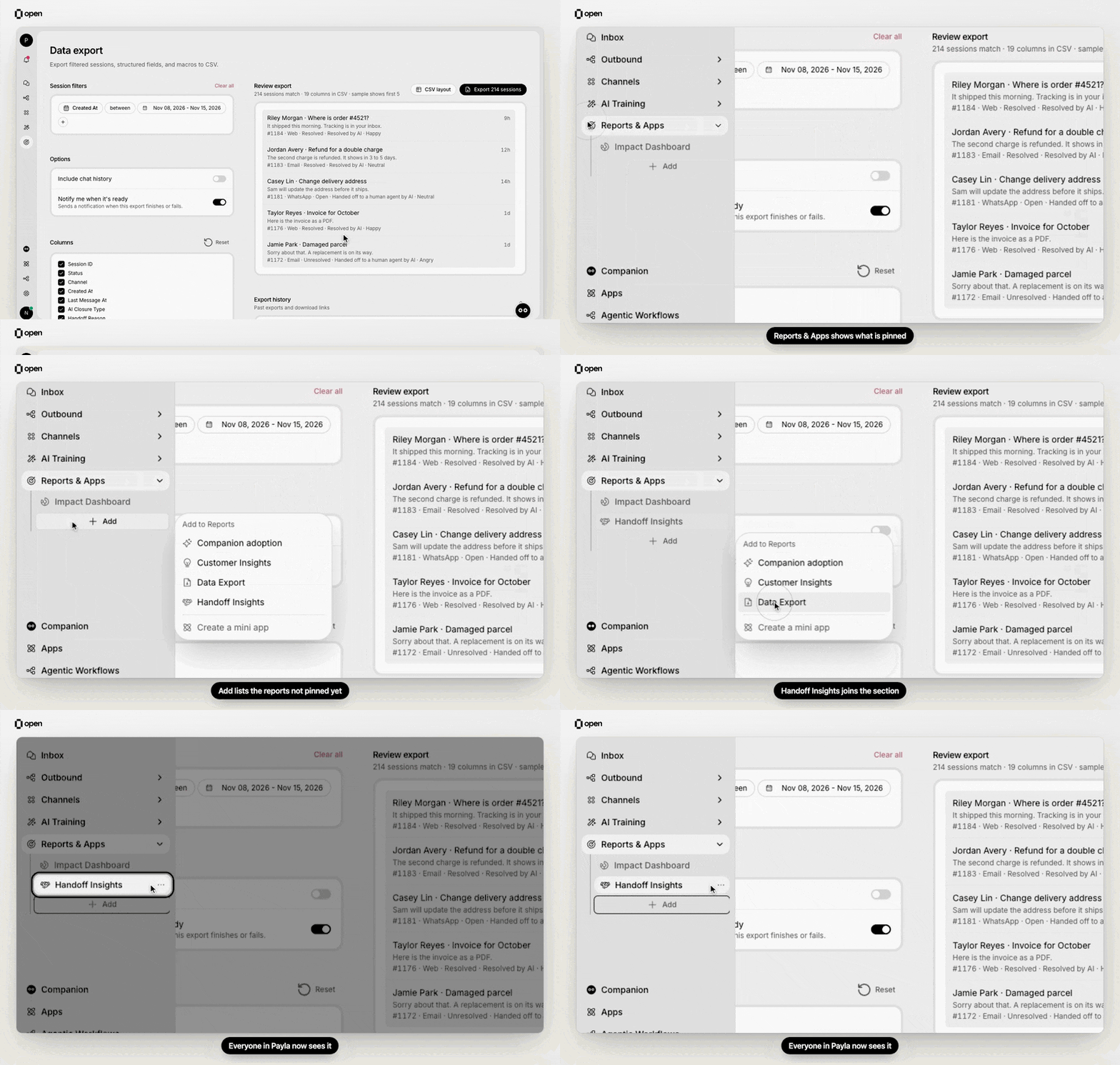
Under Reports & Apps, Add opens Add to Reports; picking Handoff Insights pins it for the whole organization.
1
Open the picker
Under Reports & Apps in the sidebar, select Add, the dashed row below the entries. The Add to Reports list shows report pages first, then mini apps, split by a dotted line. A search box appears when more than six entries are available.
2
Pick an entry
It is added at the bottom of the section, for everyone in your organization.
3
Drag it into place
Drag any row up or down. The new order saves for the whole organization.
How the order works for everyone
- One order per organization. The arrangement is saved once for the organization, not per person. Everyone sees the same order.
- Each person sees only what they can open. Report pages need Reports: Read, and Customer Insights also needs Voice of Customer: Read. A pinned mini app appears only for people whose role it is shared with.
- Hidden entries keep their place. When you reorder, entries you cannot open stay where they were, so you never remove someone else’s app by accident.
- Teammates without Reports access. If a mini app shared with them is pinned, they still see Reports & Apps, with only their apps in it. The header then opens their first pinned app.
Pin mini apps next to your reports
Any mini app built for the dashboard can be pinned. Inbox widgets cannot, because they run inside a session rather than as a page. A pinned app opens full-size in Companion. People who can edit the app also see Edit name & icon and Open in Companion in its ⋯ menu. Apps shared with you but not pinned are listed in Apps. To control who can change an app, see Mini-app editing access.Troubleshooting
Related Documentation
Impact Dashboard
Automation rate and session flow
Handoff Insights
Why the AI hands off
Workspace settings
Arrange the sidebar for everyone
Mini-app access
Who can edit pinned apps