

Settings → Office Hours in your OpenCX dashboard. Viewing requires the Office hours permission; creating, editing and deleting schedules requires write access to it.
Default and custom office hours
A schedule with no shifts is open around the clock, except during its holidays and closures. Until you save default office hours for the first time, OpenCX treats your workspace as always open.
Set your default office hours
1
Pick a timezone
Under Default office hours, choose the Timezone your team works in. This is also the workspace timezone that AI instruction schedules use, and the timezone in which the AI agent sees the current date and time.
2
Add shifts
Click Add shift. A new shift starts as Monday To Friday, 09:00 to 17:00. Pick a single day, Everyday, or a range such as Sunday To Thursday, then set the start and end times. Add a shift for each block of hours.
3
Add holidays (optional)
Under Holidays and exceptions, click Add for each holiday or one-off change. See Add holidays and exceptions.
4
Save
Click Save changes. Reset discards your edits. The save bar only appears while you have unsaved changes.
Add holidays and exceptions
Each exception has a name, a type, a start and an end date and time, and an optional Repeat every year switch.
When exceptions overlap, a holiday wins over a closure, and a closure wins over extra opening hours.
- Times use the schedule’s own timezone.
- The end time is exclusive. For a full day, end at midnight of the following day.
- A yearly exception must span less than one year.
- A schedule holds up to 200 exceptions.
- A local time that does not exist in the timezone, such as an hour skipped by a daylight saving change, is rejected when you save.
Create custom office hours
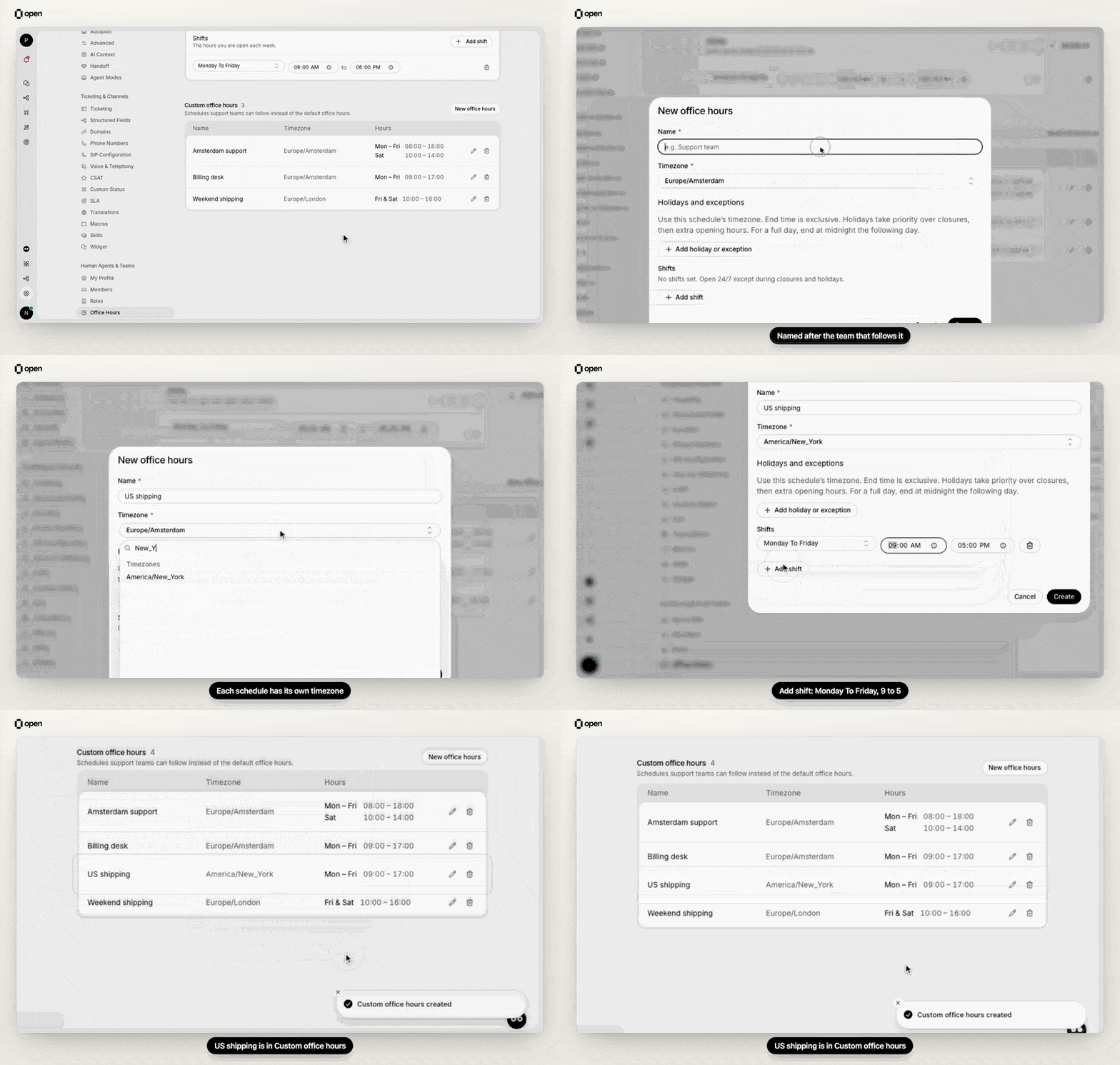
Create a schedule called US shipping in New York time with a Monday to Friday shift, and it appears under Custom office hours.
1
Open the form
Under Custom office hours, click New office hours.
2
Name it and pick a timezone
Enter a Name, such as the team that follows it. Names must be unique, ignoring capitalization and surrounding spaces. The Timezone starts as your browser’s timezone.
3
Add exceptions and shifts
Add holidays and shifts the same way as for the default schedule, then click Create.
What follows your office hours
Not every feature reads the same schedule. Check which one applies before you change hours.An agent who is already assigned to a session and belongs to the team keeps it outside office hours. Office hours only hold back new automatic assignments.
Troubleshooting
Related Documentation
Handoff settings
What the AI says inside and outside hours
Teams
Give a team its own schedule
SLA policies
Pause timers outside business hours
Phone answer-time SLA
Count caller wait time in hours only