

Settings → Workspace in your OpenCX dashboard. Members with read access to Settings or Helpdesk settings can view it. Changing a setting requires write access to Helpdesk settings in Roles, which write access to Settings also grants. Members without it see the values read-only, labelled as set by your workspace admin.
What you control
Every setting applies to the whole workspace. Only two of them are defaults agents can change for themselves; see What agents can override.
Find a setting
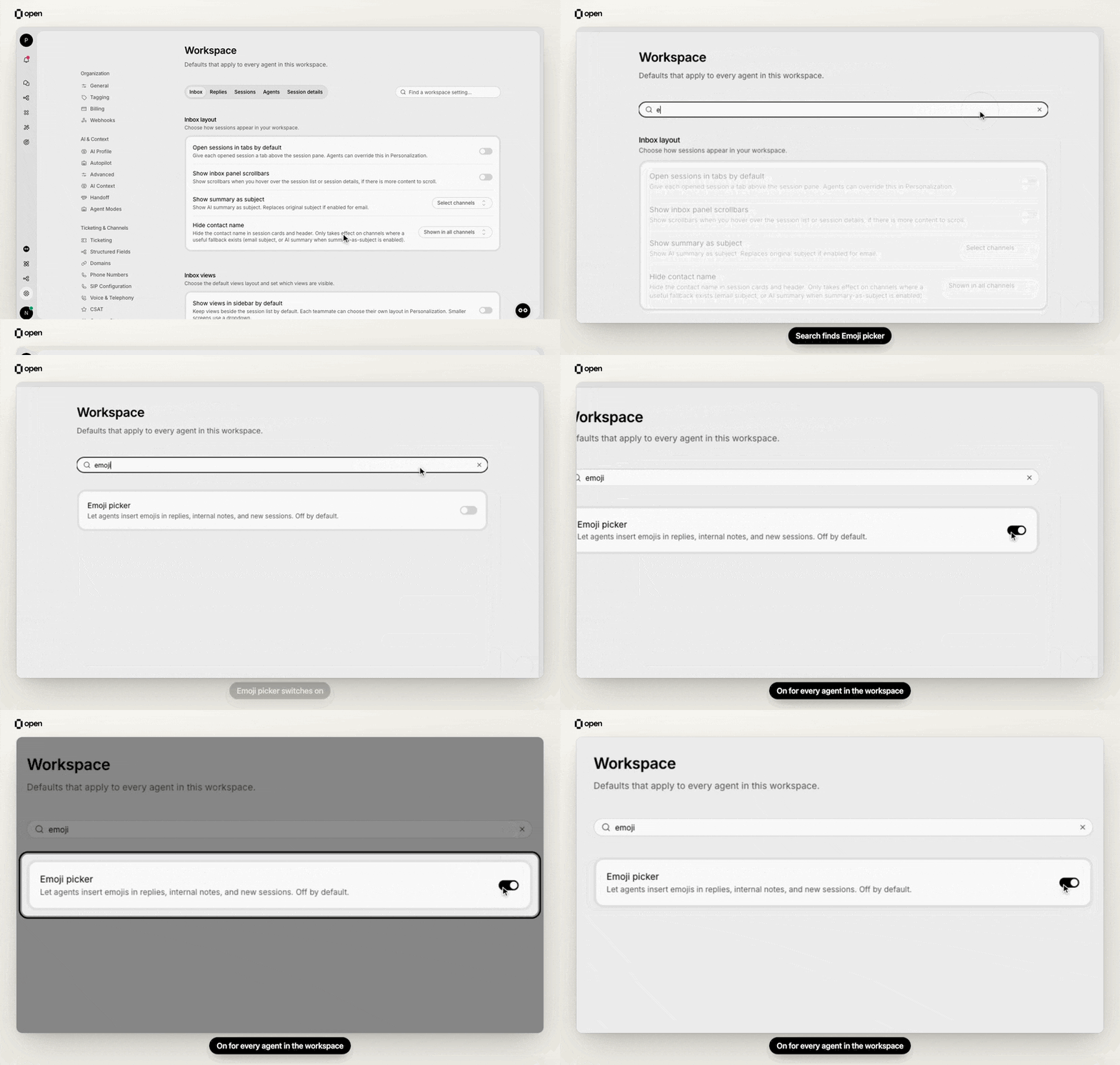
Search for emoji, find Emoji picker and switch it on for the whole workspace.
Session snoozing and Session priority appear only when your workspace uses native OpenCX ticketing. With another ticketing system, those sections are hidden and search does not find them.
Inbox
The Hide contact name and Show summary as subject rows, like the other per-channel settings on this page, list Web, Email, WhatsApp, Instagram, Messenger, Slack, SMS, API and Internal. Voice channels are not listed.
In Shared views order, the pencil and trash icons on a category rename or remove it on every shared view that uses it. They appear only if you also have write access to Shared inbox views. Views sidebar behavior, categories and filters are covered in the inbox guide.
Replies
The status picker lists your custom statuses grouped under Open, Resolved and Unresolved. If it is empty, create statuses under Settings → Custom Status first. See Send and resolve for what agents see in the composer, and macros for how suggestions are ranked.
Sessions
Session snoozing
Native OpenCX ticketing only.
A session wakes when, for example, its snooze time arrives, the customer replies, an SLA breaches, or a workflow reopens it; the threshold is checked then. An agent opening it manually keeps its assignment. Details are in Snooze a session.
Assignment
Closing sessions
Only human agents closing from the inbox are held back. Sessions closed by the AI agent, workflows or integrations are not affected. A session follows the requirements of the team it belongs to, and a session without a team uses the workspace list. Team exceptions appears once your workspace has teams and can be edited only while the switch is on. See Require fields before closing a session.
Sub-sessions
Session priority
Native OpenCX ticketing only.
Reordering applies to waiting sessions; existing assignees stay the same. See Set session priority and cross-team priority.
Agents
Configure the statuses themselves in availability statuses. For what first names change in detail, see Agent first names. How the reply notification switch interacts with each agent’s own choices is covered in notification settings.
Session details
Hidden attributes declutter the inbox; they are not access control. Matching keys can still appear in filter options, exports, and the contact and company pages. Each list holds up to 200 patterns of up to 200 characters.
The card list shows only cards your workspace can use, such as a ticket link card for your connected ticketing system. Most cards appear in a session only when they have something to show. If widgets are placed in the panel, Reset to default asks first, because it removes them too. You can also arrange the panel from a session with Adjust widgets; see Session sidebar layout.
What agents can override
Two settings are defaults that each agent can change in Personalization: Open sessions in tabs by default and Show views in sidebar by default. An agent who never changes them follows the workspace value, and can return to it with Use workspace default. Suggested macros work the other way round. Agents opt in for themselves, and Offer suggested macros turned off here overrides every agent’s choice. All other settings on this page apply to everyone and cannot be changed per agent.Troubleshooting
Related Documentation
Inbox
How agents work sessions
Personalization
Each agent’s own preferences
Structured Fields
Fields required to close
Roles
Grant Helpdesk settings access