

Companies in your OpenCX dashboard. The page has no sidebar entry: press ⌘K (Ctrl+K on Windows) and choose Companies, or select a company name on a contact’s companies card. See keyboard shortcuts. Viewing requires the Companies permission with Read, or Assigned sessions with Read. Changing the owner requires Companies with Write.
How companies and contacts get linked
Companies come from your own systems. Each one is identified by its ID in your system, shown as ID, and a contact can belong to several companies. The dashboard shows companies and their contacts but doesn’t create companies or link contacts; use one of these:
Contacts are never linked automatically by email domain. Linking needs a company that already exists; see the companies API for the rules.
Find a company
The Companies list shows Company, ID, Owner, Contacts and Added. Select a row to open the company.- Search by company name or ID.
- Filters: add Owner to show one teammate’s companies or those with No owner, and Attribute to match a company attribute that exists, not exists, equals, not equals, contains, or is before or after a date. Every filter must match.
- Sort by Default, Name, Contacts or Added, or select a sortable column header.
- Columns: add attribute columns from the attributes on the loaded companies. Your choice is saved in this browser. Attributes pinned under Pinned by your workspace always show.
- Contacts count: select it to open the contact list filtered to that company.
- Export: the download button saves the filtered companies as a CSV with name, ID, owner, owner email, contact count, date added and every attribute. One file holds up to 2,000 companies; a warning appears when the list is longer.
Read a company’s page
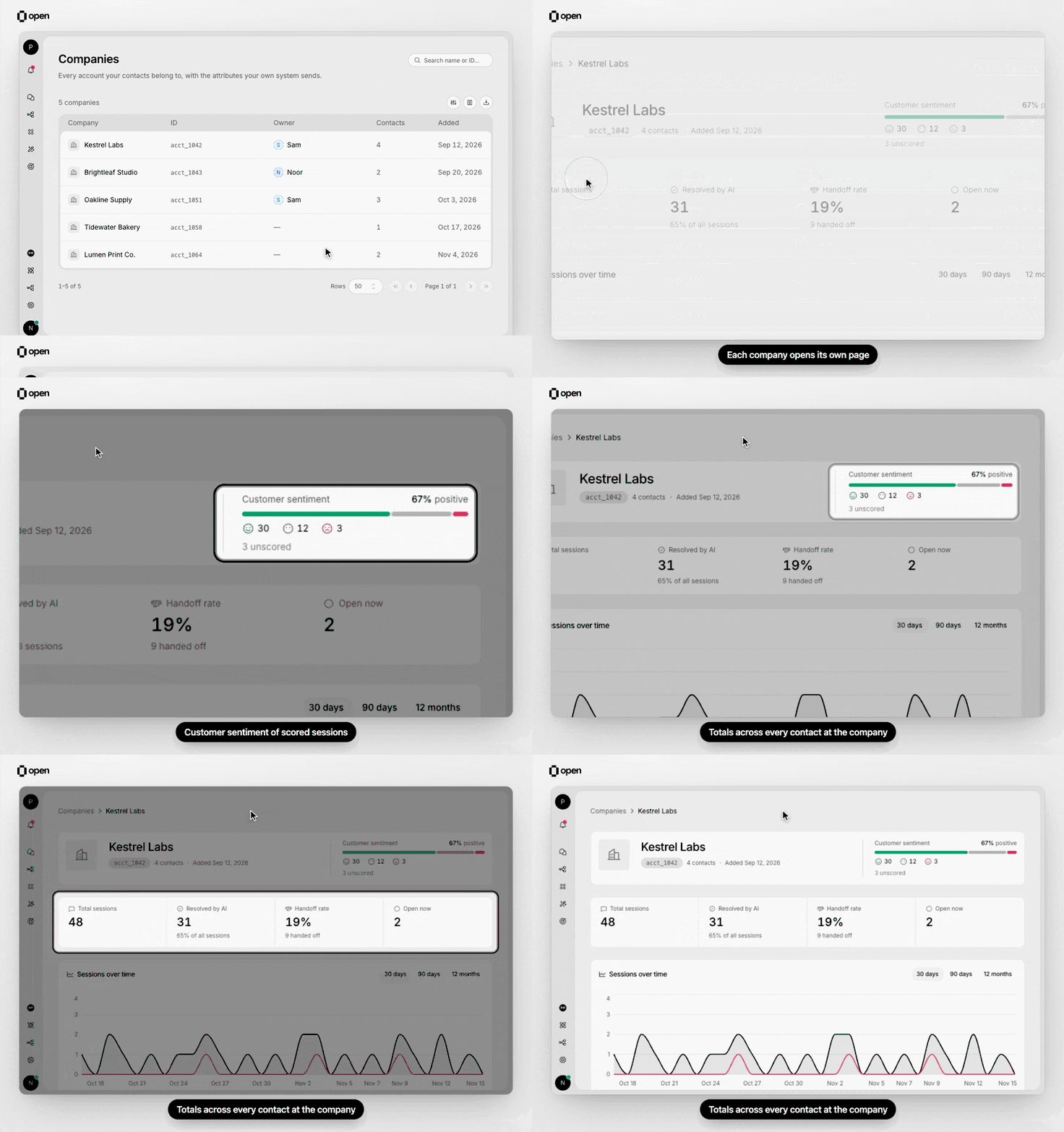
Open a company from the list to see its sentiment and its Total sessions, Resolved by AI, Handoff rate and Open now.
A dash instead of a number means the total couldn’t be loaded: hover it to see whether the company has too much history to total quickly, or the request failed and a reload may help.
Set the owner
The owner is the teammate who looks after the account, such as an account manager. It shows on the company page, the companies list and the companies card in the inbox. With Companies Write, open the company and pick a teammate under Owner, or choose No owner. Without it, the owner shows as read-only. You can also set the owner through the API or the Set Company Owner workflow step. When a teammate leaves your organization, the companies they owned become unowned.Companies in the inbox
When a session’s contact belongs to a company, the inbox sidebar shows a companies card with each company’s name, ID, owner, other contacts and attributes. Select the company name to open its page. Agents who can read their assigned sessions can open company pages from there, even without the Companies permission.Troubleshooting
Related Documentation
Companies API
Create companies and link contacts.
Manage contacts
Find and edit the people at each company.
Segments
Group contacts with saved conditions.
Roles
Grant the Companies permission.