

Settings → Macros in your OpenCX dashboard. Creating or changing org-wide macros, variables and translation languages requires the Macros settings permission with Write in Roles. With Read only, you can still create and edit your own personal macros. For how agents insert macros, see Composer toolbar and Translated macros.
Create a macro
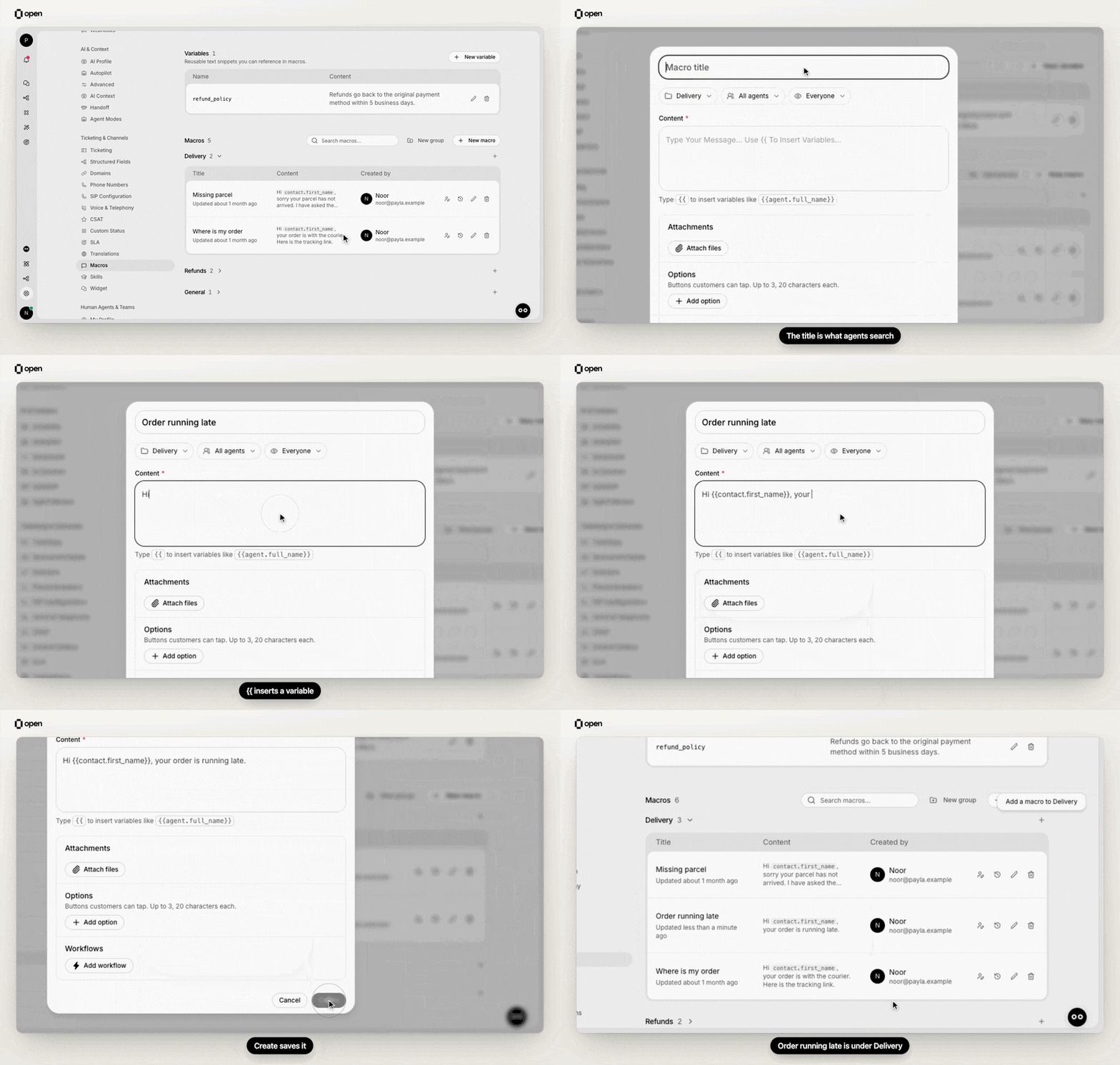
Add a macro to the Delivery group with the customer's first name as a variable, and it appears under Delivery.
1
Open the dialog
Select New macro in the Macros section. To create one inside a group, select + on that group instead.
2
Name it and place it
Enter a title. Under it, choose a Group, the Teams that see the macro, and who it is Visible to: Everyone in the organization or Only me. Visibility can’t be changed after the macro is created.
3
Write the content
Type the reply under Content. Type
{{ to insert a variable such as {{contact.first_name}}. Formatting is limited to what every channel can carry: bold, italic, strikethrough, links, lists and inline images.4
Add the extras you need
Use Attach files, Add option, Add workflow and Suggest this macro as described below, then select Create.
Search covers each macro’s title and body. Once you have two or more groups, each group becomes a section you can open and close; select New group, name it and pick the macros that move into it. See Macro groups and team-only macros.
Control who sees a macro
- Everyone in the organization makes the macro available to every agent, or to the chosen Teams. People with Macros settings Write always see every team-limited macro so they can manage them.
- Only me keeps the macro to you. Agents without Macros settings Write can only create these.
- Make my own version on an org-wide macro’s row creates a personal copy that replaces the original everywhere you use macros. Your teammates keep the original. You can have one personal version of each org-wide macro, and it sends the original’s options.
Reuse text with variables
A variable is a{{name}} placeholder that is filled in when an agent inserts the macro. There are two kinds.
System variables come from the session. They always contain a dot.
Custom variables are snippets you write once and reuse, such as a refund policy. Create one with New variable in the Variables section. A name uses letters, digits, underscores or dashes, with no dots or spaces, up to 64 characters, and must be unique. Reference it as
{{refund_policy}}. A custom variable can itself contain system or custom variables; they are filled in too.
How variables behave:
- A reference that matches nothing, such as a typo, is left empty in the sent message. It never shows as raw
{{...}}text. - Renaming a custom variable does not update the macros that use the old name. Update those macros, or they insert nothing in that spot.
- A custom variable can’t reference itself, directly or through other variables.
- You can’t delete a custom variable while a macro or another variable uses it. The error names them.
Translate macros automatically
Write each macro in any language; OpenCX detects it. In Translate macros, select Add language and pick up to 10 languages. Every macro, including personal ones, is translated into each language in the background, and a line under the chips shows how many are still in progress. No languages are chosen by default, so macros are sent as written. What gets translated:- The title, the body and option labels. Attachments are not translated.
- System variables are never translated; they are filled in when the agent inserts the macro. The text of custom variables is translated with the macro.
- Terms in your translation glossary are kept exactly as written.
Check or replace a translation
Open a saved macro. Beside Content, a language button shows Original; pick a language to preview its translation. A failed language shows Couldn’t translate to that language with Try again. Retranslate (the refresh icon) translates the macro again into every language. A macro with no translations yet shows Translate now. To use your own wording for one language, preview it and select Edit, change the title or body, then Save. An Overridden tag shows who wrote it, and each change is recorded in the audit log.What happens when the macro changes
Run a workflow from a macro
Two ways to trigger automation from an org-wide macro:- Workflows: select Add workflow and pick a workflow with the Macro Called trigger. It runs every time an agent sends the macro. Each workflow can be linked to one macro; one already in use shows Used by and that macro’s name. Removing a workflow from a macro turns the workflow off. Linking requires Workflows Write as well as Macros settings Write.
- Options set to Trigger workflow: a customer’s tap runs your Macro Option Clicked workflows instead of reaching the AI agent.
Review history and suggestion insights
- Version history on a macro’s row opens every saved version of a macro with what changed. History is read-only. It is available to people with Macros settings Write, and to the owner of a personal macro. See Macro version history.
- While suggested macros are on for the workspace, a sparkle count on a macro’s row shows how often it was used when suggested in the last 30 days, and Not suggested marks macros with Suggest this macro off.
- In a saved macro’s dialog, Insights shows how suggestions for it are doing:
Turn suggestions on or off for everyone in Workspace settings. Each agent opts in under Personalization. See Suggested macros for what agents see.
Manage macros through the API
The Macros API covers org-wide macros: list, create, update and delete them, read or change the translation languages, read translations, retranslate, set your own wording, and read suggestion insights. Personal macros, variables and attachments can’t be written through the API.Troubleshooting
Related Documentation
Inbox
How agents insert macros
Real-time translation
Translate session messages
Workspace settings
Turn suggested macros on or off
Macros API
Manage macros from your tools