

Settings → Translations in your OpenCX dashboard. Requires the Translations permission in Roles: Read to view, Write to change the switches or the glossary.
Settings
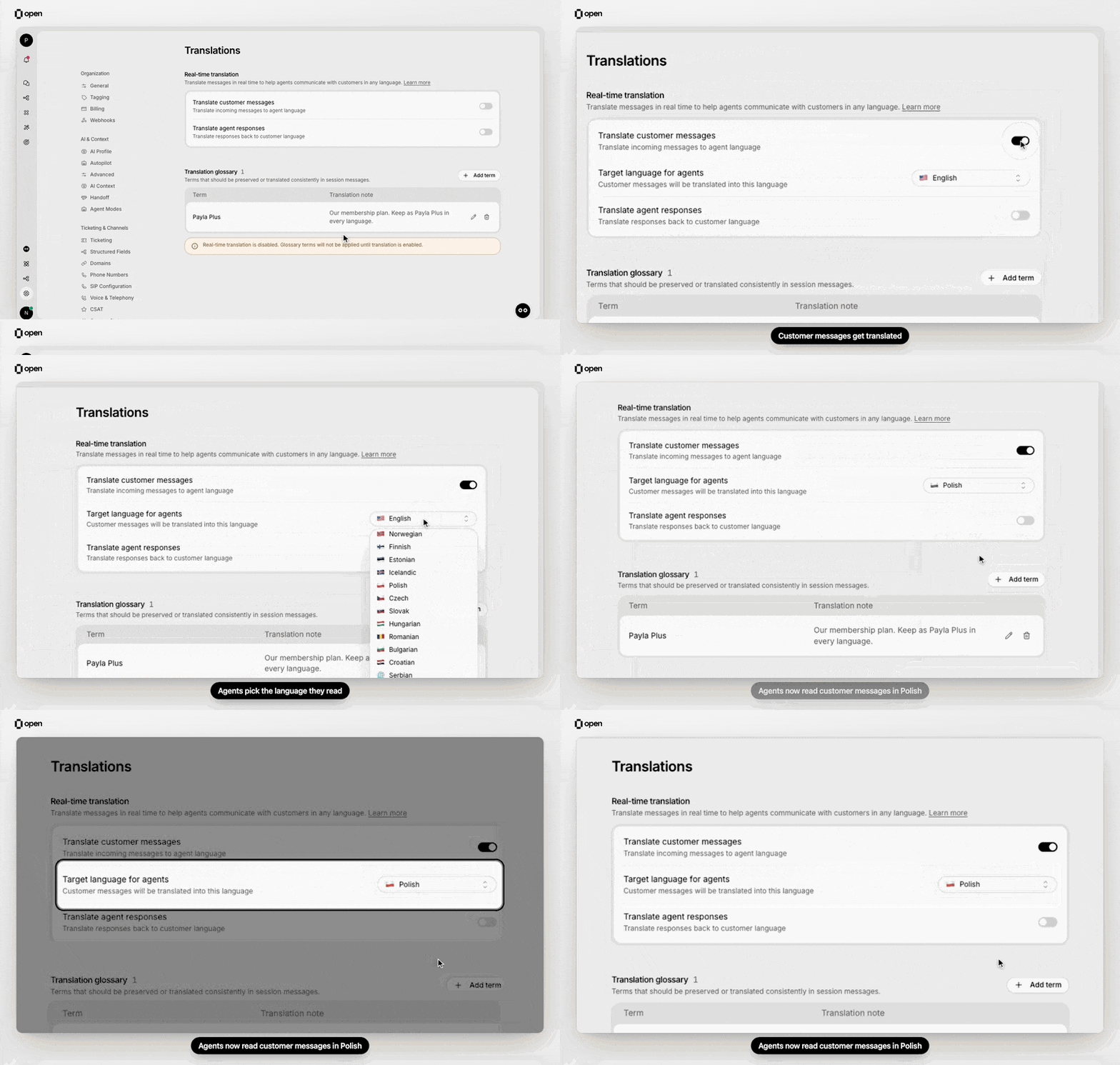
Turn on Translate customer messages, then pick the language agents read. Each change saves on its own.
The two switches are independent: you can translate only one direction. Translation is off for the workspace while both are off.
If your workspace uses a connected helpdesk such as Zendesk or Salesforce, turning on the first switch shows a Compatibility with notice: translation works in the OpenCX chat widget, and not for email or forms handled in that helpdesk. Select Continue to turn it on anyway.
What agents see for customer messages
Customer messages are translated as they arrive once a person is handling the session: after the AI agent hands off, when a teammate is assigned or takes over, or when the AI only drafts replies for agents. Messages that arrive while the AI agent handles the session on its own are kept as written. A message already in the target language is not translated. In the inbox, a translated customer message shows the translation. To compare, open the message’s menu and select Show original message: the Original Message dialog shows what the customer wrote next to what the agent sees. AI suggestions are shown in the agent’s language too; see AI suggestions when customer messages are translated.What happens to agent replies
When Translate agent responses is on, the composer shows Reply will be translated to and the customer’s language while an agent writes a reply in a session whose language is known. Internal comments are never translated.- The reply is sent in the session’s language. The agent keeps seeing what they wrote; Show original message shows the version the customer received.
- A reply already in the customer’s language, such as a translated macro or an unedited AI suggestion, is sent as written.
- A session needs a known language. If it has none yet, OpenCX detects it from the customer’s recent messages when an agent opens the session; if it can’t tell with confidence, replies in that session are sent as written. Phone sessions are not detected.
- Messages sent by workflows are translated the same way.
Channels
Keep terms consistent with the glossary
Add product names, plan names and other terms that must never be translated. In Translation glossary, select Add term, enter the Term and a Translation note, such as “Keep as Dashboard in all languages”, then select Add term in the dialog. Both fields are required.- Every translation keeps the term exactly as written; the note gives context for the rest of the sentence.
- For session messages, the glossary applies only while one of the switches is on. The page says so while translation is off.
- Automatic macro translations also keep your glossary terms as written, whether or not real-time translation is on. They use the term only, not the note.
Other ways OpenCX translates
Troubleshooting
Related Documentation
Macros
Translate macros ahead of time
Inbox
Translate only your own view
Help Center translations
Translate articles
Roles
Grant the Translations permission