

Settings → Advanced in your OpenCX dashboard. Viewing needs the Settings and Autopilot permissions; changing a switch needs edit access to Autopilot. Each switch saves as soon as you flip it.
Features that only apply to your website, such as Rich replies, Sees the page and Selectable questions, live on the Features list of Channels → Web. See Companion mode.
Turn a capability on or off
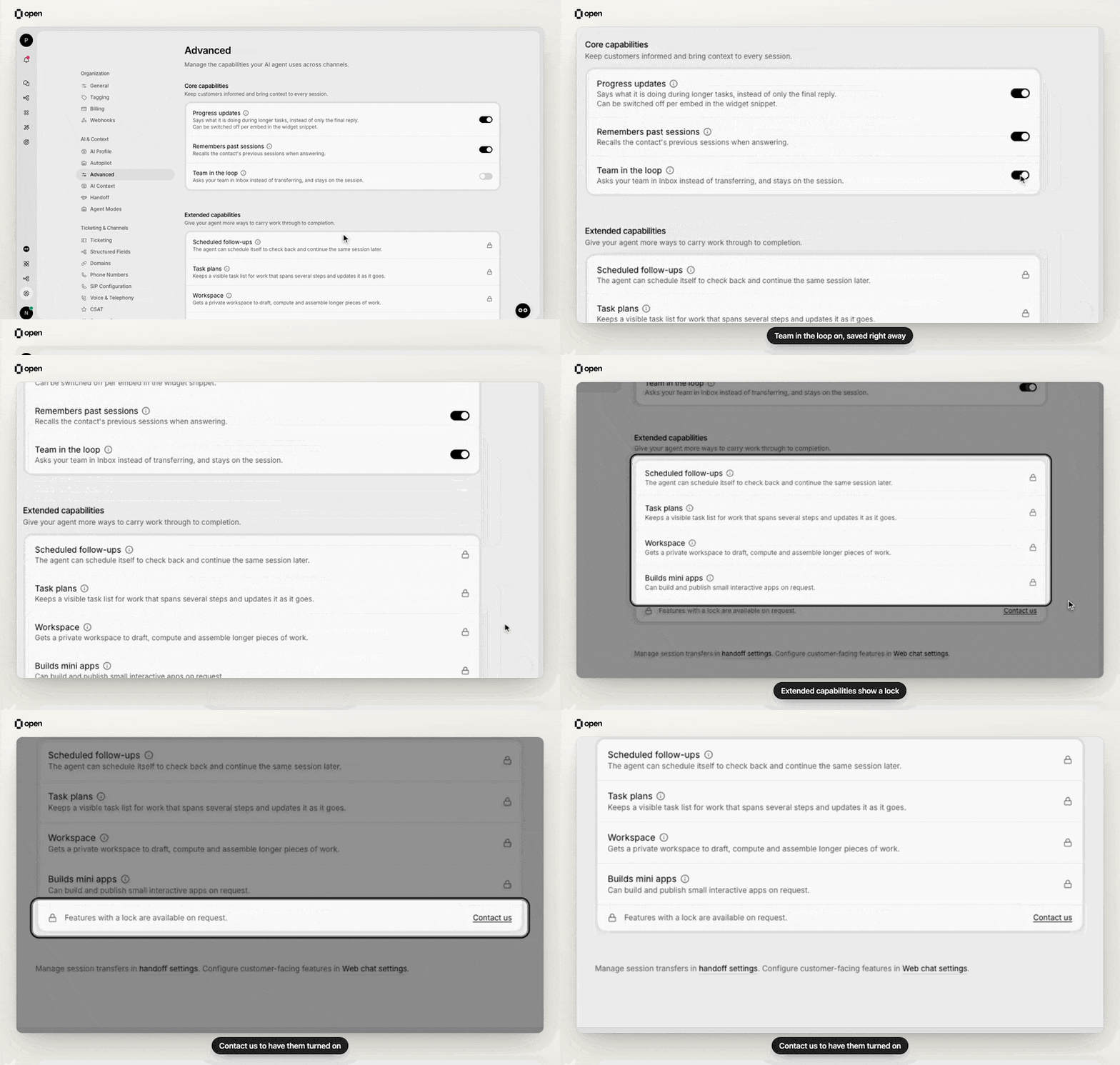
Team in the loop saves as soon as it is switched on. Extended capabilities show a lock until requested.
1
Open Advanced settings
Go to Settings → Advanced.
2
Flip the switch
The change saves immediately. If a save is refused, the switch moves back and an error appears.
Request a capability that shows a lock
A capability that is not available to your workspace shows a lock instead of a switch, and its section ends with Features with a lock are available on request.- Select Contact us in that section. It opens an email to support that lists the locked capabilities.
- Once a capability is turned on for your workspace, its switch appears and starts on. Turn it off if you do not want it yet.
Progress updates
The agent says what it is doing during longer tasks, for example while it looks up an order, instead of sending only the final reply. Updates are separate messages.- Sent on web chat, WhatsApp, Instagram, Messenger and Slack. Not sent on SMS, email, voice, API or app review channels.
- Withheld in assist mode and whenever the reply must stay silent.
- Wording follows your AI profile and training scenarios. To change how often updates appear, add a Behavioral scenario.
- To turn updates off for one website only, add
preamble: falseto that embed’sfeatures.
Remembers past sessions
The agent recalls the contact’s previous sessions when answering, so a returning customer does not have to repeat themselves. Turn it off if every session should start without the contact’s earlier history.Team in the loop
When the agent needs information, an approval or an action from your team, it asks privately in Inbox and stays with the customer. It leaves an internal note, mentions the teammates who can help, tags the session AI needs help, and tells the customer it is checking with the team. A teammate’s reply in the note’s thread answers the request, and the agent continues with the answer.- Your team must work in OpenCX Inbox for the session, including custom email addresses handled in Inbox. App reviews are excluded.
- Handoff keeps working as configured. To take over, open the AI assignee menu in the session header and choose Take over.
Scheduled follow-ups
The agent can schedule itself to check back and continue the same session later: when work is still pending, such as a payment that has not settled, or when the customer asks it to check back at a certain time. The agent tells the customer roughly when it will check back.- A follow-up continues the session on its own channel. If there is nothing new, the agent can end the check without messaging the customer.
- Follow-ups can be set up to 30 days ahead. A session can have at most 5 pending and 50 in total.
- Inbox shows when a follow-up is scheduled, fired or cancelled. The customer sees only the agent’s replies.
- You can also schedule, list and cancel follow-ups through the Chat sessions API. Those requests are refused while the capability is off.
Task plans
For work with three or more real steps, or when the customer asks for a plan, the agent keeps a visible task list and marks each step in progress and completed as it goes. In web chat, the customer sees the list update. If the customer asks only for a plan, the agent lists the steps and waits for a go-ahead before doing them. Steps it cannot finish stay pending, and the agent explains what it needs.Workspace
The agent gets a private workspace to draft, compute and assemble longer pieces of work, such as a document or a calculation that draws on several lookups, before it replies. The workspace is the agent’s own: customers see the finished reply.This is not Settings → Workspace, which holds your team’s workspace preferences for sessions and Inbox. See Workspace settings.
Builds mini apps
The agent can build and publish small interactive apps on request. Editing an app afterwards follows the app’s owner and editor list. See Mini-app editing access.Related Documentation
Companion mode
Website features and the Companion layout.
Handoff settings
Transfers and Team in the loop.
Mini-app access
Who can edit mini apps.
Workspace settings
Your team’s workspace preferences.