

Settings → Autopilot in your OpenCX dashboard. Viewing it needs the Settings and Autopilot permissions. Editing channel settings, the might-solve rule, the blocked visitor message and the blocklists needs edit access to Autopilot. Adding or editing prohibited topics needs edit access to AI knowledge base.
Turn the AI on or off for a channel
The AI Autopilot section lists Phone, Web, Email, Slack, SMS, WhatsApp, Instagram, Messenger, X (Twitter), X Mentions, App Reviews and Internal. When a channel’s switch is on, the AI answers customers and runs actions on that channel.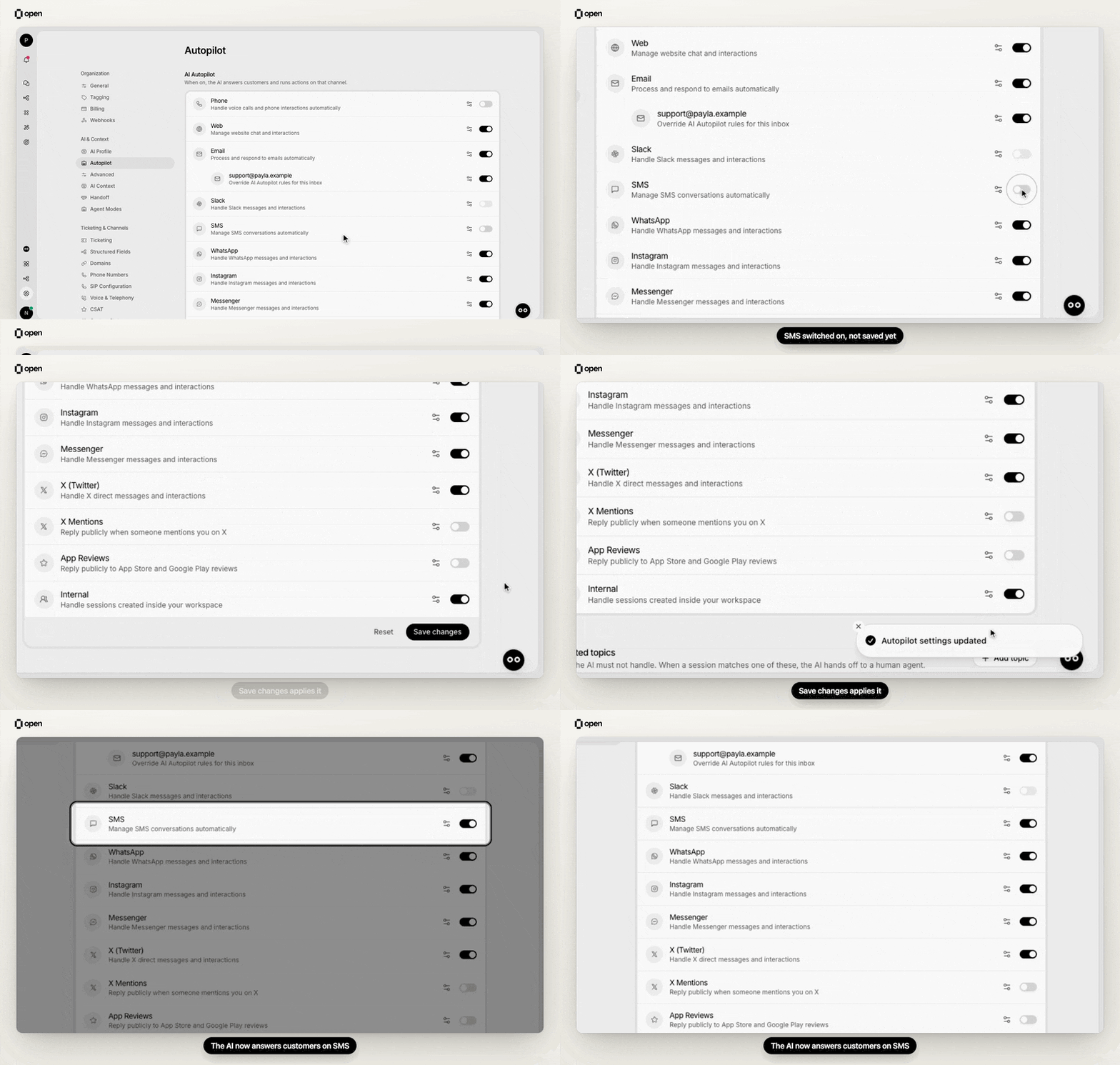
Switch SMS on, save, and the AI starts answering customers on SMS.
1
Open Autopilot settings
Go to Settings → Autopilot.
2
Flip the channel switch
Turn the switch on or off. To change more than on and off, select the settings icon (Configure autopilot settings) on the same row.
3
Save
Select Save changes at the bottom of the section. Nothing applies until you save; Reset discards your edits.
The Slack switch is unavailable: Slack is currently only for your internal team members, not shared channels. WhatsApp also has a per-number AI switch; both must be on. See Connect WhatsApp.
Let the AI draft instead of reply
Turn on Assist Mode in a channel’s settings to have the AI suggest replies for your team to review instead of sending them. The dialog shows Where you’ll receive AI suggestions: your active ticketing system. In OpenCX Inbox, suggestions appear in the session for an agent to review; with a connected helpdesk they go to that helpdesk. See Inbox and your helpdesk’s integration guide. Assist Mode is not available for Phone. While it is on, AI Autopilot Coverage is disabled, and two more option groups appear:
Allow Autopilot on First Message Only, AI Auto Learning Language, Do Not Assist On Topics and Allow Autopilot On Topics fine-tune assist mode for sessions that come from a connected helpdesk such as Zendesk or HubSpot.
Channel settings reference
Each channel’s settings dialog (Autopilot settings – channel) contains:Set different rules for one email inbox
Under the Email row, each email inbox connected to OpenCX has its own row: Override AI Autopilot rules for this inbox. Use it when one address needs different handling, for example assist mode onbilling@ while the rest of your email runs on Autopilot.
- Until you change an inbox row, it follows the Email row.
- Your first change copies the Email channel’s current settings to that inbox. From then on the inbox keeps its own settings, and later changes to the Email row do not reach it.
- The rules match the address the customer wrote to, ignoring letter case.
- An inbox override is honored even when the rest of your sessions go to a connected helpdesk.
Keep the AI away from sensitive topics
Prohibited topics are topics the AI must not handle on its own, such as refunds, legal advice or account deletion. For choosing good topics, see Handoff topics.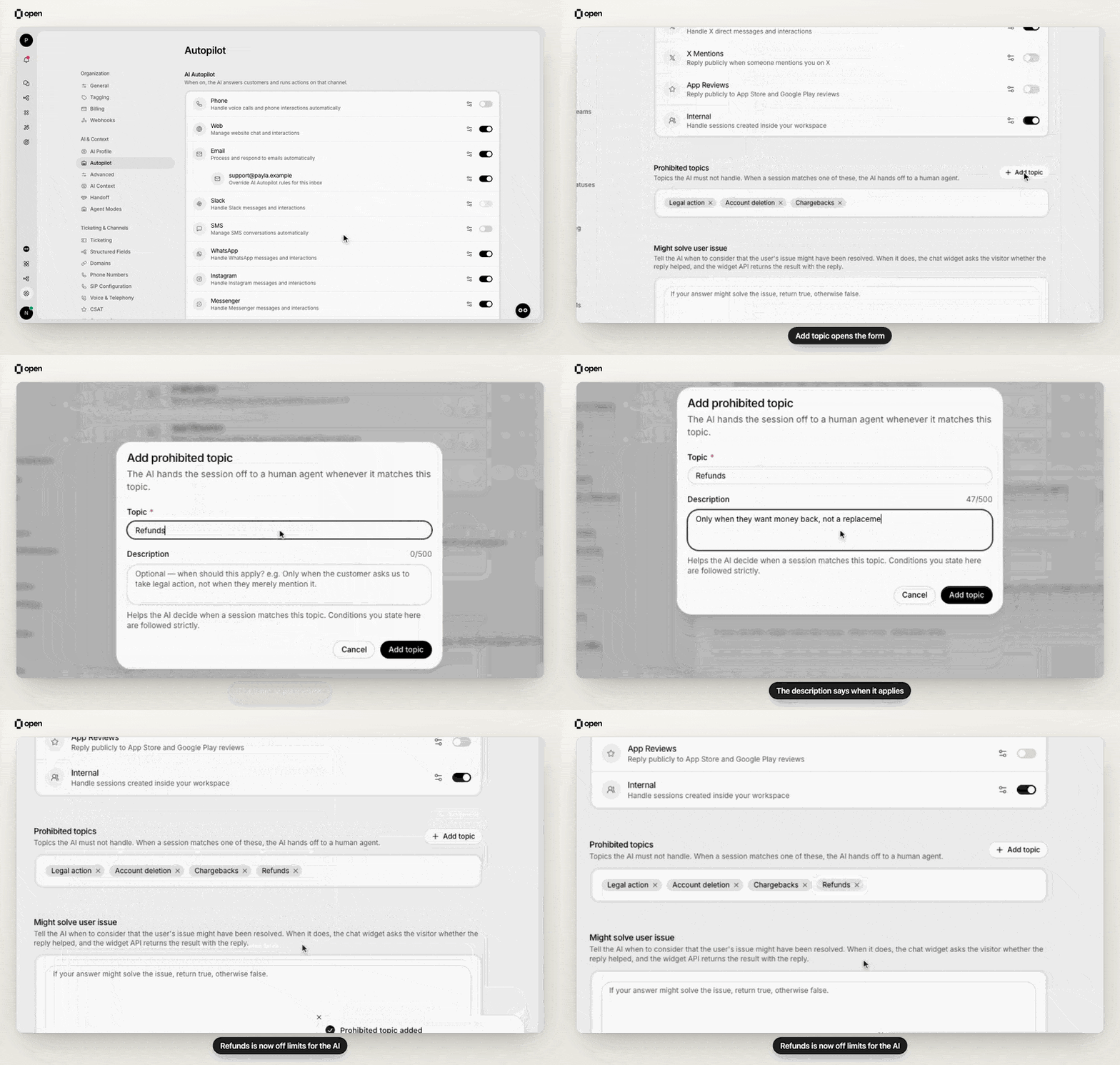
Add Refunds as a prohibited topic, with a description of when it applies.
1
Add a topic
Under Prohibited topics, select Add topic.
2
Name it
Enter the Topic, for example Refunds. Up to 255 characters, and each name can be used once.
3
Describe when it applies (optional)
Add a Description of up to 500 characters, for example Only when the customer asks us to take legal action, not when they merely mention it. Conditions you state here are followed strictly.
4
Save
Select Add topic. Select a topic’s name later to edit it, or its × to remove it.
With V1 (Classic), the AI hands the session off when a topic matches.
Control when web chat asks whether a reply helped
When the AI judges that a reply might solve the visitor’s issue, the chat widget asks the visitor whether it helped, and the widget API returns that verdict with the reply (custom clients can show their own prompt). Leave Might solve user issue empty to use the built-in rule. It does not count replies where the AI says it cannot help, sends the customer to another team, asks for something only a teammate can act on, or answers an automated message, and it stops once the customer confirms the issue is solved. To use your own rule, say when to returntrue or false, for example: If your answer might solve the issue, return true, otherwise false. Your text replaces the built-in rule entirely, so include any exceptions you still want.
Block contacts, domains and IP addresses
- Block contact asks for the contact’s Email and an optional Reason. You can also block from the Block Contact card in an Inbox session’s sidebar, or from the contact’s page.
- Block domain takes one domain or several separated by commas. The results show how many were blocked, skipped (already blocked or invalid) or failed.
- Block IP takes addresses or ranges separated by commas, and an optional Expires after (hours) from 1 to 8,760. Leave it empty to block permanently. One address can be shared by a whole office or mobile network, so an expiry limits the damage of an over-broad block. You can also block from the IP Address card in an Inbox session’s sidebar.
What a blocked person sees
On web chat, a blocked visitor gets the Blocked visitor message in place of a reply. Leave it empty to use the default, At the moment you can’t contact this company., which does not say why. On email, messages from a blocked sender are ignored. On other channels, the AI does not reply. To manage the lists from your own systems, use the Blocklist API.Troubleshooting
Related Documentation
Handoff topics
Choosing topics the AI should never handle.
Handoff settings
Transfers, office hours and Team in the loop.
Blocklist API
Manage blocked contacts, domains and IPs by API.
AI safety
Every guardrail in one place.