

Settings → Agent Modes in your OpenCX dashboard. Viewing needs the Settings permission; creating and editing modes needs edit access to Settings.
How a mode runs
1
The AI decides to enter
While a session is not in a mode, the AI sees every enabled mode with its When to enter the mode? text and enters one when the session matches.
2
It follows the entry instructions
In the same reply, the AI follows Behavior upon entering the mode.
3
Your widget shows the mode's screen
The session records the active mode. The web widget renders the component you registered for that mode with
modesComponents.4
Your screen ends the mode
When the visitor finishes, your component calls
sendMessage with the visitor’s message and an exitModePrompt. The AI uses the exit prompt for its reply, and the session leaves the mode.Create a mode
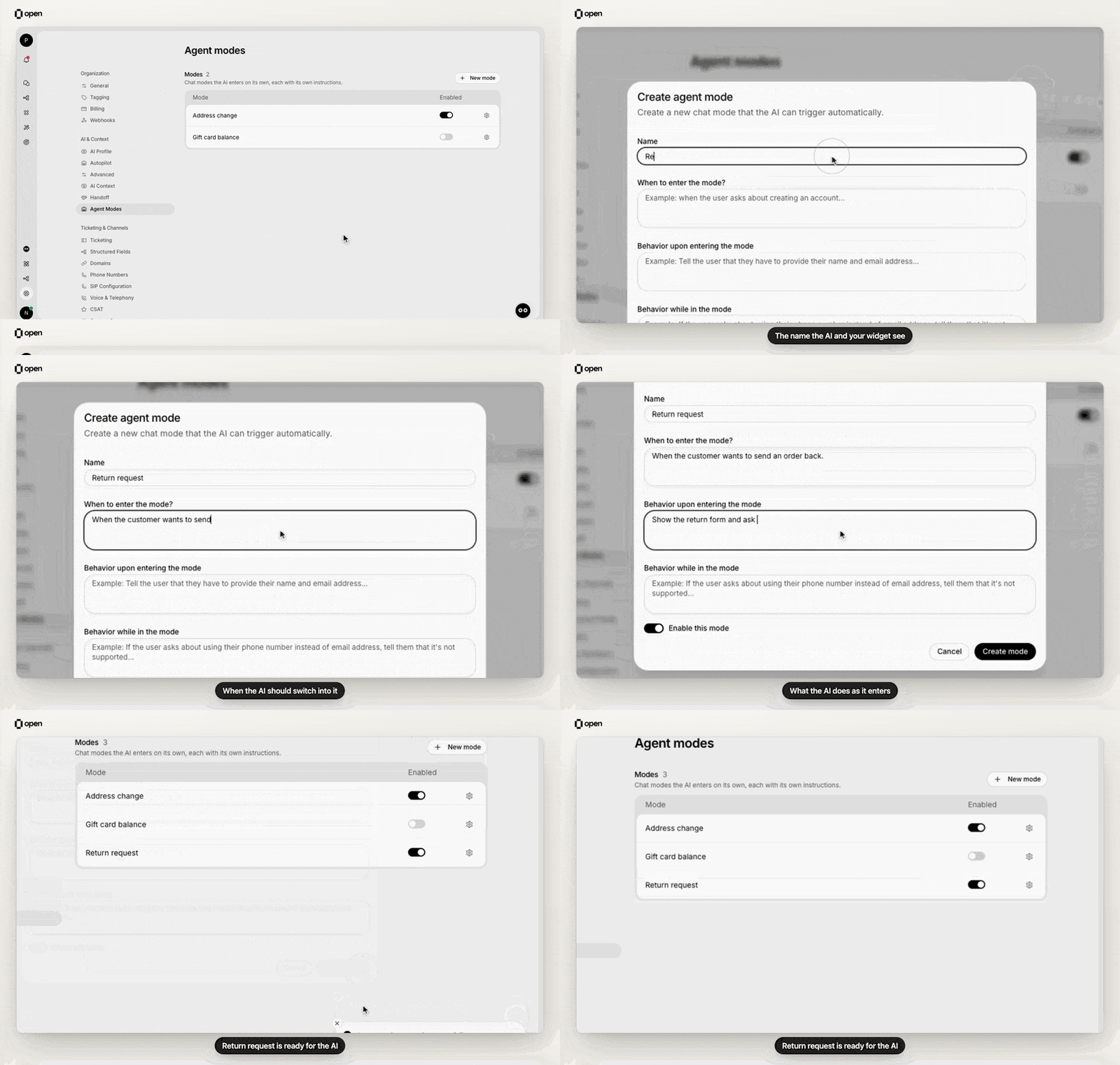
Create a Return request mode with its instructions; it is on as soon as it is saved.
1
Open Agent Modes
Go to Settings → Agent Modes and select New mode.
2
Fill in the fields
Give the mode a Name and the instructions described below.
3
Create it
Leave Enable this mode on and select Create mode.
To change a mode, select the settings icon on its row and Save changes. To retire one, turn off its switch in the Enabled column.
If your widget looks a mode up by its slug, update the
modesComponents key after renaming the mode. Looking it up by ID avoids this.Which channels support modes
Modes are built for web chat: only the web widget shows a mode’s screen and sends the message that ends the mode. Modes apply to your whole organization, and the AI’s choice to enter one is not limited to web chat. On another channel, a session that enters a mode stays in it, so the AI cannot enter a different mode later in that session.Example: onboarding
A merchant asks in web chat how to join your service. You want the AI to hand over to a short form, then confirm the request.
On your website, register a component under the key
onboarding, the slug made from the name:
Onboarding component collects the two values and, on submit, calls sendMessage with them as content and an exitModePrompt such as Tell the visitor their request is submitted and that you will notify them after the review. The full component is in the configuration reference.
Troubleshooting
Related Documentation
Custom components
Build richer UI for modes and action results.
Widget configuration reference
modesComponents props and a full example.Widget configuration
When to use modes versus custom components.
Training scenarios
Instructions that apply in every session.