

Set up the crawler
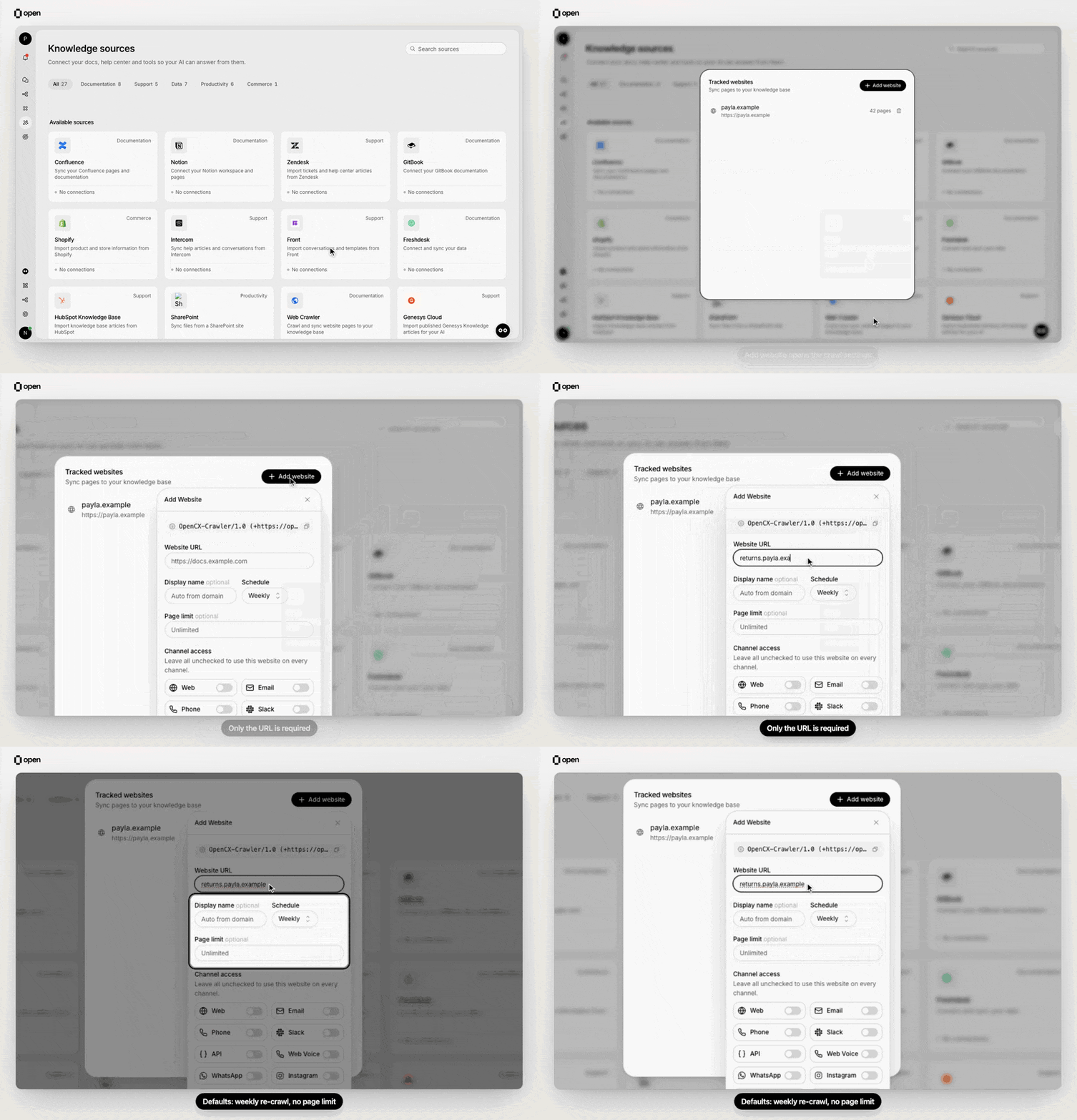
Web Crawler, then Add website: only Website URL is required, and the crawl re-runs weekly with no page limit unless you change it.
1
Open Data Sources
Go to AI Training → Sources.
2
Add a Website source
Click the Web Crawler card, then Add website. Paste the URL you want to crawl into Website URL (e.g.
https://help.yourcompany.com).3
Set scope
Configure the crawl before it runs. Defaults work for most teams — adjust only when you have a reason.
4
Watch the first crawl
The datasource row shows live counters: total pages, new, updated, removed, unchanged. First crawls on a large help center can take 10–30 minutes.
5
Verify in AI Instructions
Open AI Training → Knowledge. Crawled pages appear under the datasource name. Spot-check a known article.
Scoping with include/exclude paths
The single most common setup mistake: letting the crawler index your marketing funnel, blog, or admin paths alongside your help center. Use include/exclude paths deliberately.Restrict to a single language
Restrict to a single language
Scenario: Your help center has
/en-us/, /fr-fr/, /de-de/, and the AI only replies in English.Set Include paths to */en-us/*. Non-English pages are skipped. Change the value any time — the next crawl respects the new scope.Existing non-English pages from earlier crawls stay indexed. Remove them by navigating into the datasource and bulk-deleting them from the Pages view.
Skip sections that aren't help content
Skip sections that aren't help content
Scenario:
help.acme.com also serves /blog/, /careers/, /pricing/. None of those belong in the AI index.Set Exclude paths to multiple regexes: /blog/*, /careers/*, /pricing/*. The crawl drops matches before extraction.Crawl only one category
Crawl only one category
Scenario: You want only the billing category indexed, not the whole help center.Set Include paths to the category root:
*/billing/*. Combine with a higher page_limit if the category is large.Page-level control
After the first crawl completes, open the datasource detail view. You get per-page controls:- Exclude page — the page stays in the list but won’t re-sync. Use for one-off stale content.
- Re-include page — undo the above.
- Delete page — remove from the AI index. Optionally also deletes the underlying training item.
- Resync page — force a fresh fetch + re-index for one URL.
How pages are organized
In AI Training → Knowledge, each crawled site is a folder, and its pages are filed into folders that follow the site’s own structure:- Its menu. Pages the site links to from its menu or a section’s filter bar become folders, named the way the site labels them and nested the way their addresses nest, for example Projects › For sale › Residential.
- Its listings. A page that a menu category lists is filed in that folder. A page listed in several categories, such as a project offered for both sale and rent, appears in each of them.
-
Its addresses. Other pages are grouped by their address path, for example
/news/…in news. A level that is only an ID, holds a single page, or only leads to one subfolder is not a folder. - Its items. A large folder of pages that no category lists, such as a site’s units, is split by the item each page belongs to, such as its project (units › Makeen 66). The AI reads each page to tell; a page it isn’t confident about stays in the folder. A page is read again only when it changes.
?flag=…, ?page=2) and the page gives its own address, it is stored once, under that address. Folders are rebuilt after every crawl, so a site connected earlier gets them after its next crawl, and they follow the site as it changes.
Each folder’s menu also has Export CSV for the pages in it.
Restrict a folder to contact segments
To use a folder’s pages only for some contacts (for example, rental listings only for tenants), open the menu on the folder and choose Restrict to segments…. Every page in the folder takes those segments, and so do pages filed into it later. A page the site also lists in another folder stays open to that folder’s contacts too: for example, a project offered for both sale and rent stays available to everyone when only For rent is restricted. Leave the list empty to open the folder to everyone again.Hide a whole site from the AI
To stop the AI from using a site without deleting its pages (for example, an old help center you are replacing), open AI Training → Knowledge. In the Knowledge Base section, open the menu on the site’s folder, or on any folder inside it, and choose Hide all from AI. Choose Show all to AI to bring it back. Hidden pages stay hidden when later crawls update them.Limits
Related Documentation
Website overview
What the crawler does and when to use it.
Troubleshooting
Stuck crawls, missing pages, dedup issues.
Crawl API
Full REST API for datasources, crawls, pages.
Connect a knowledge source
All sources compared.