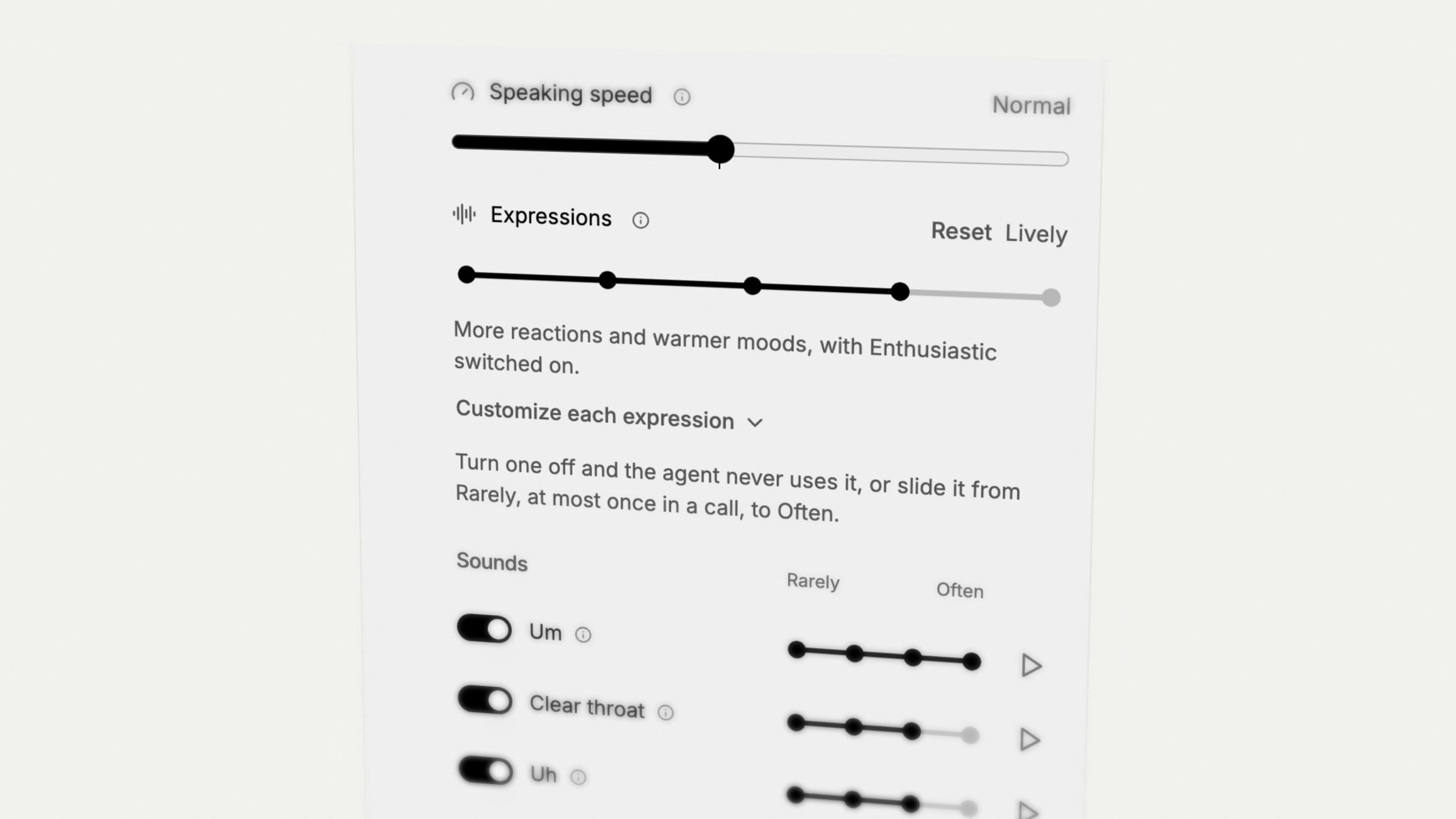
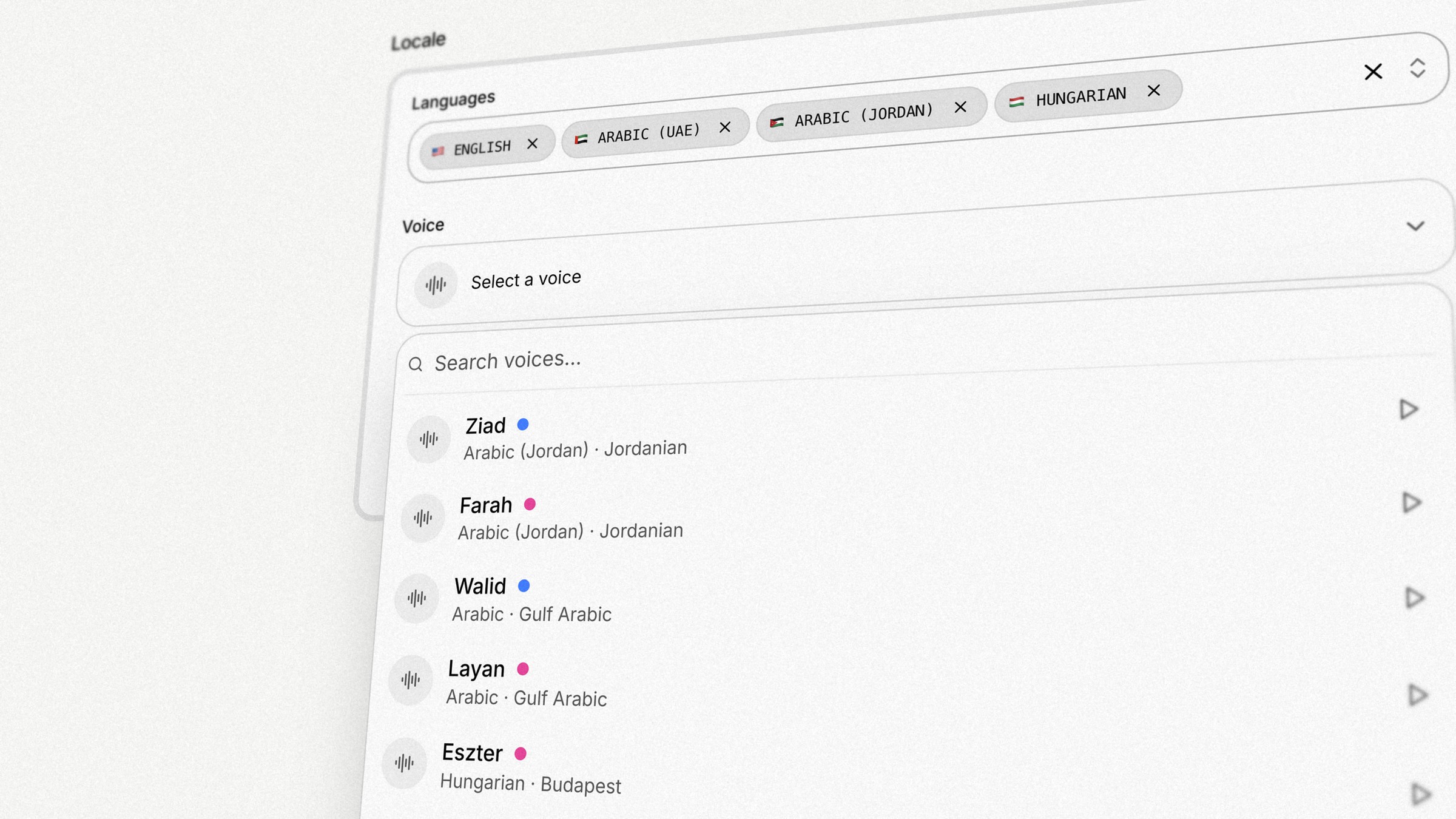
Shape how your Arabic phone agent sounds
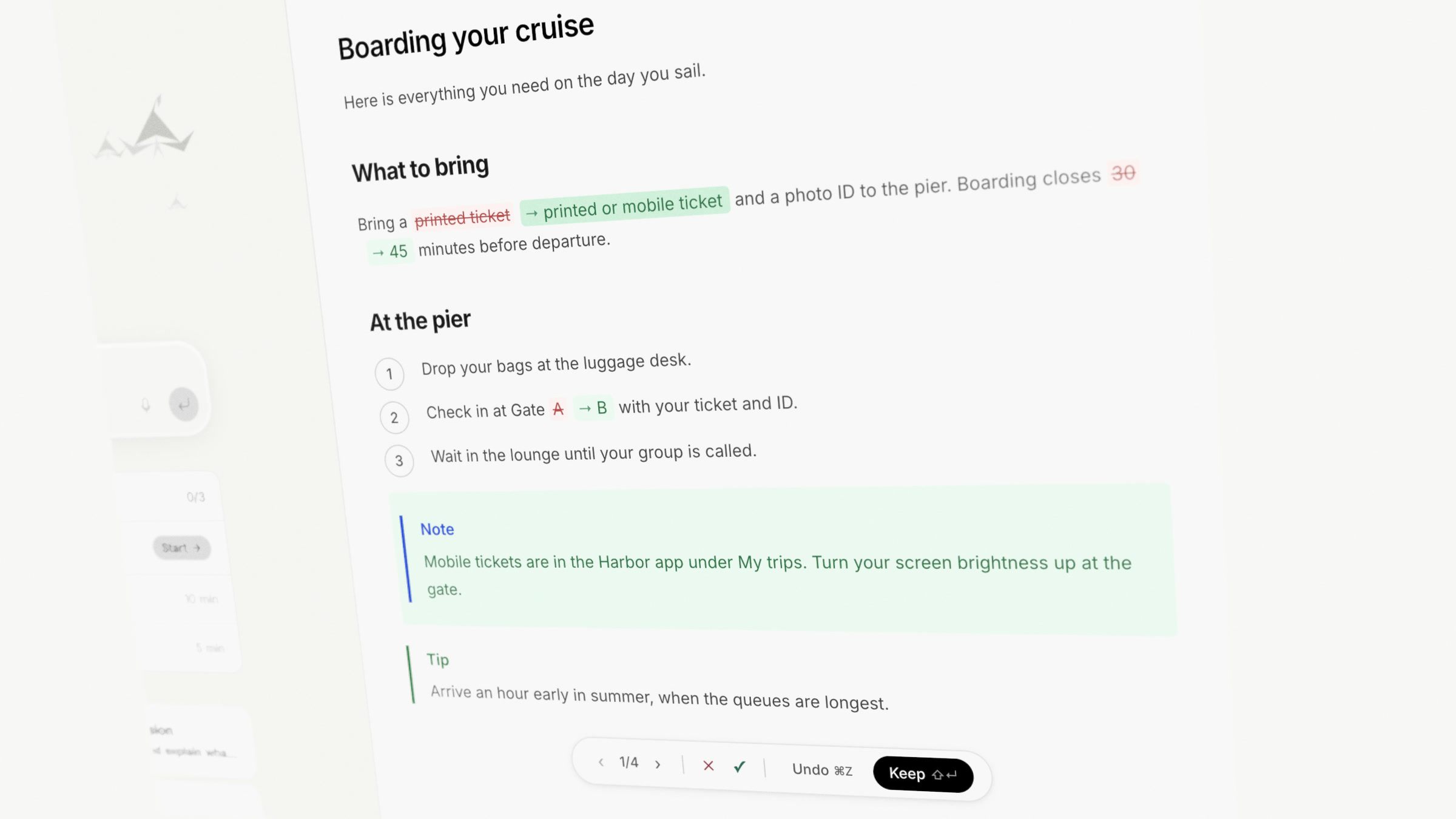
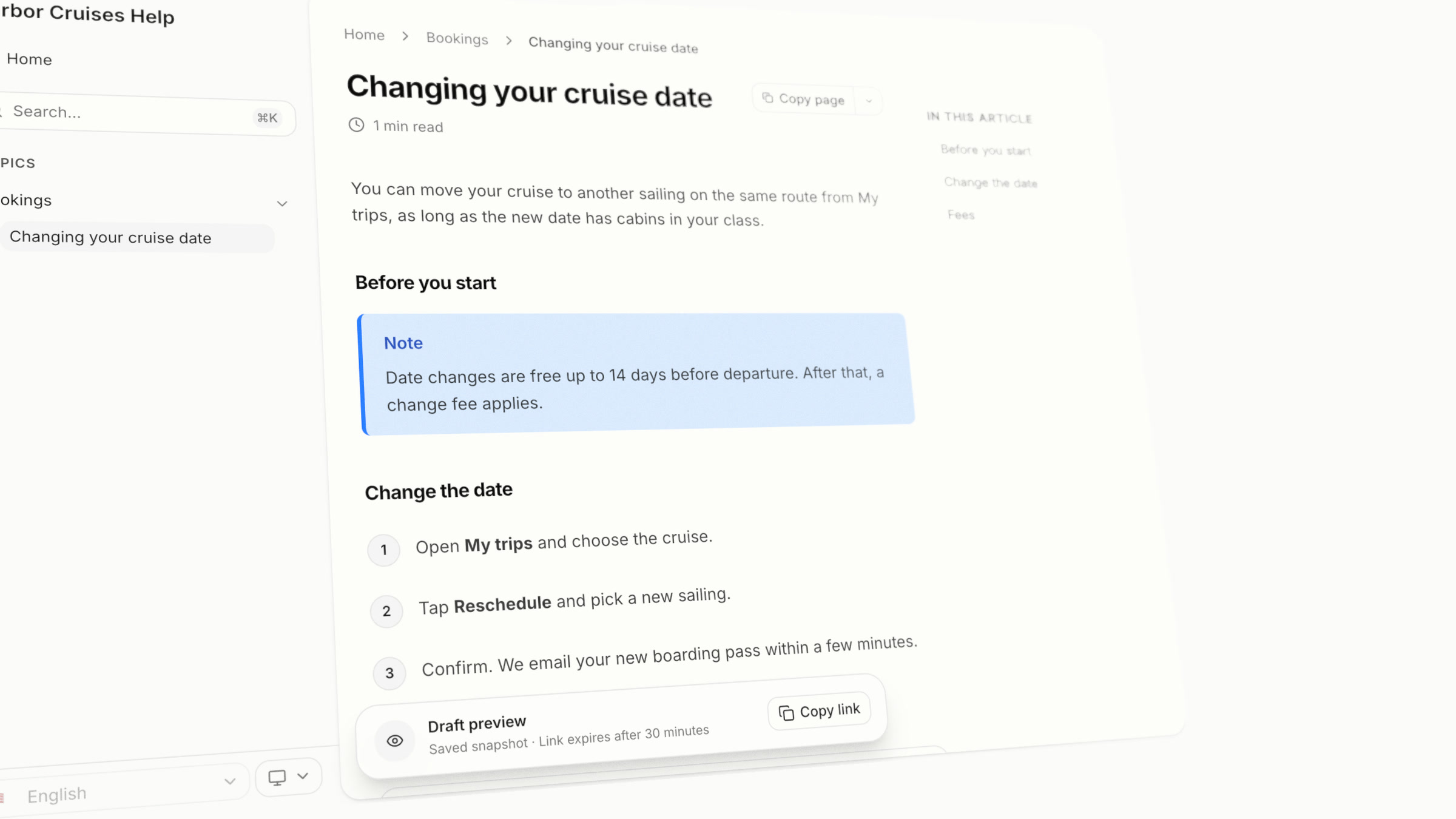
Writing suggestions in the Help Center editor
While you write an article, the editor offers the rest of the sentence in gray text. Press Tab to keep it, or keep typing to ignore it. Suggestions draw on your glossary and, once the article is published, on your related published articles, so steps and product names match what you have already documented.Internal notes that render HTML
Write HTML in an internal comment or a workflow note and the inbox renders it: a table of what is left to do, a status beside each step, a button that opens the order. It always looks like part of your workspace, in light and dark mode, and plain notes work as they always have.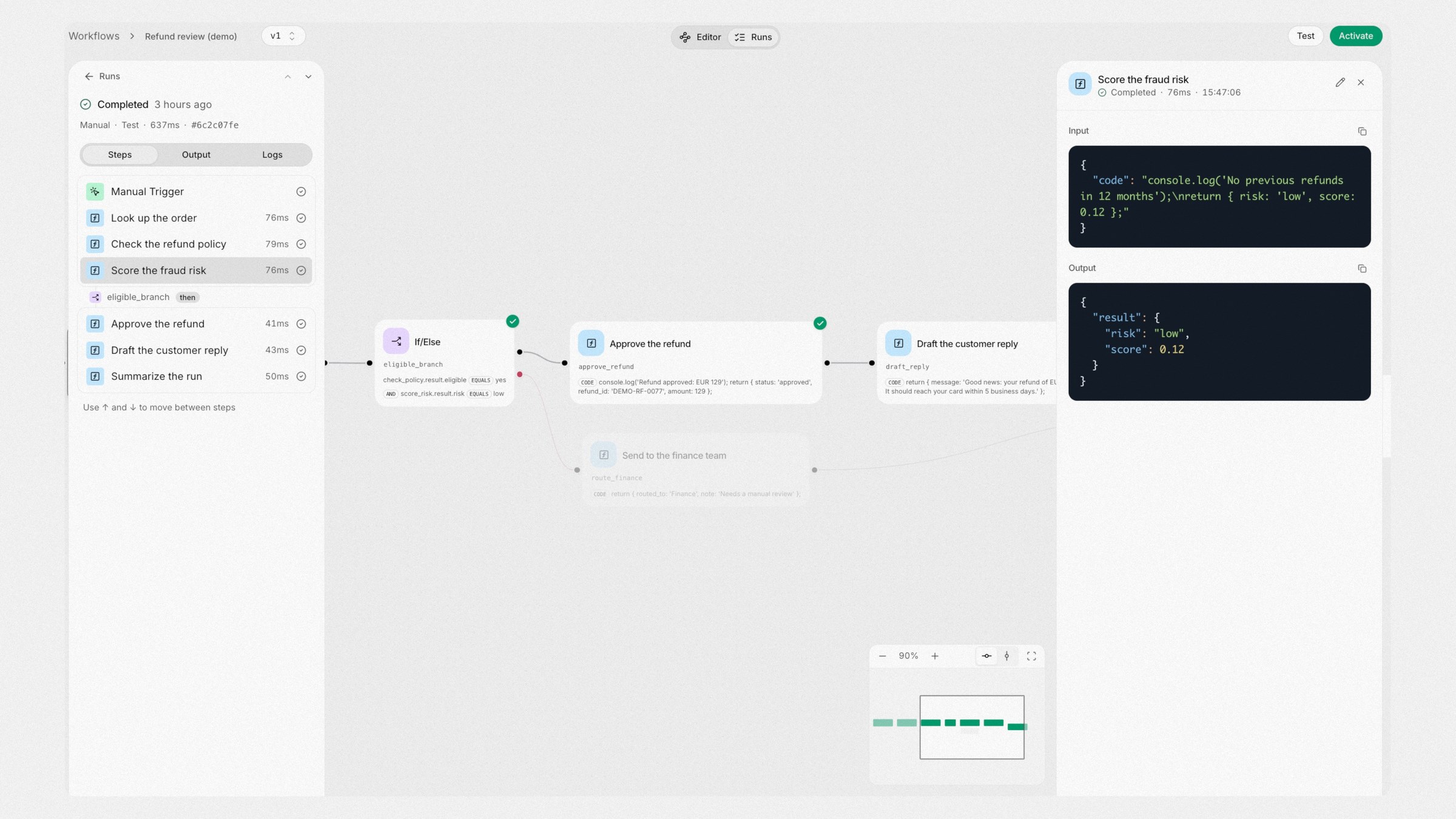
The command menu finds the thing, not just the page
Press ⌘K (Ctrl+K on Windows) to search sessions, contacts, workflows, instructions, tags, phone agents, AI actions and past companion chats, switch organization, create any of them, act on the session or instruction you are looking at, use / commands to get there even faster, and hand anything you type to the companion with one key.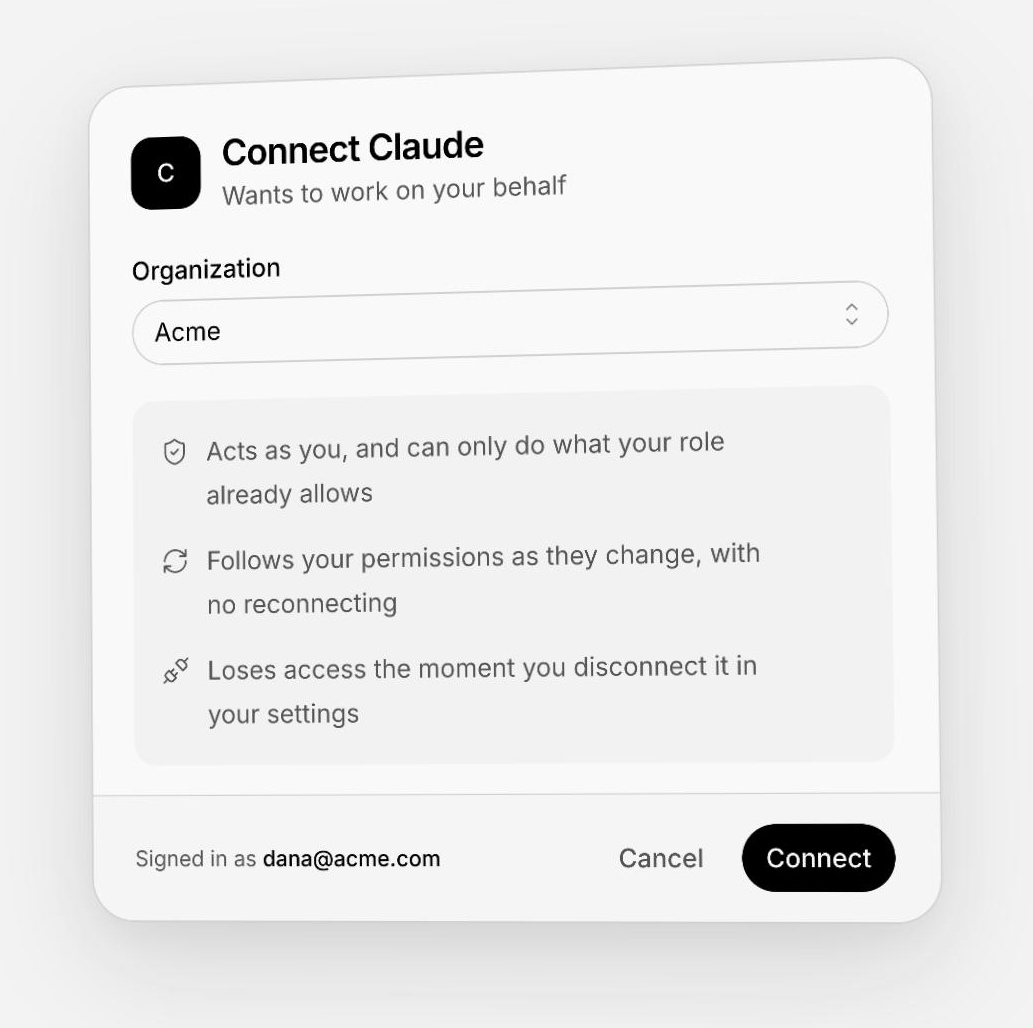
Add teammates and phone numbers to a live call
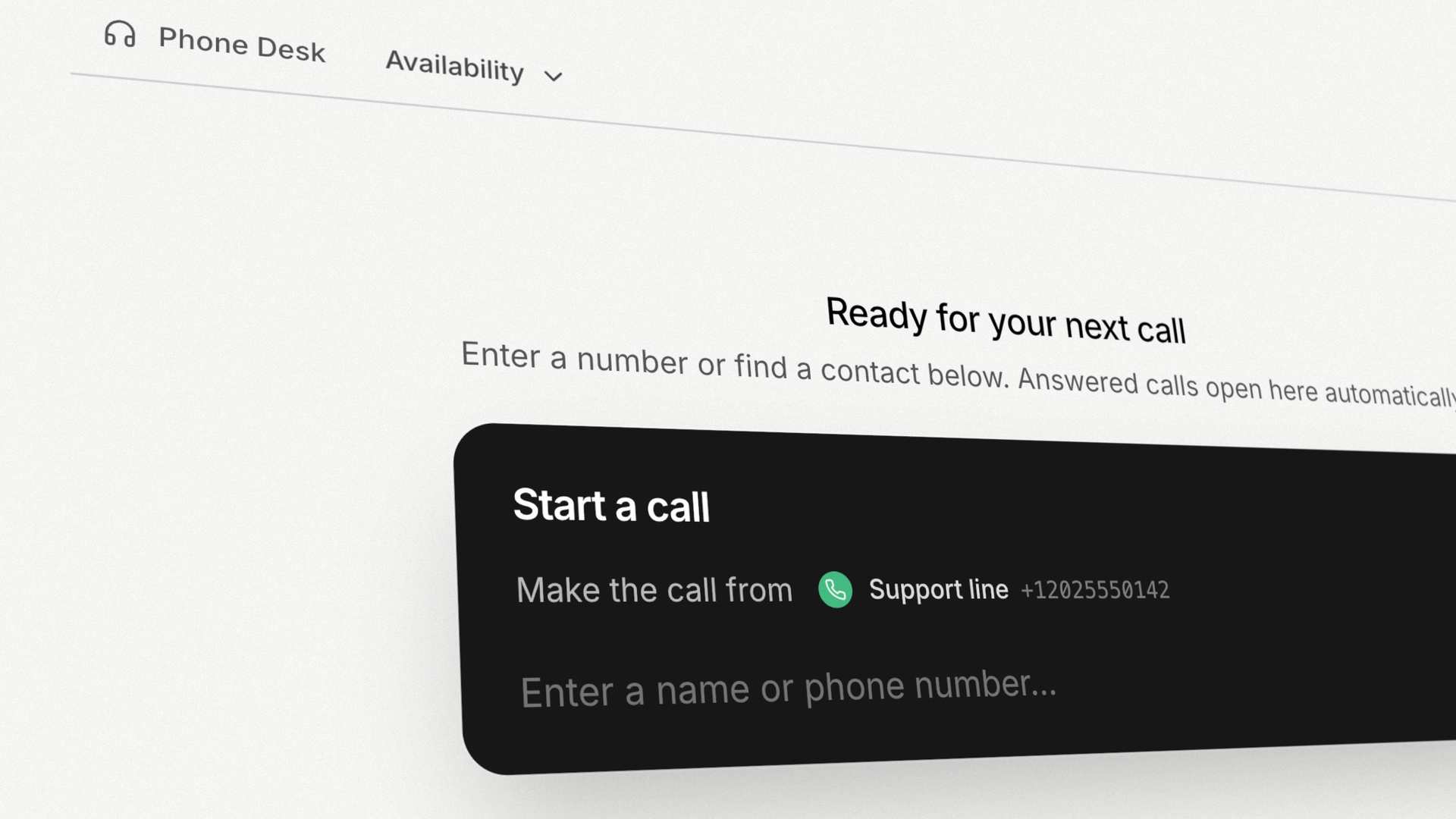
A teammate on a phone call can now bring more people onto it. Ring a colleague or dial an external number straight into the call, see who is on the line, silence anyone in your own headset, and remove anyone you added. Everyone hears each other, and the call keeps going when someone leaves.Each customer’s tools, connected in your widget
Personal accounts, managed from Actions
Add a service once and let each signed-in customer connect their own account when a request needs it.- Choose personal accounts or one shared team account when adding a server
- Keep personal connections scoped to the signed-in customer and account, across their sessions
- Control which services and tools are enabled from the dashboard
Approvals your customers control
Connected services can ask for a form or a simple approval inside the widget. Customers can review the request before it continues.- Approve a simple request once, or remember approval for the same account, tool, inputs, and form
- Open Connections from the widget session list to review saved approvals or disconnect a personal account
- Remove one saved approval to ask again next time, while keeping the service connected
Reuse a connection in your backend
Opt in per service when your backend also needs access to a customer’s connected account.- Receive a connection-ready notification after successful authorization
- Retrieve the current access token through a separately scoped server-side API key; credentials stay out of the widget
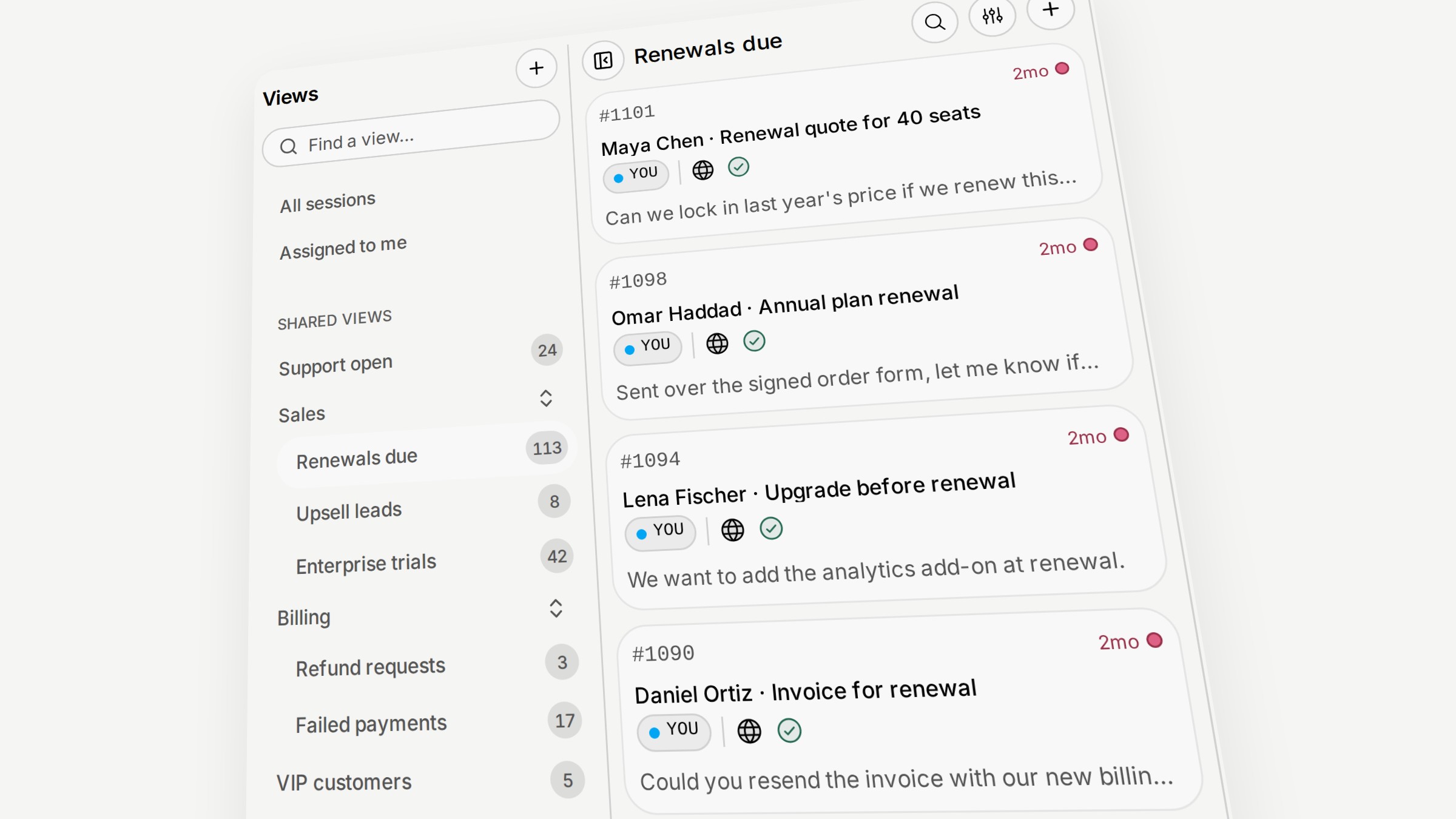
Saved inbox views, without the dashboard
The views your agents pick from the inbox sidebar — “Phone — needs a human”, “Assigned to me today” — can now be created, updated and shared from the API. Ask Companion for one, or build it alongside the workflow that fills it, instead of rebuilding it by hand.Companion, right where you need it — now in Widget v5
Companion, inside your website
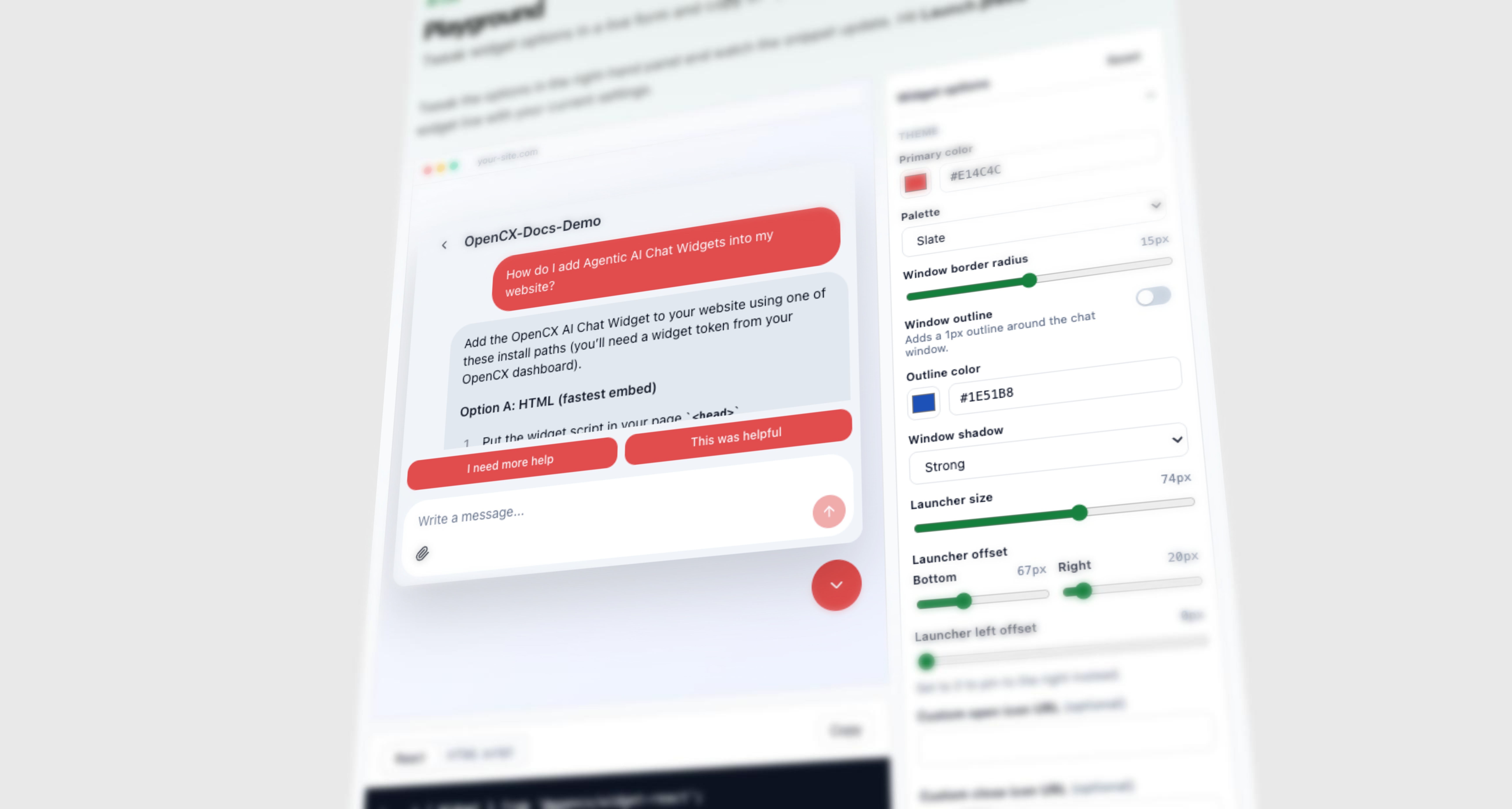
A small launcher opens into a floating workspace that stays beside the page your customer is using.- Switch between floating, sidebar and fullscreen layouts as the task grows
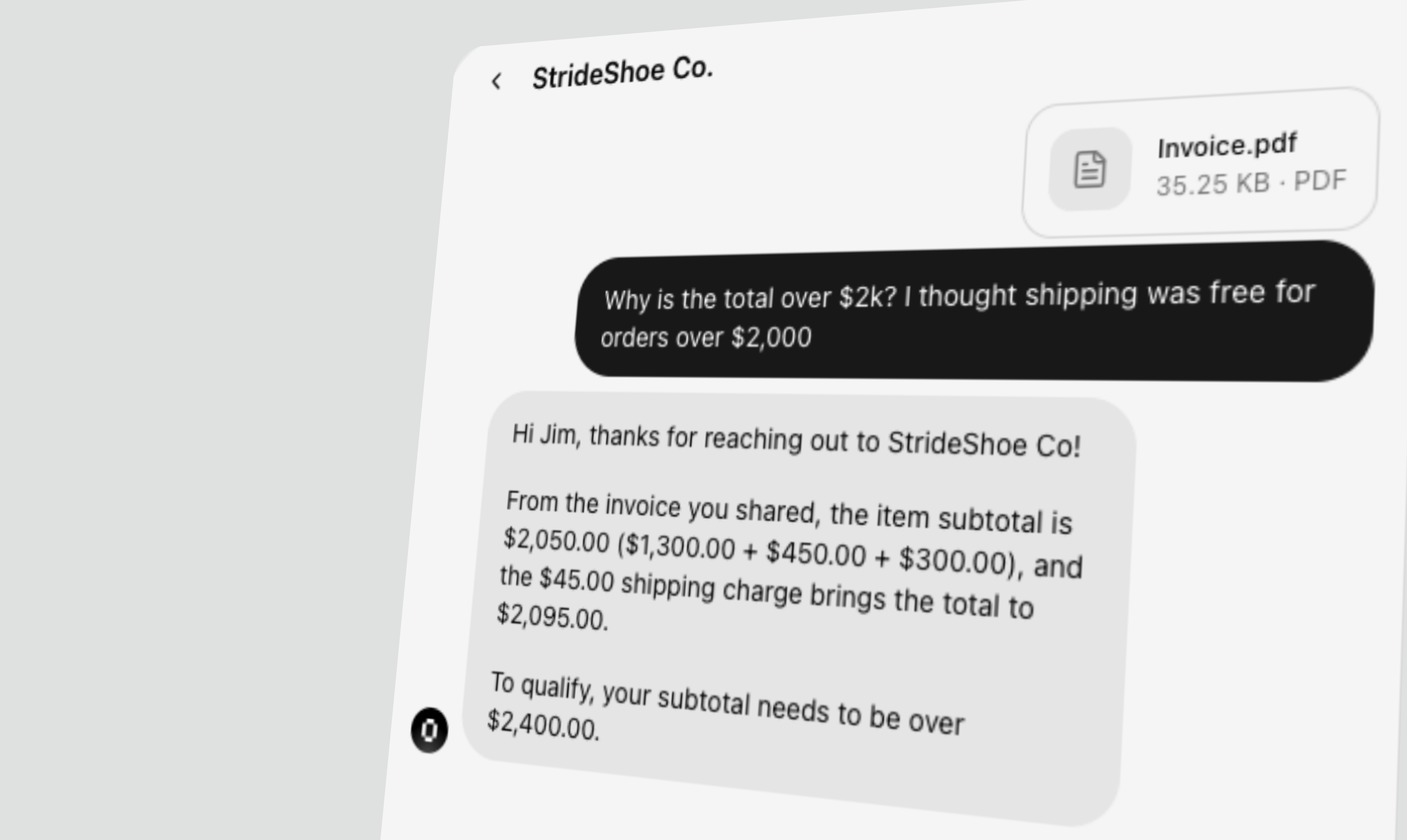
- Mark a region, draw a box, circle or arrow, add a note, and attach the marked screenshot to your message
- Share the current page and mention records from your app so the agent knows what you mean
- With streaming enabled for your organization, see answers as they arrive and stop a reply when you need to change direction
- Keep the classic popover if you prefer; Companion is a separate display option
A new home for Web chat settings
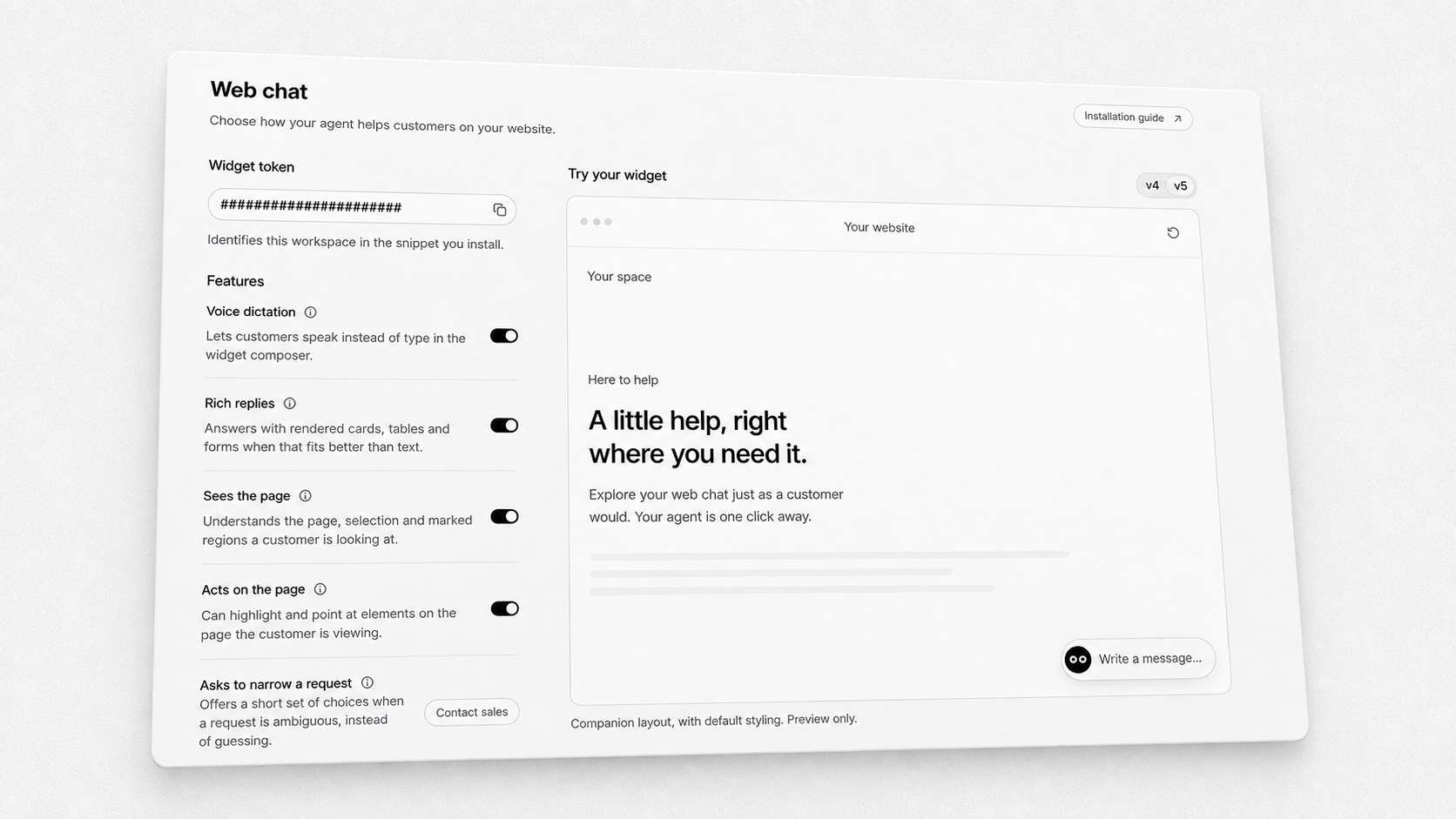
- Copy your widget token and open the installation guide from the same page
- Control voice dictation, rich replies, page context, page highlights and clarifying questions where you configure your web channel
- Preview the widget beside your settings; saved feature changes refresh the preview
Advanced features, across your channels
The Advanced settings page brings agent-wide capabilities together, with clear controls for features included in your organization and those available on request.- Configure progress updates and whether the agent remembers past sessions
- Enable available scheduled follow-ups, task plans, a workspace and mini apps, or request access from the feature row
- Scheduled follow-ups let the agent check back and continue the same session later
- Feature switches save as you change them; handoff behavior remains in Handoff settings
Get started with a coding skill
Install our widget skills to help your coding assistant configure a new integration or migrate an existing site to v5.- Choose the integration skill for setup and Companion configuration, or the migration skill for v4-to-v5 checks
- The setup guide includes the npx installation commands and keeps the v5 beta version choice explicit
Simpler rules for editing and deleting shared inbox views
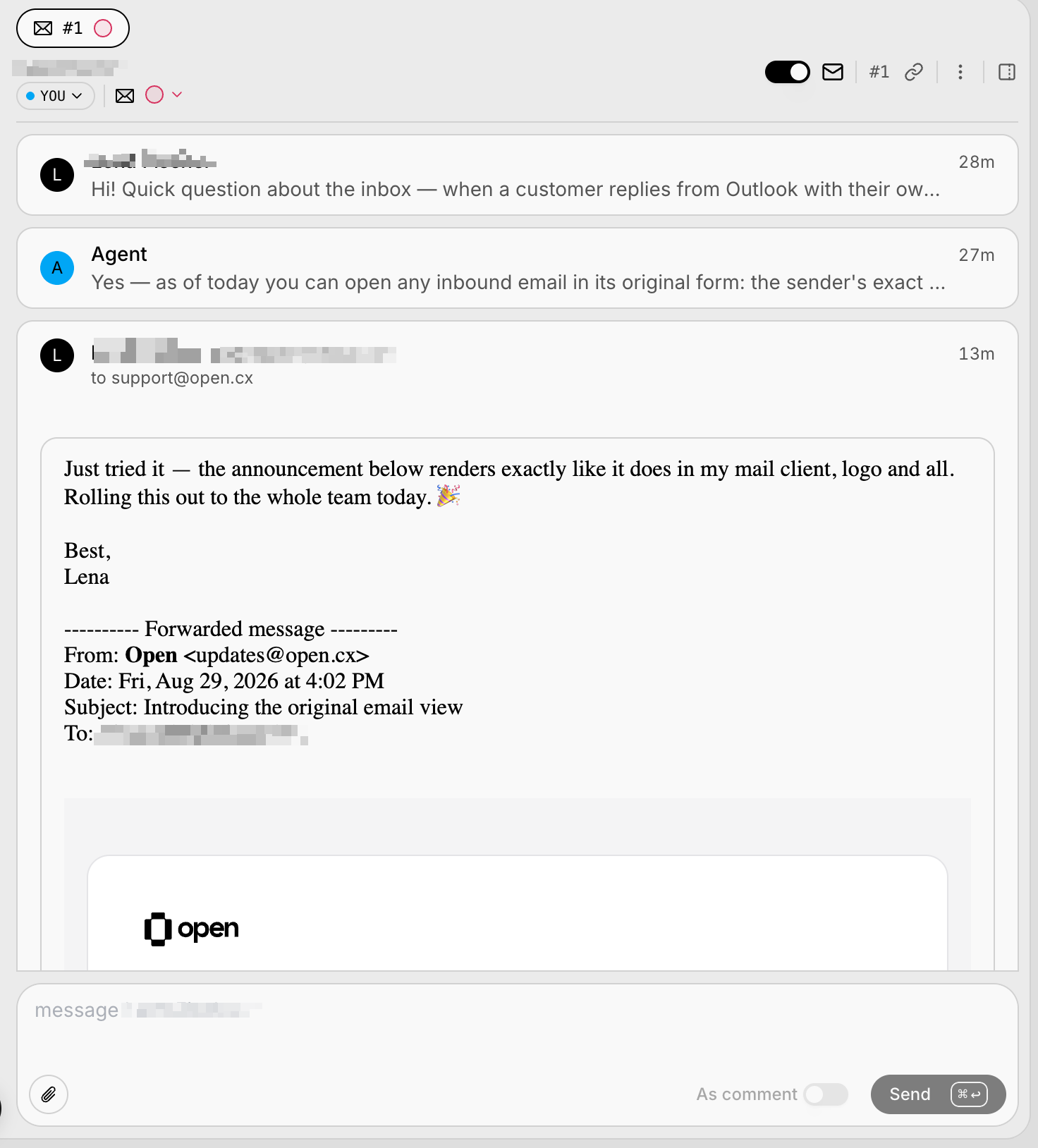
Every shared view used to carry its own private list of people allowed to edit it, which meant even an admin got “you do not have permission” on a view someone else made. That list is gone. One rule now decides everything: the person who created a view can always change it, and so can anyone holding the “Shared inbox views” permission — admins included.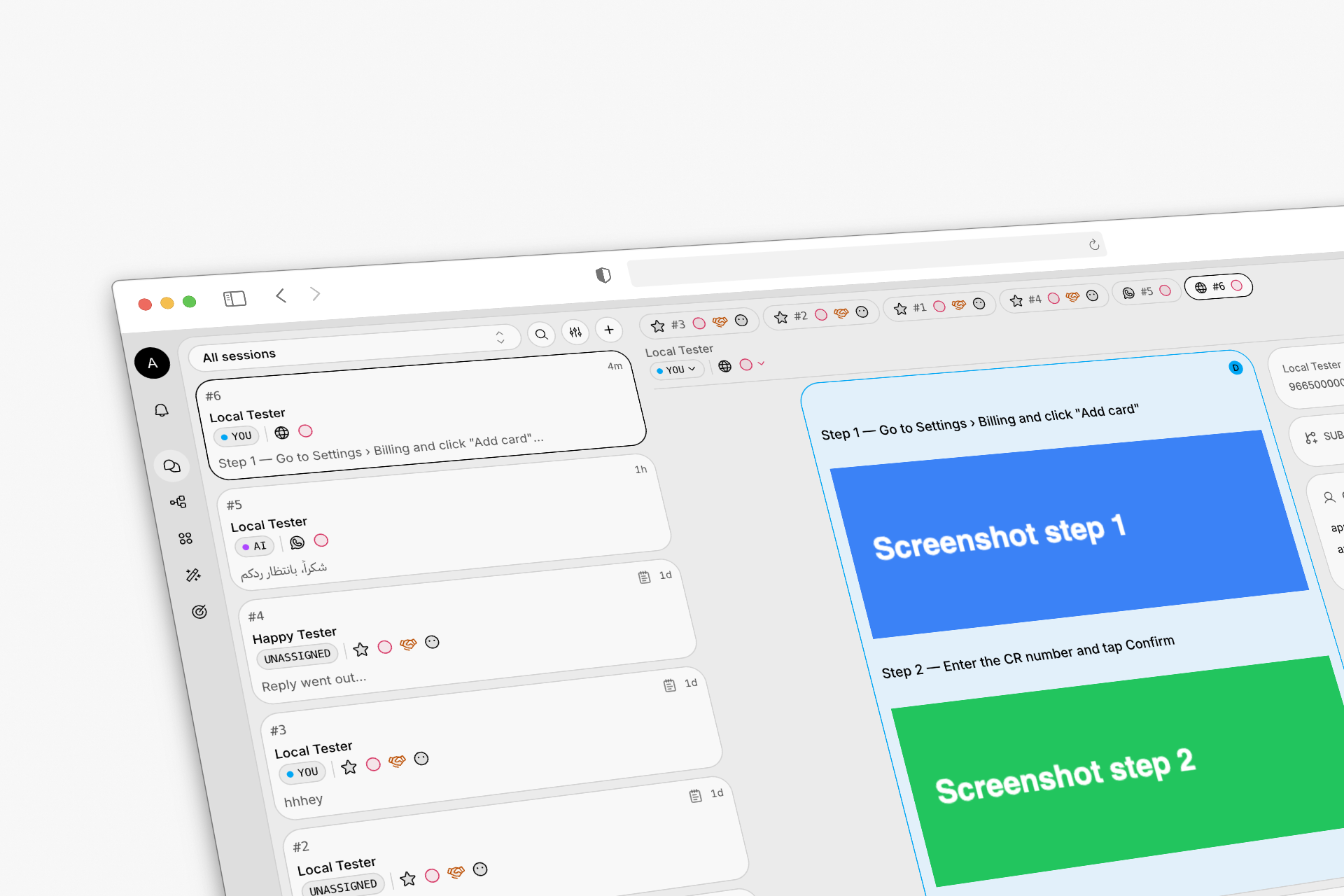
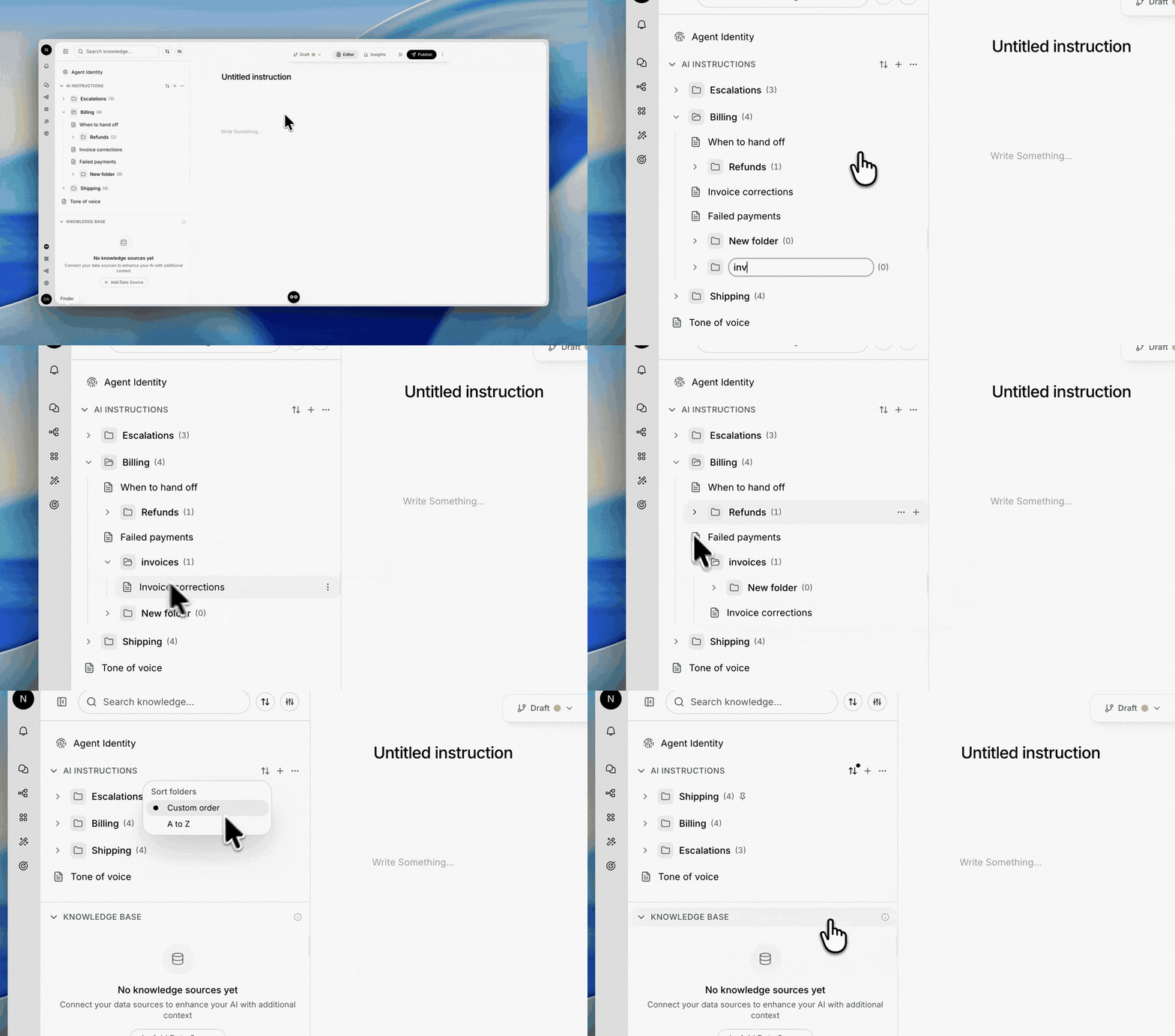
Sub-folders, pins and custom order for AI instructions
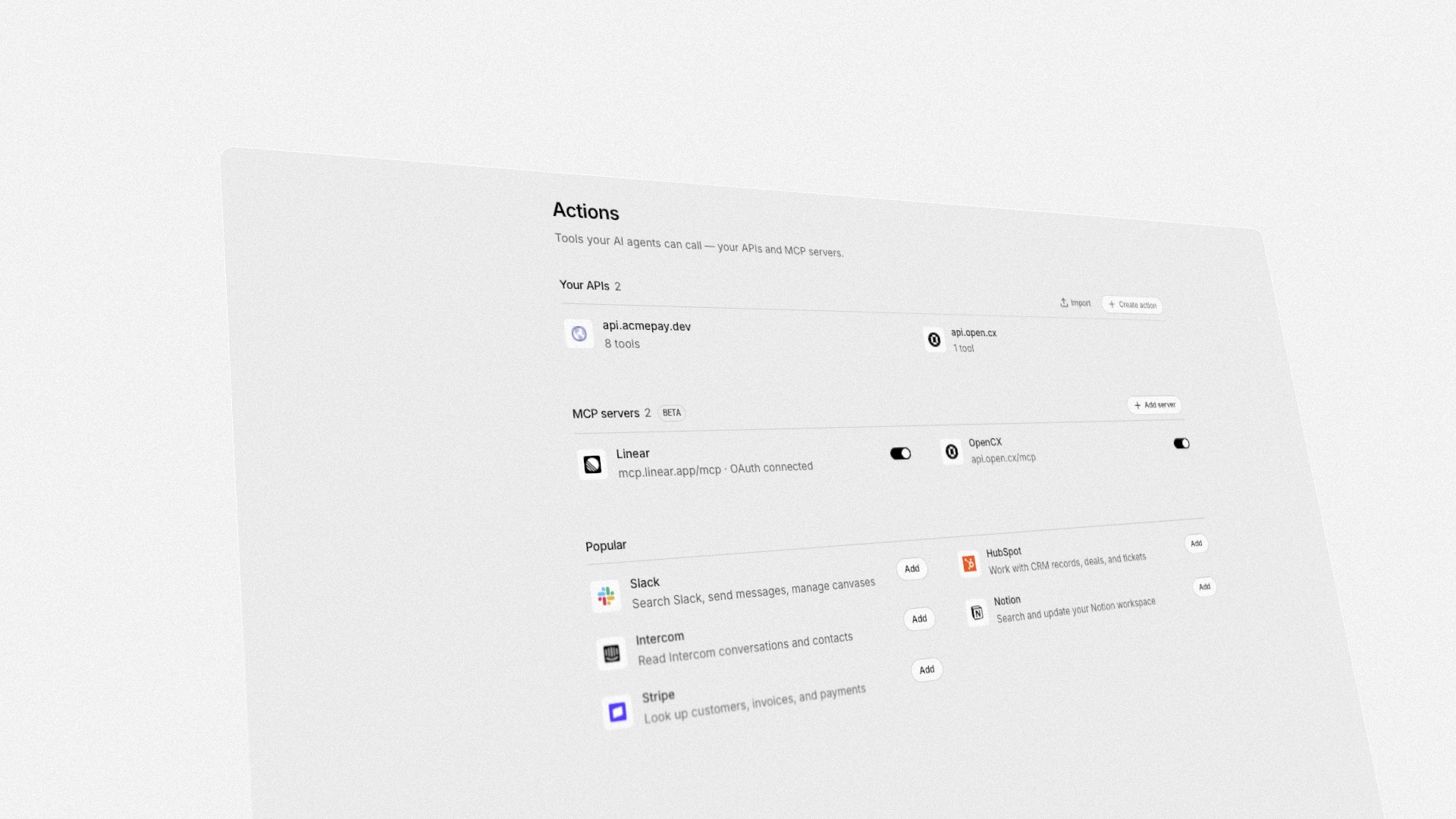
Connect any MCP server to your AI agent
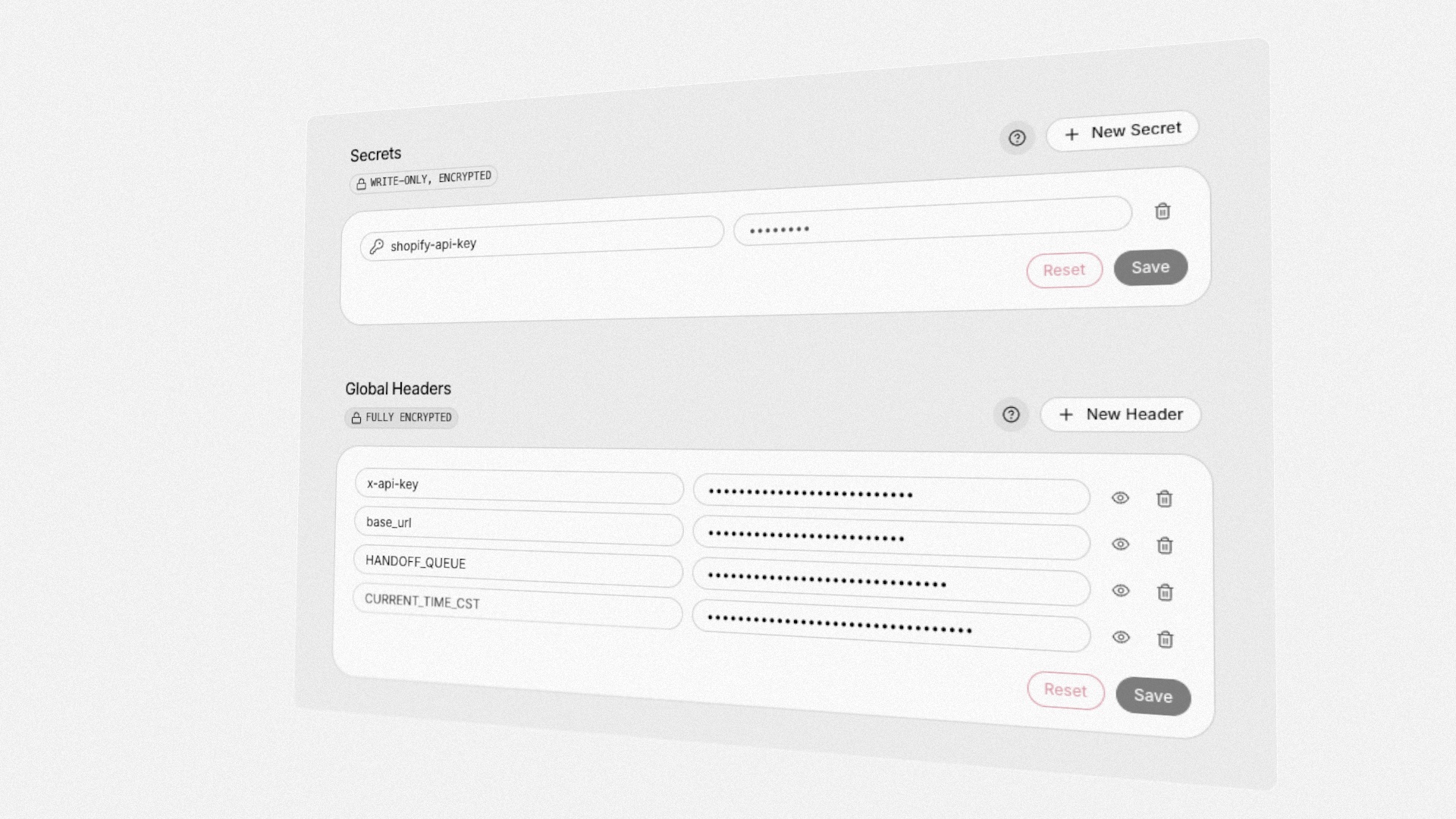
Named secrets for action credentials
Reference it from any action
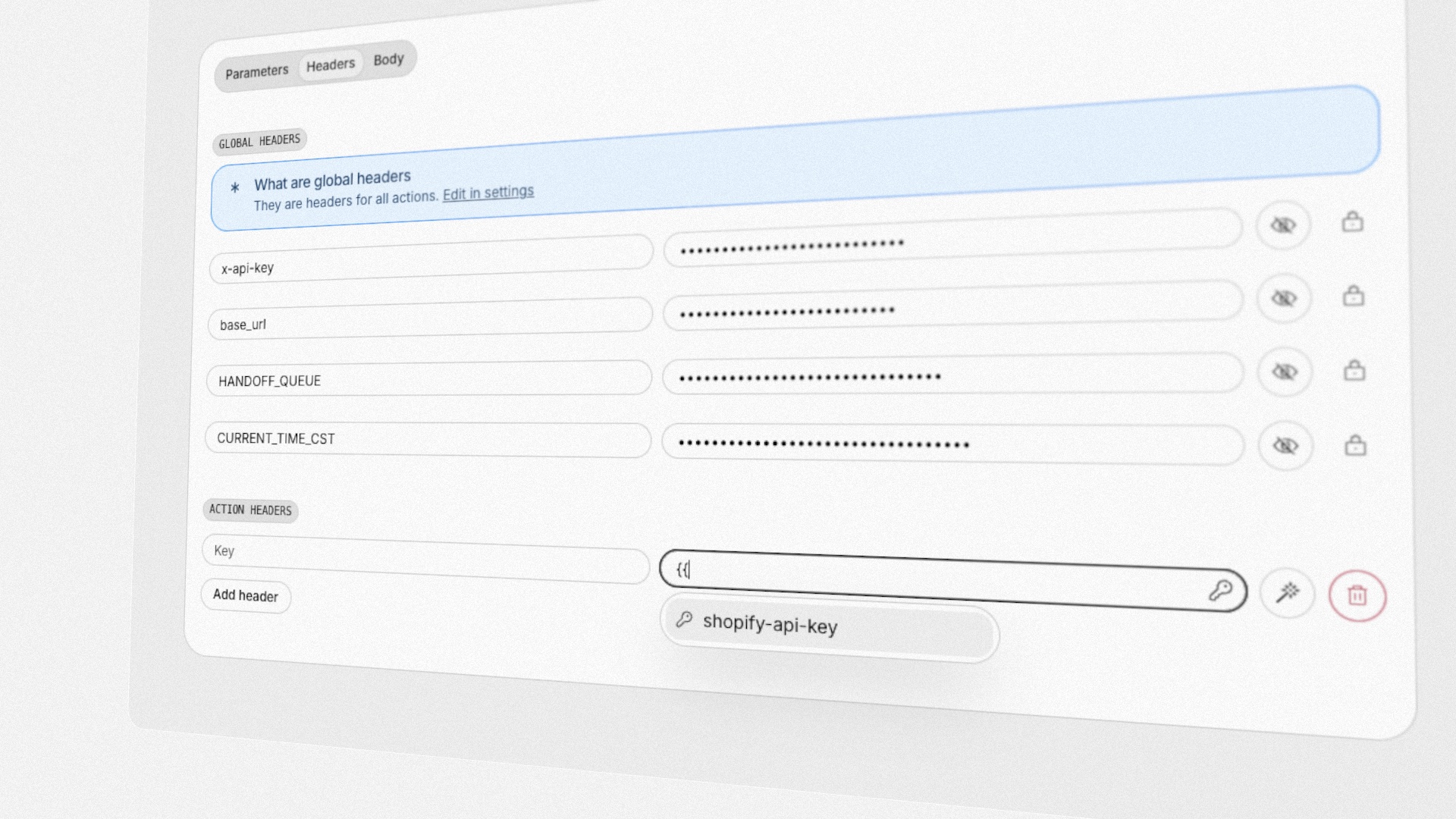
{{ in any action header value to pick a secret, or write {{secrets.<name>}} directly. The secret travels only on the requests that reference it — and a header whose secret is missing is dropped, never sent with the raw placeholder.- Write-only by design: no screen, API, or export ever returns the value after creation
- Each secret shows how many actions reference it before you delete it
- MCP server auth headers accept the same references
Block abusive IPs on your own rules, not by hand
Blocking an IP used to mean noticing the abuse, digging the address out of somewhere, and banning it forever. Now a workflow can count how many sessions an address has opened in the last few minutes and block it on whatever threshold you consider abusive — and blocks can expire on their own, so a shared office or mobile-carrier address is never banned permanently by mistake. Every session in the inbox shows the address it came from, and session exports can carry it too.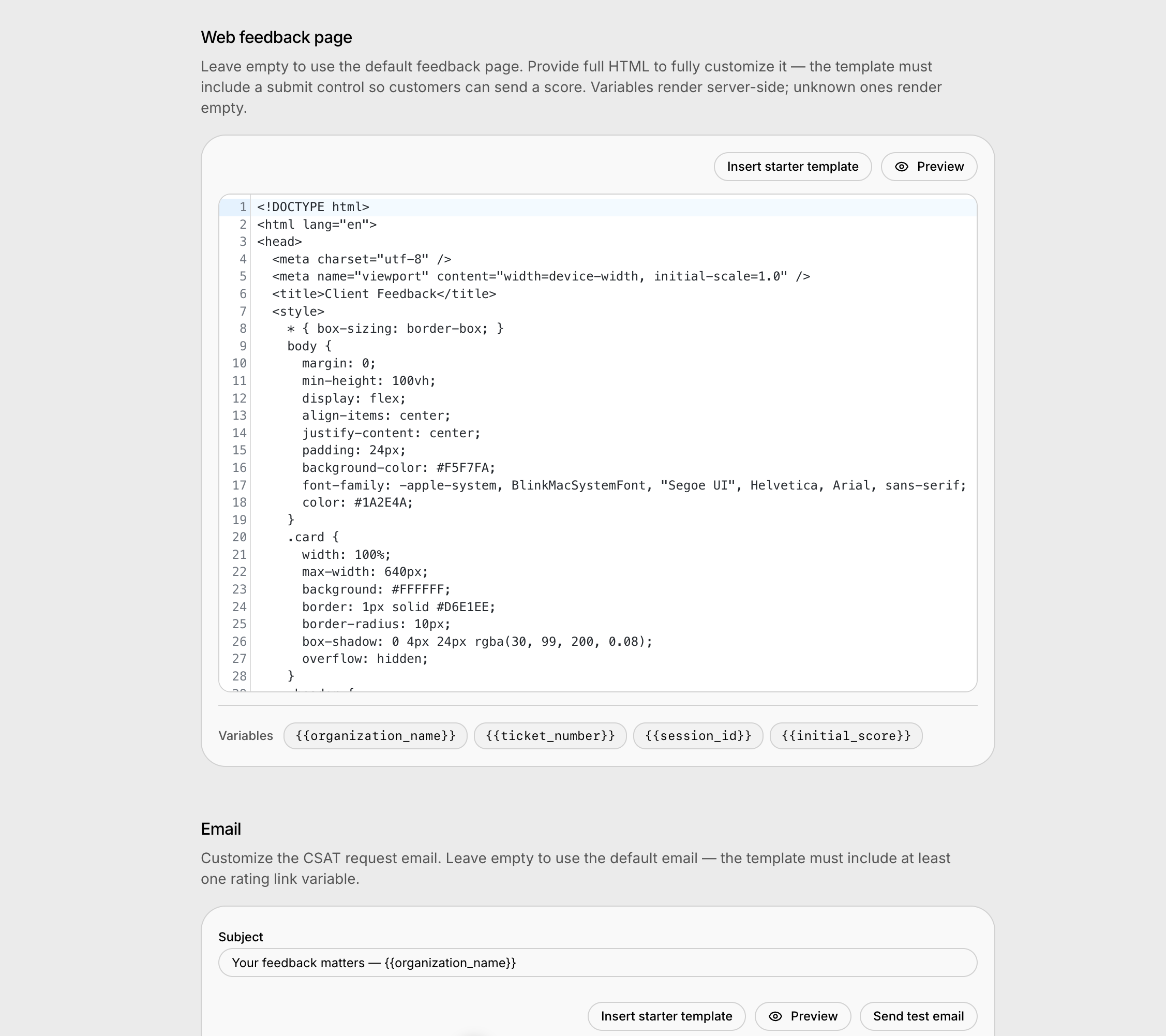
Block abusive visitors by IP
Settings → Autopilot now has a Blocked IPs list alongside blocked contacts and domains. Block a single address or a whole CIDR range and that visitor can no longer reach your AI assistant — useful when someone keeps creating throwaway contacts, so contact- and domain-blocking never bite.Crawl password-protected websites
The website crawler can now sign in to your protected sites. Add HTTP Basic, bearer token, cookie, or custom-header credentials to a website datasource and every crawl authenticates automatically — credentials are encrypted at rest and never shown again after saving.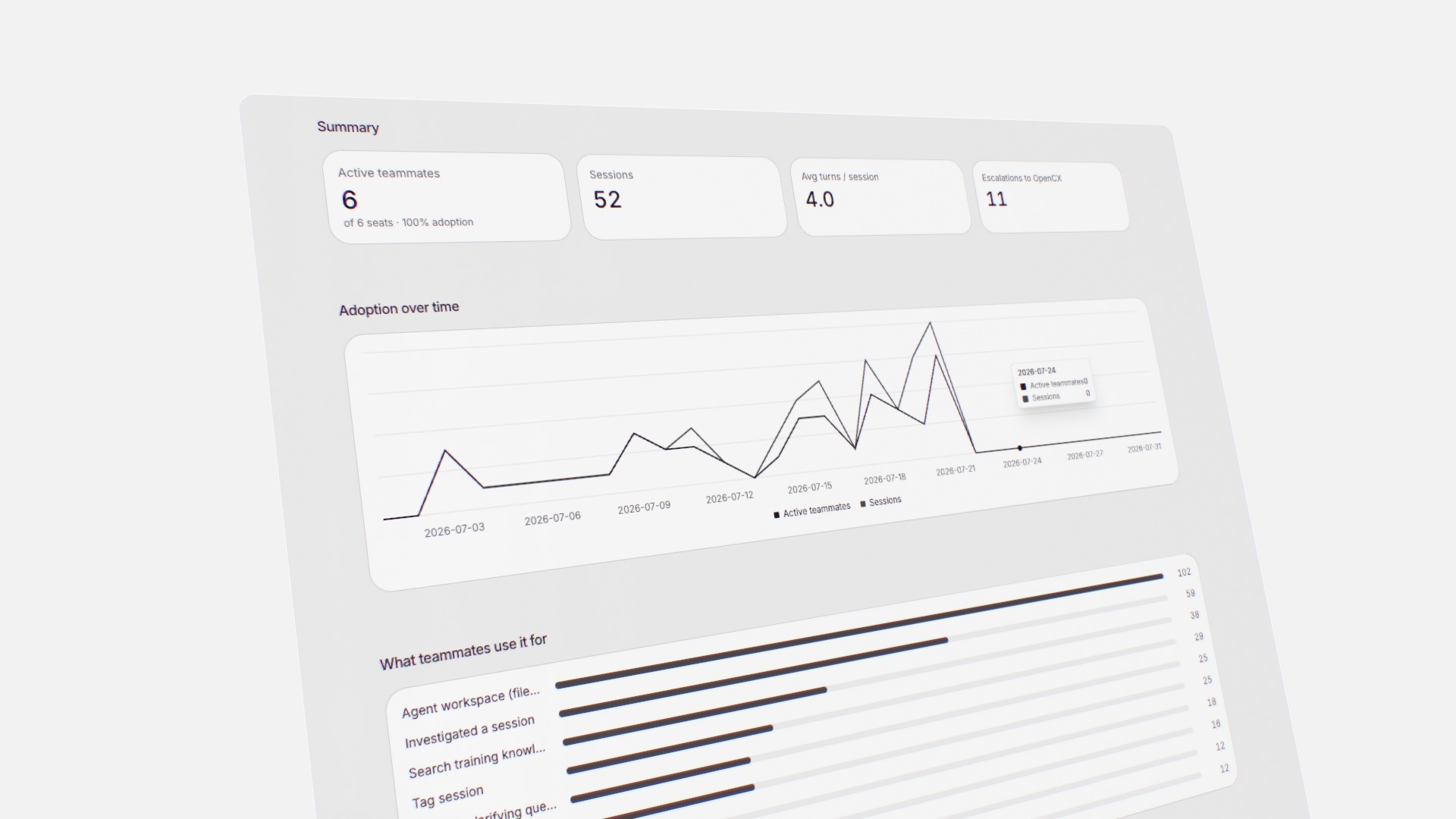
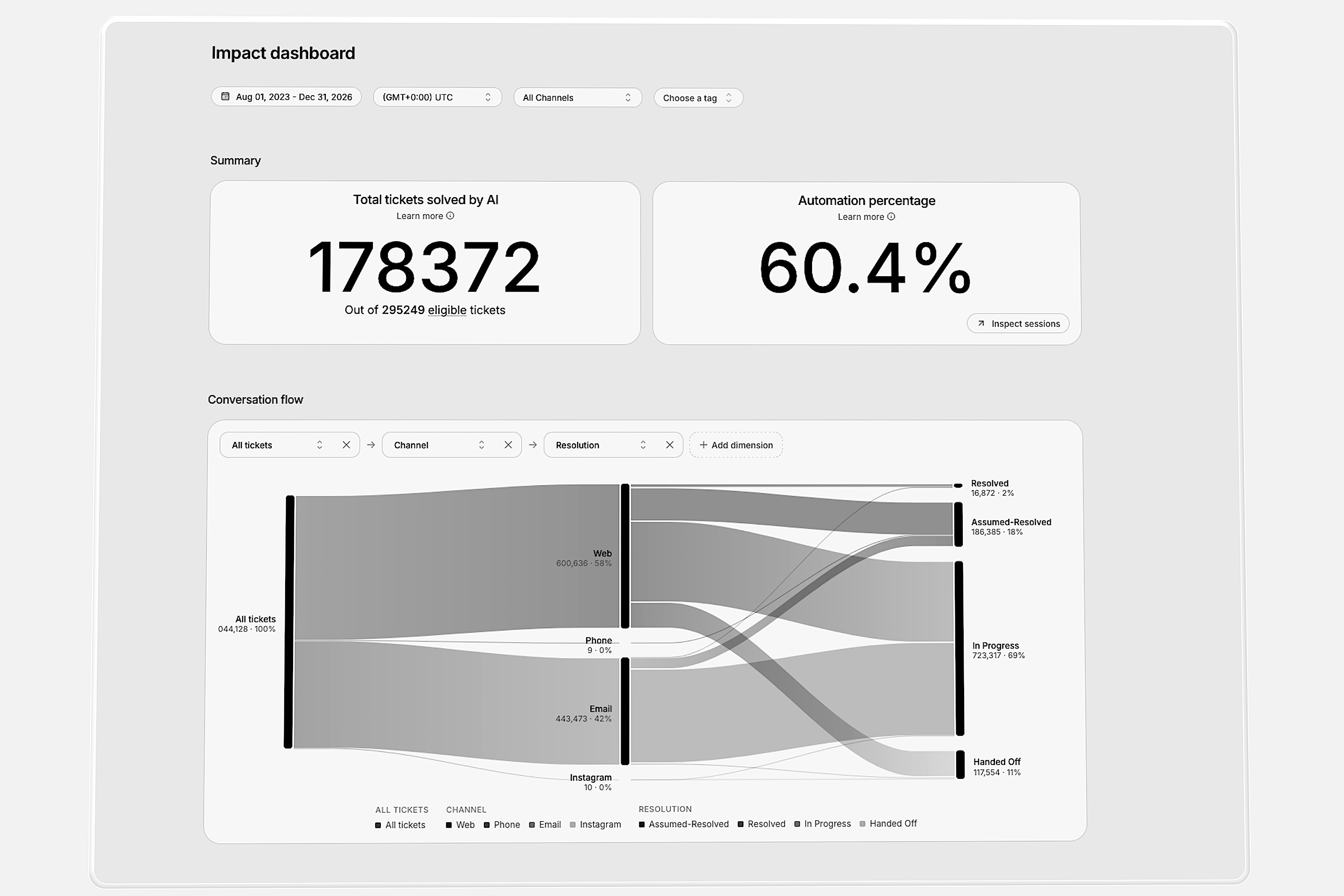
Introducing Companion Apps
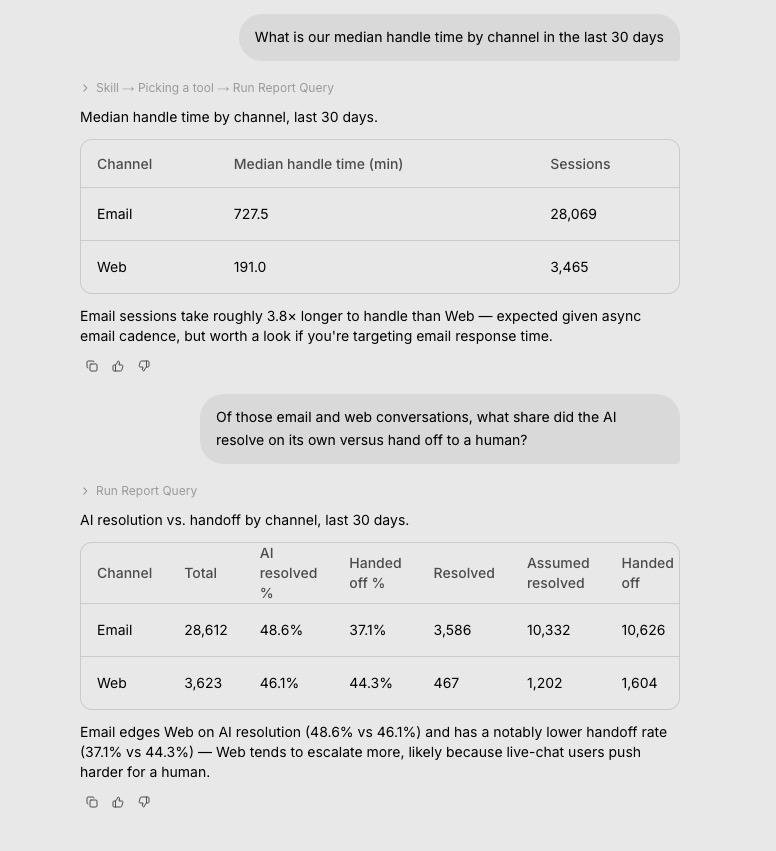
Custom reports for the metrics that matter
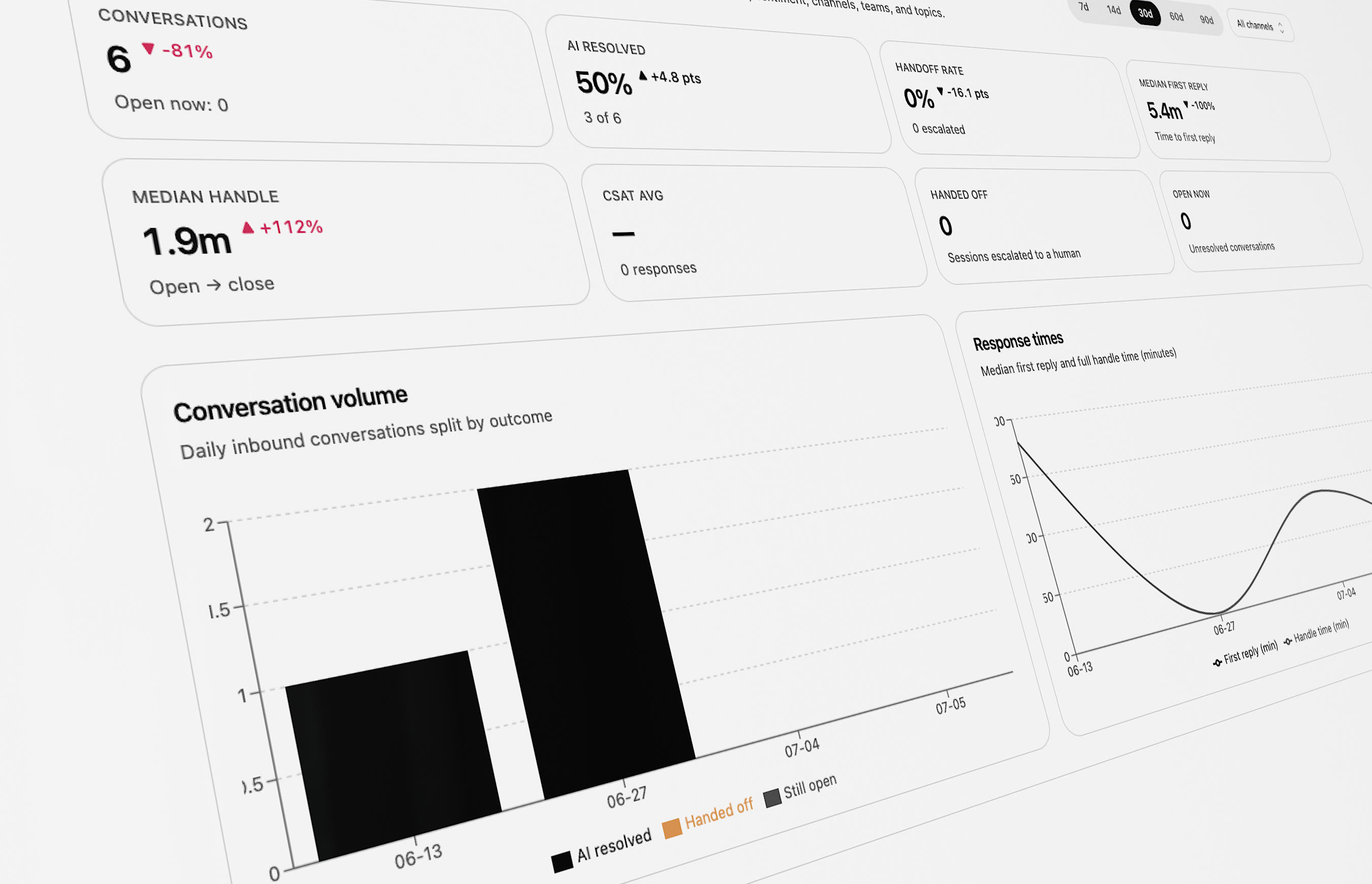
- See where conversations resolve, stall, or escalate
- Go from a question to an answer in minutes
Faster resolutions, without the tab-switching
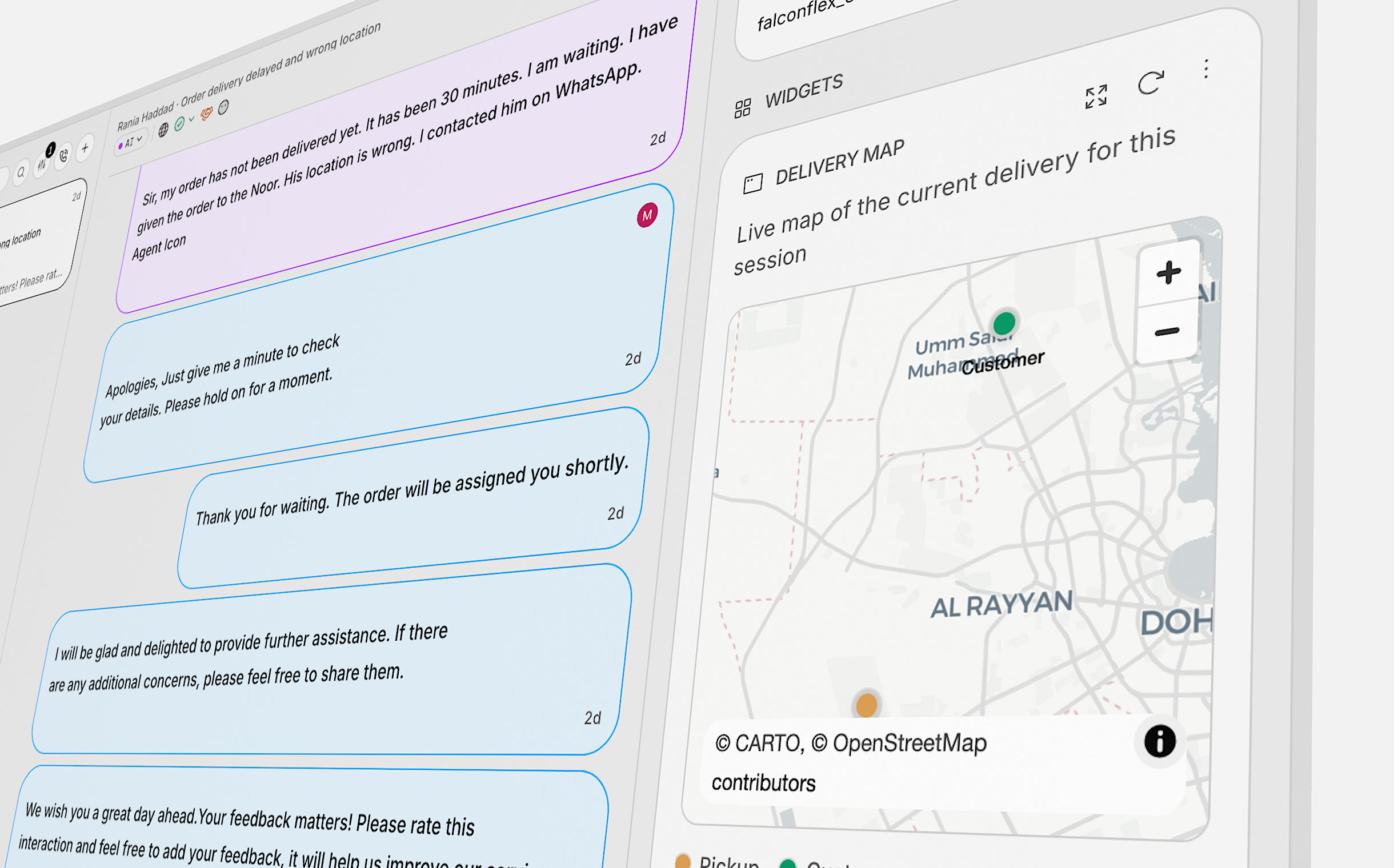
- Cut handle time with the context already in reach
- Surface live order, delivery, and account details
See which Instructions, Knowledge, and Actions your AI uses
Every AI reply now records the Instructions, Knowledge Base articles, and Actions it drew on. Each one gets a usage view — how often it was available to the AI versus actually used, the handoffs tied to it, and the conversations that used it — and you can filter your inbox by them.From blank workspace to live AI — guided by Companion
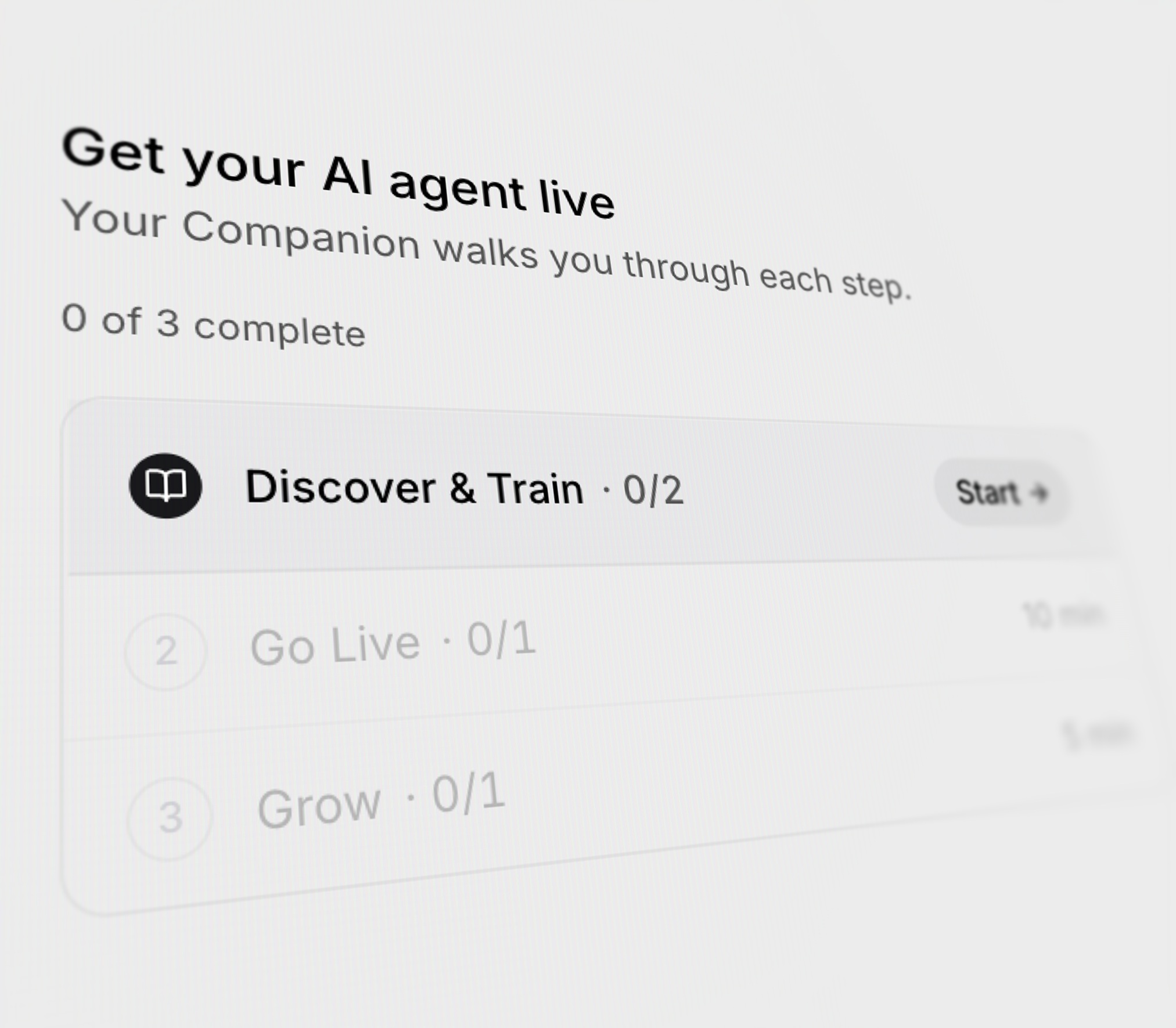
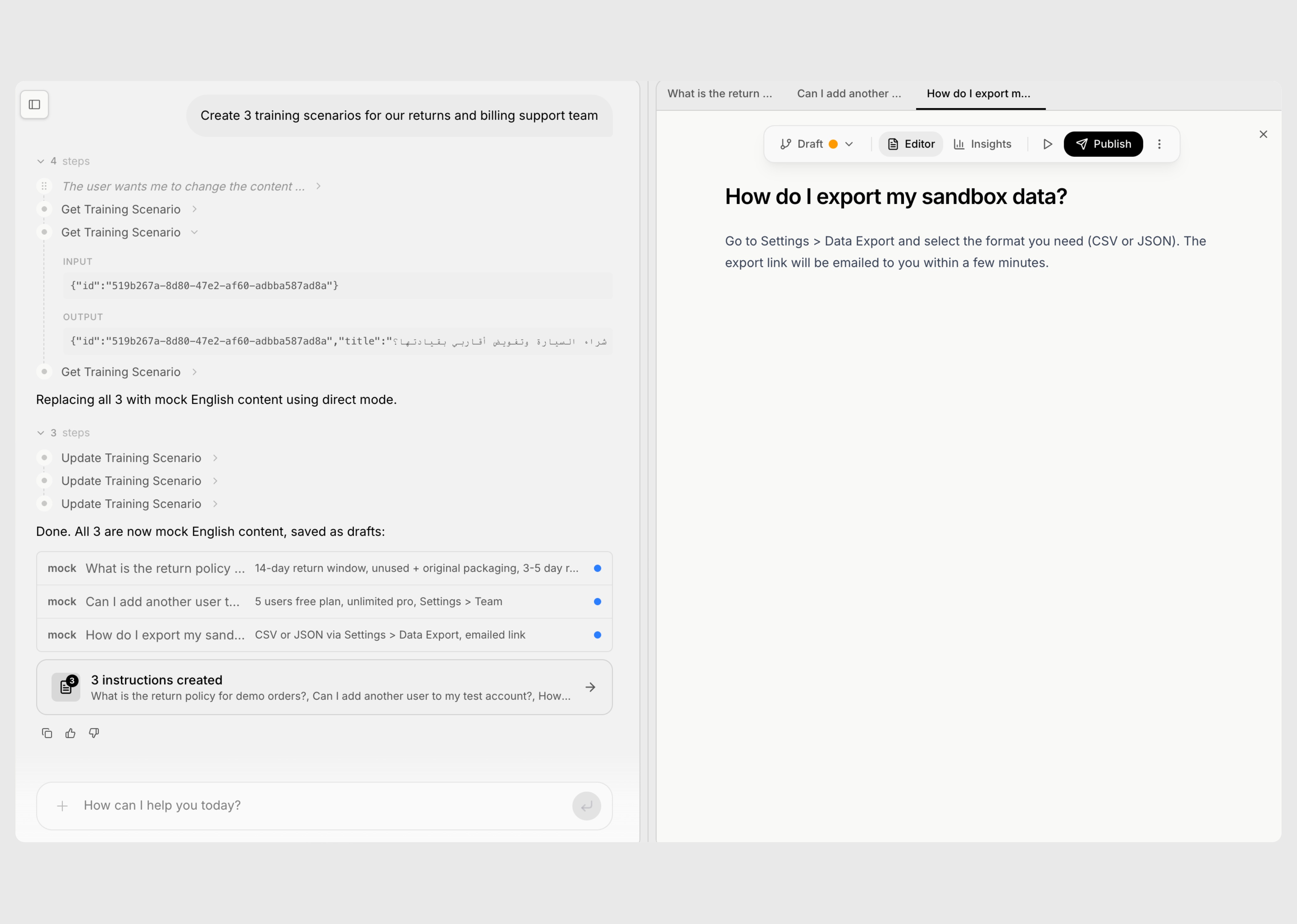
Plan first, then act
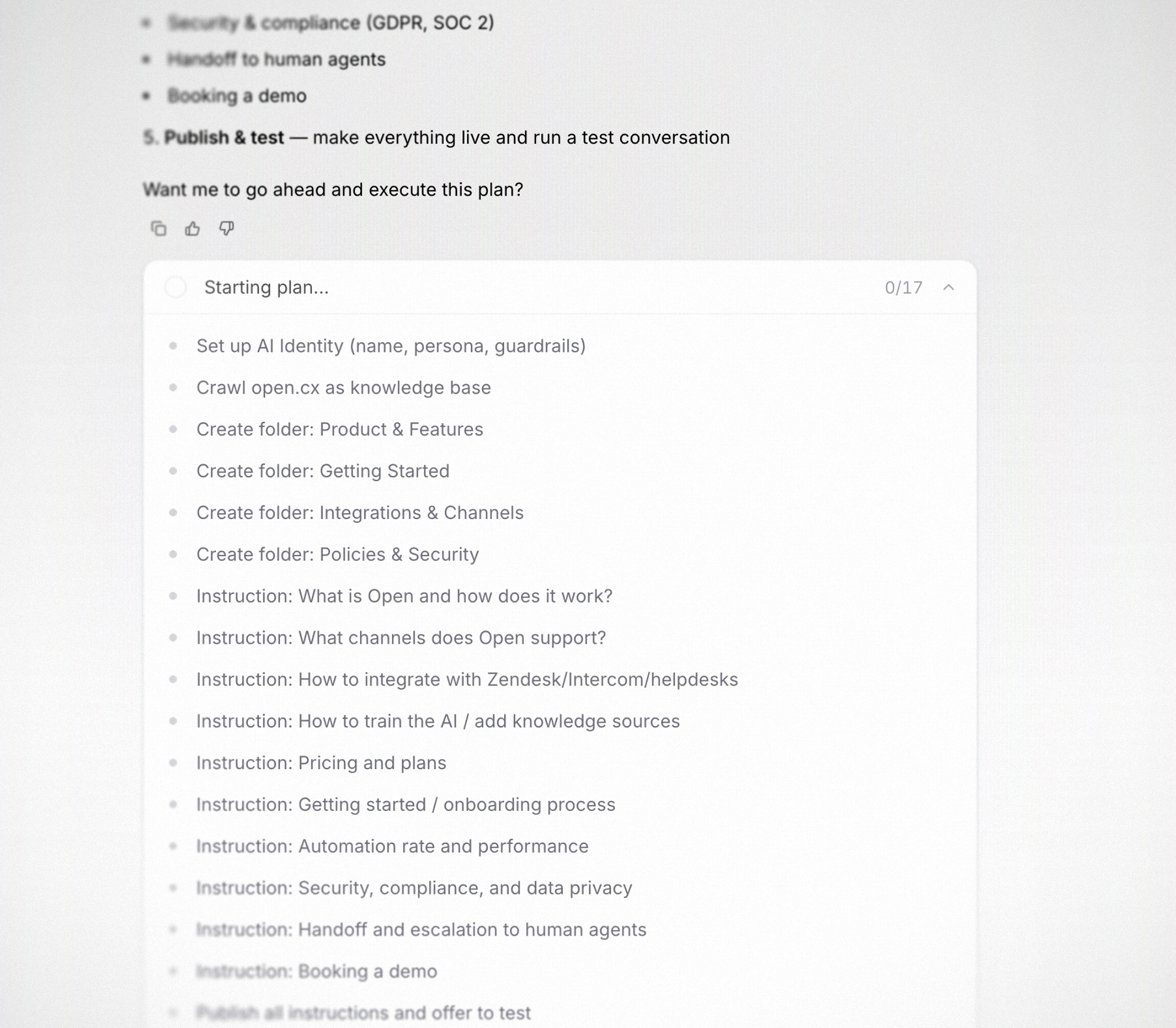
- Itemized plan up-front for every substantial ask
- Live progress counter ticks as steps execute
- Stop or redirect at any step
Test before you ship
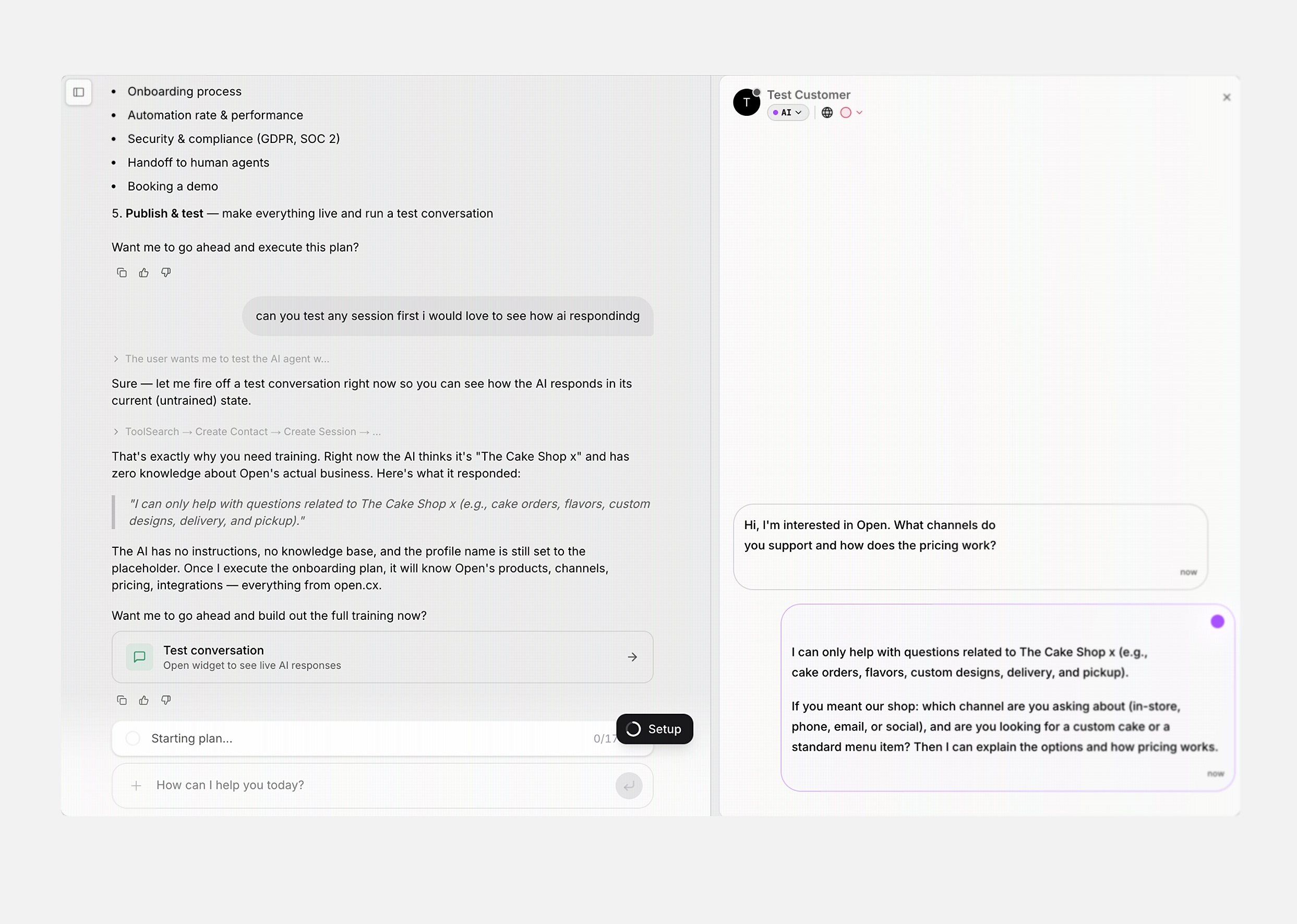
- Real widget, real AI — same tools, same responses
- Side-by-side: Companion on the left, Test Customer on the right
- Companion reads the transcript and recommends concrete fixes
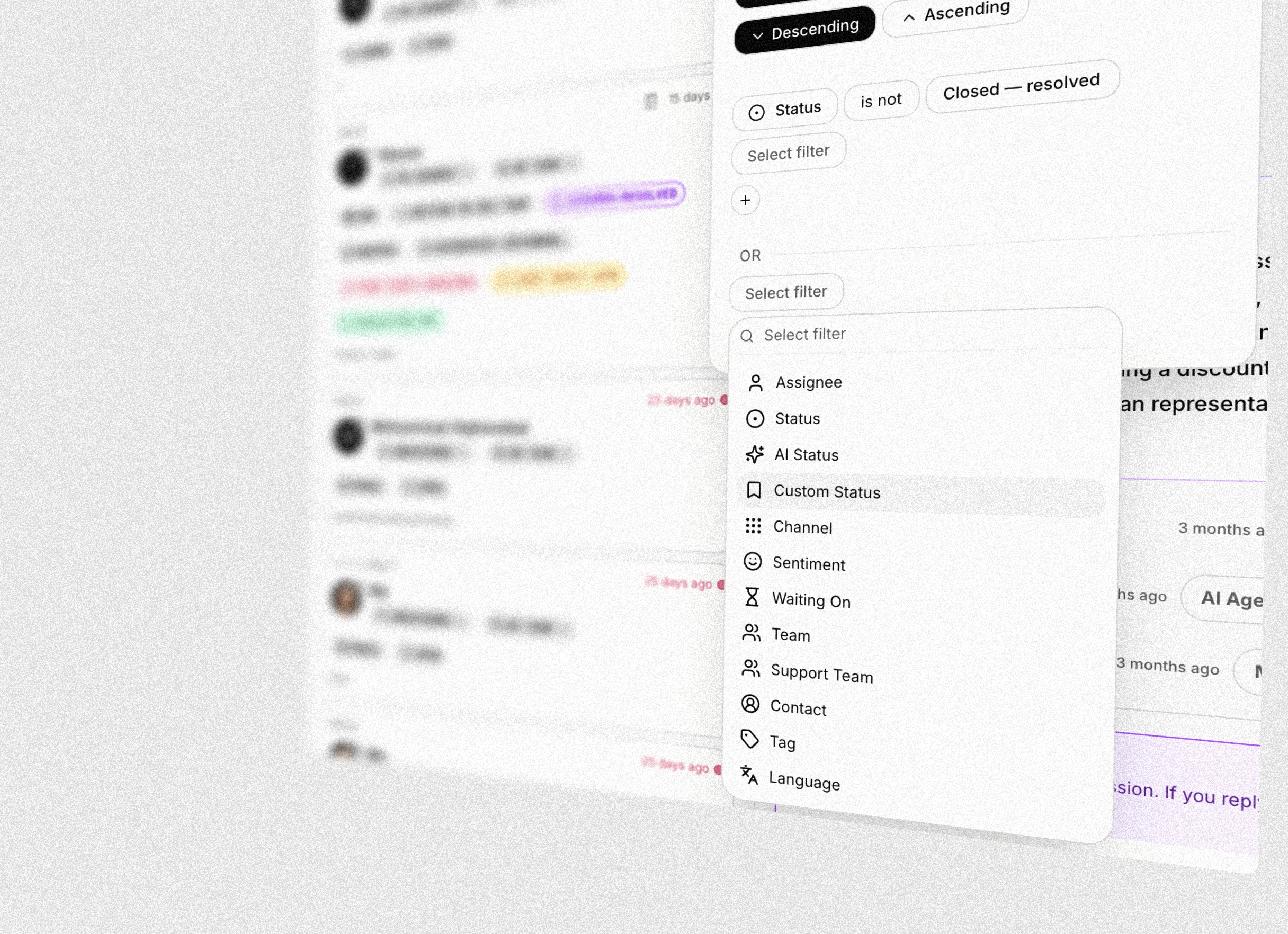
Group your inbox by channel, assignee, status, language, or team
Add a Group By to any inbox view and the session list collapses into labelled sections — grouping by channel, assignee, status, AI status, language, or support team. Saved on the view, so the grouping comes back the next time you open it.Inbox shows messages in the agent’s language by default
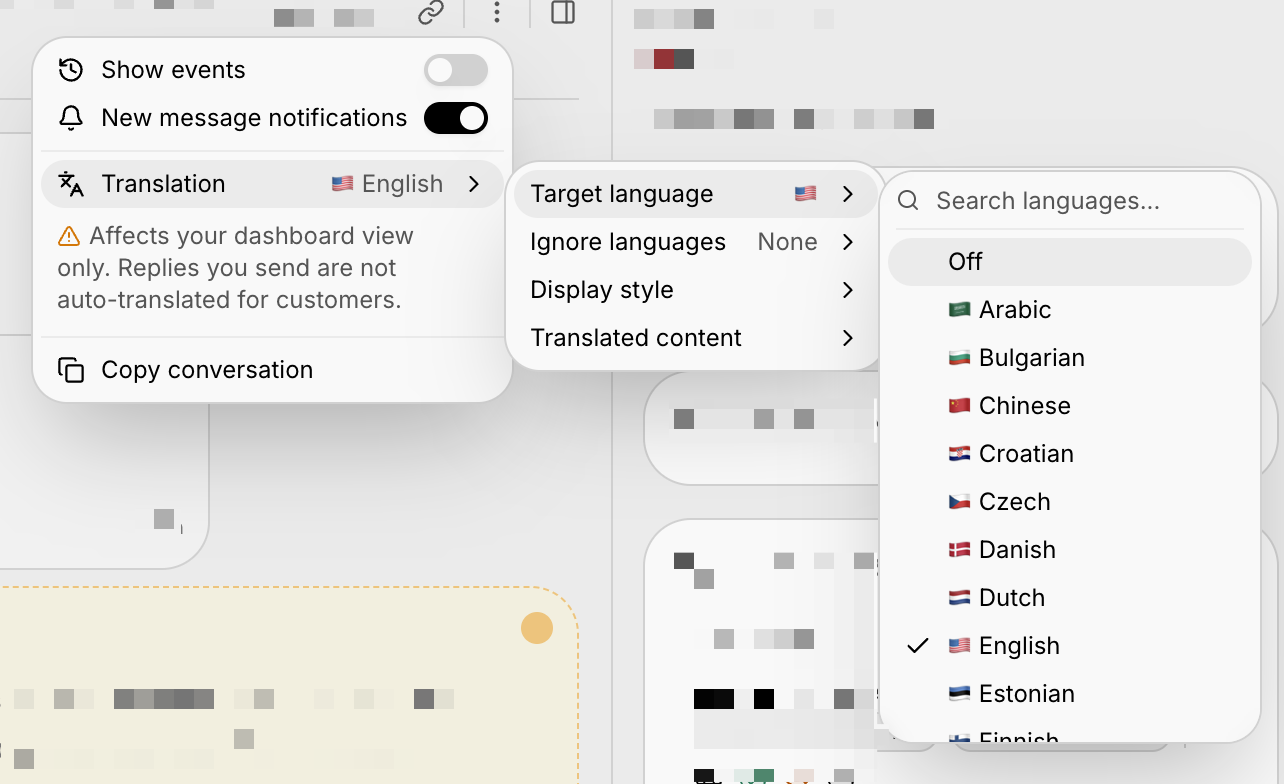
Translated messages are now what the agent sees by default — and what the customer sees by default for outbound replies — so you don’t need to click into each message to reveal the translation. A “Show original message” action is one click away on every message.New workflow building blocks
Five new pieces of workflow plumbing land together: a Contact Message Received trigger, a Reopen Ticket action that walks the official status path, an Apply Custom Status action, a Release Session From Capacity action that frees up an agent slot until the customer replies, and an Inactive Trigger improvement that ignores the workflow’s own outbound messages.Smarter, fairer agent distribution
Agent routing now factors in released-from-capacity sessions as a tiebreaker — agents with fewer paused conversations get the next ticket when capacity is otherwise tied. When agents are completely tied, distribution randomizes instead of always picking the first one.FreshChat: AI replies on assignment, lifecycle events, and webhook fixes
The FreshChat integration now mirrors Intercom — the AI starts replying as soon as a conversation is assigned to it, and lifecycle events (resolution, reopen, assignment) flow through correctly with the right system messages and SLA bookkeeping.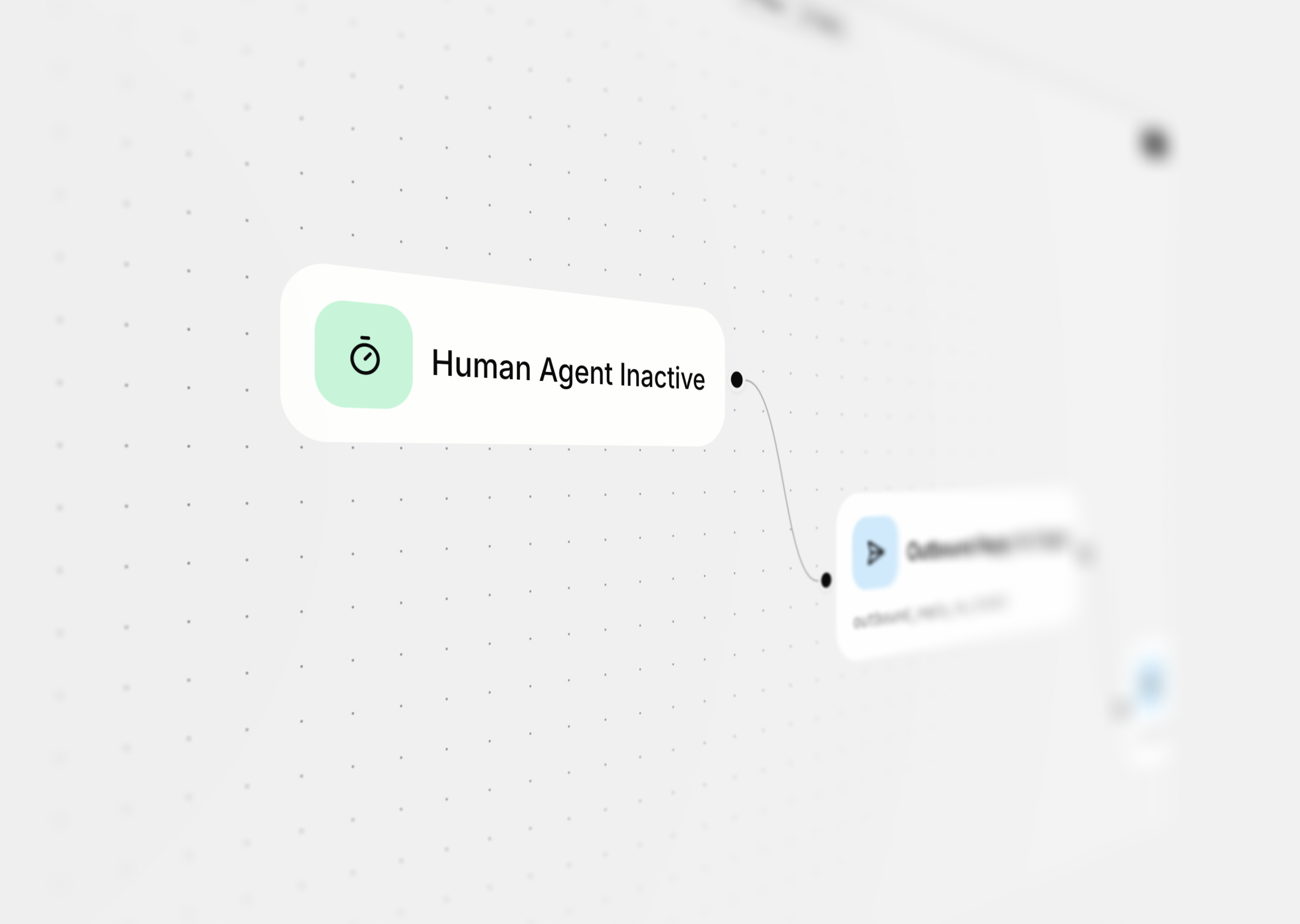
Share custom views with your team

Companion
A senior support ops expert that lives inside your dashboard. Six specialized skills, 140+ tools, and deep context awareness — all from a single conversation.A dedicated home for your AI assistant
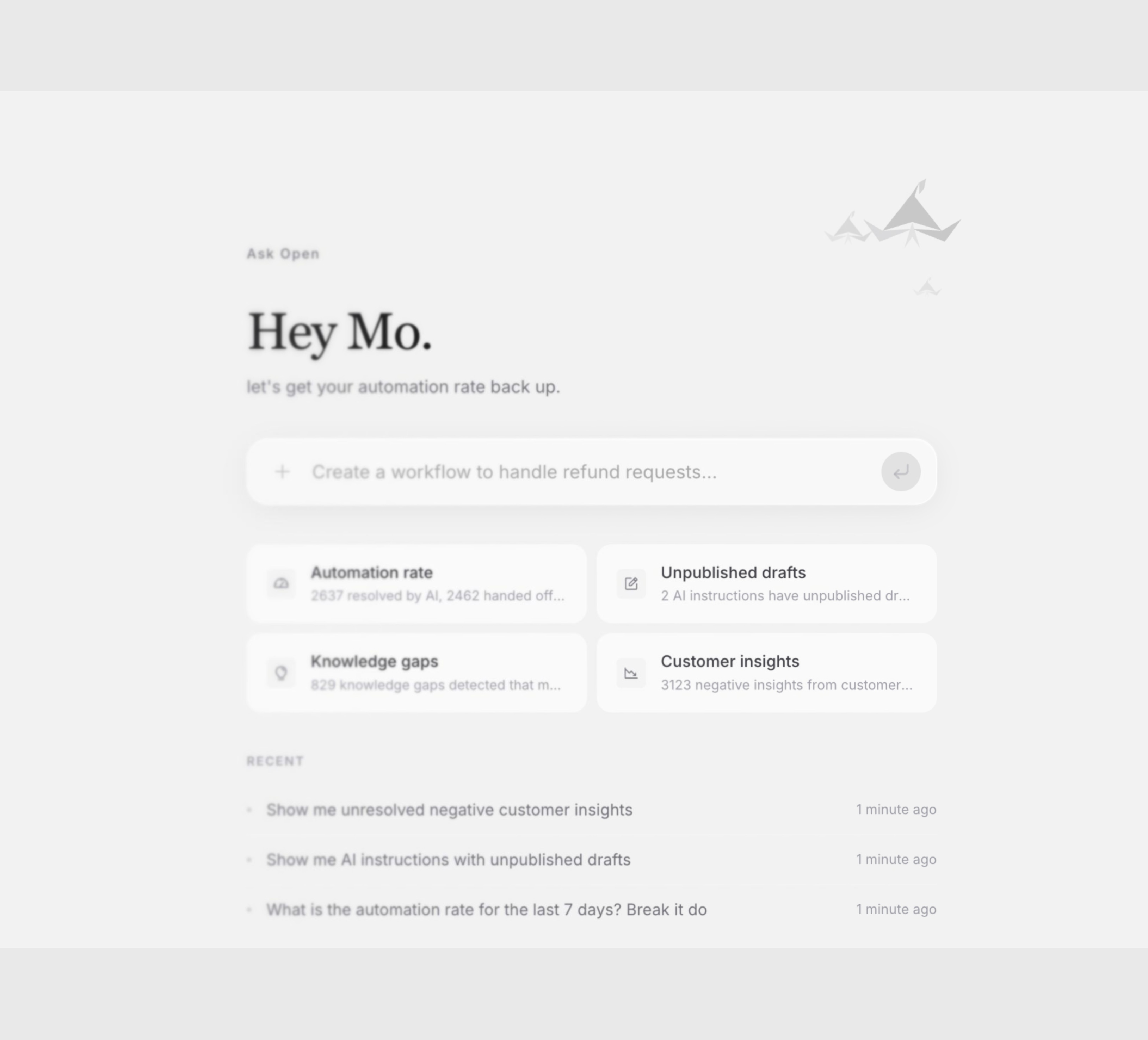
- Personalized greeting based on your name, time of day, and top priorities
- Smart suggestion cards that surface automation trends, handoff spikes, and knowledge gaps
- Recent conversation history in the sidebar for quick context switching
Automation strategist — diagnose performance drops
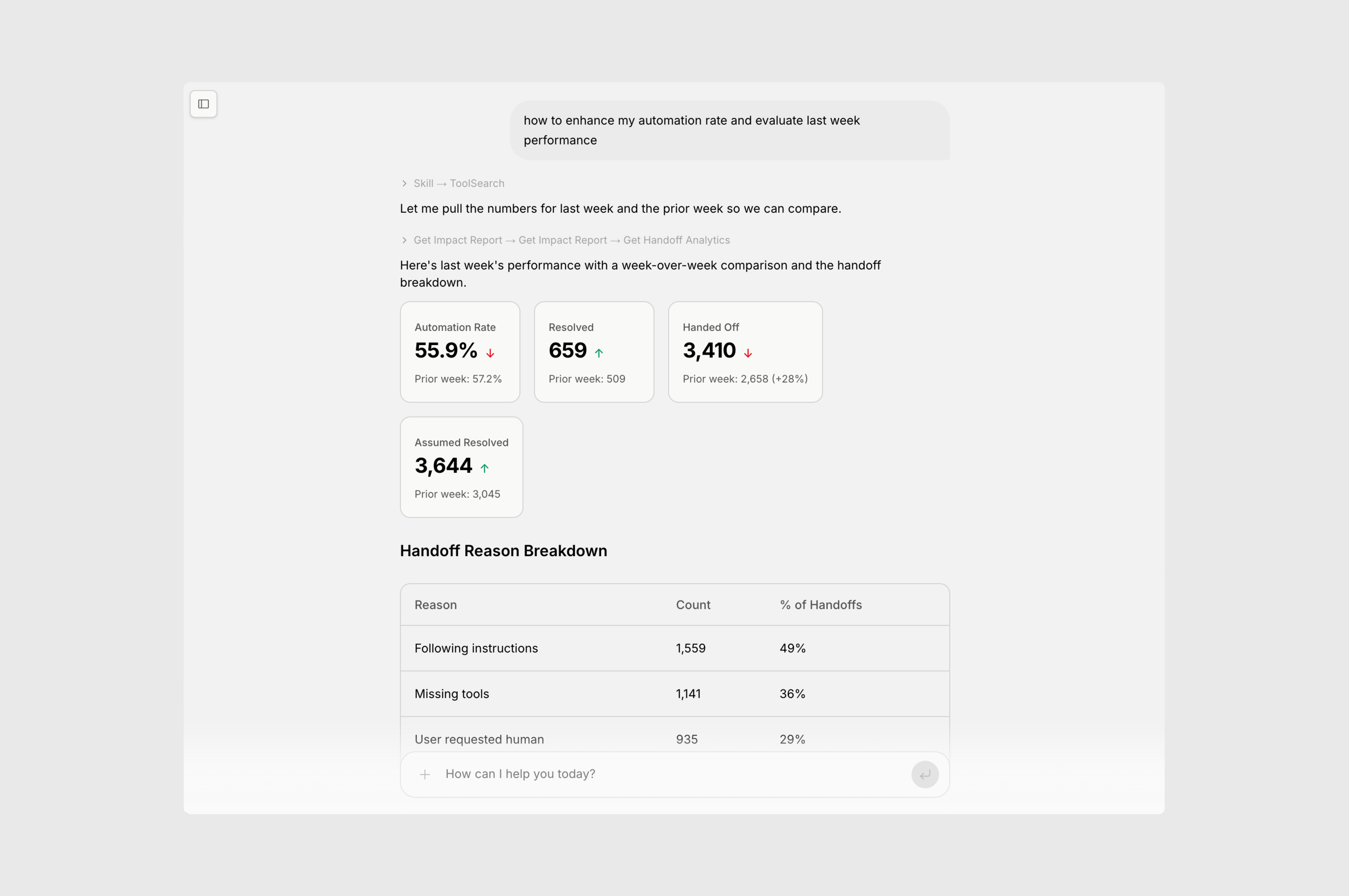
- Real-time automation and handoff analytics with trend detection
- Root cause analysis — instruction changes, knowledge gaps, integration errors
- Handoff reason breakdowns with specific session examples
- Proactive suggestions to improve resolution rates
Training expert — rewrite instructions in chat
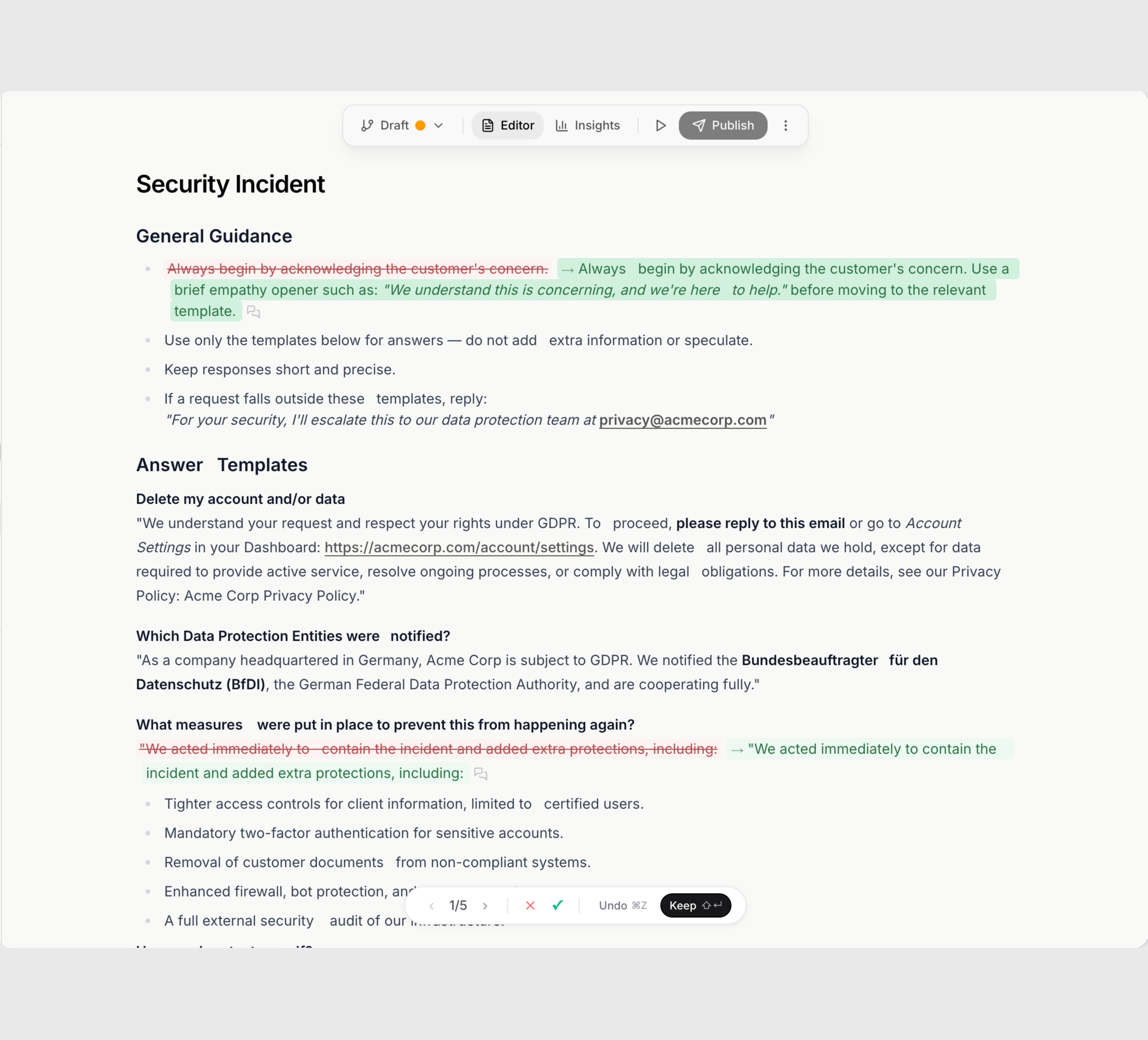
- Inline diff mode — see exactly what changed before accepting
- Create, edit, publish, and unpublish instructions from chat
- Manage instruction folders and visibility in bulk
- Full version history with one-click revert on every change
Session investigator — debug any conversation
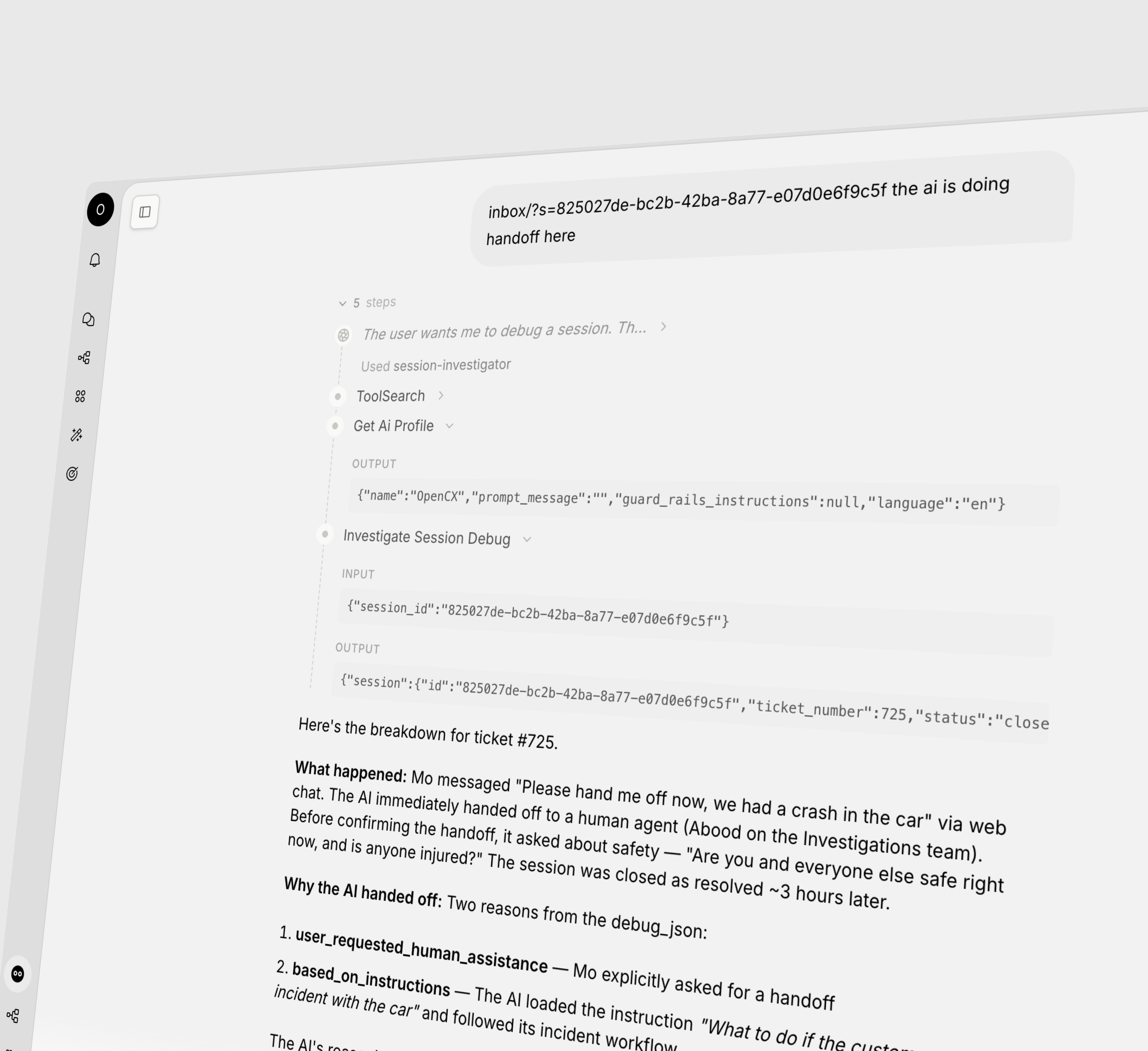
- Full reasoning traces with tool calls, citations, and handoff details
- Debug any conversation by ticket number or session ID
- See which knowledge base articles were loaded and ranked
- Identify platform bugs and instruction gaps proactively
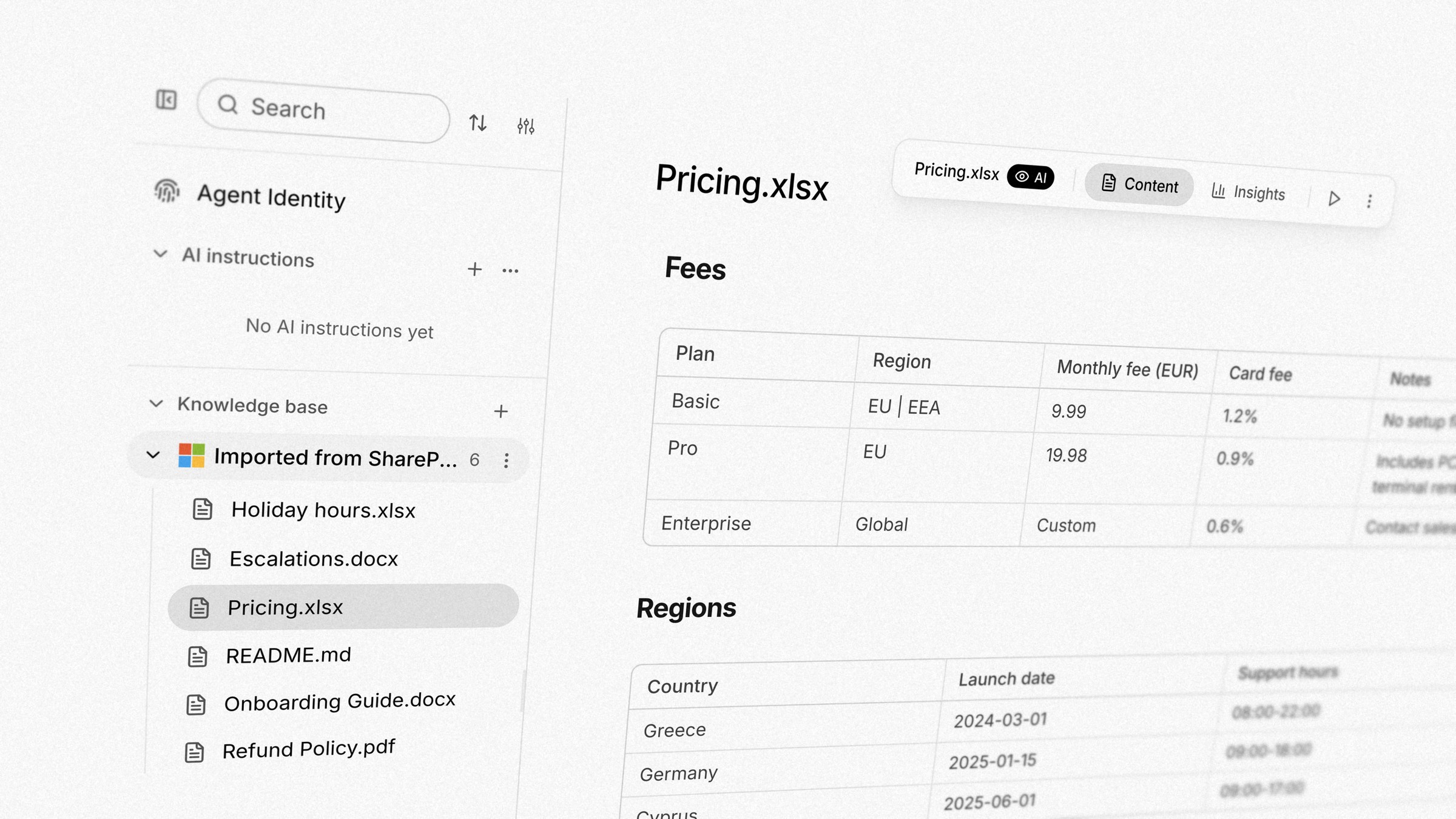
AI Instructions — redesigned
The training center has been completely rebuilt. A new editor, a new way to organize, and now you can see exactly how each instruction performs — all in one place.New editor & sidebar
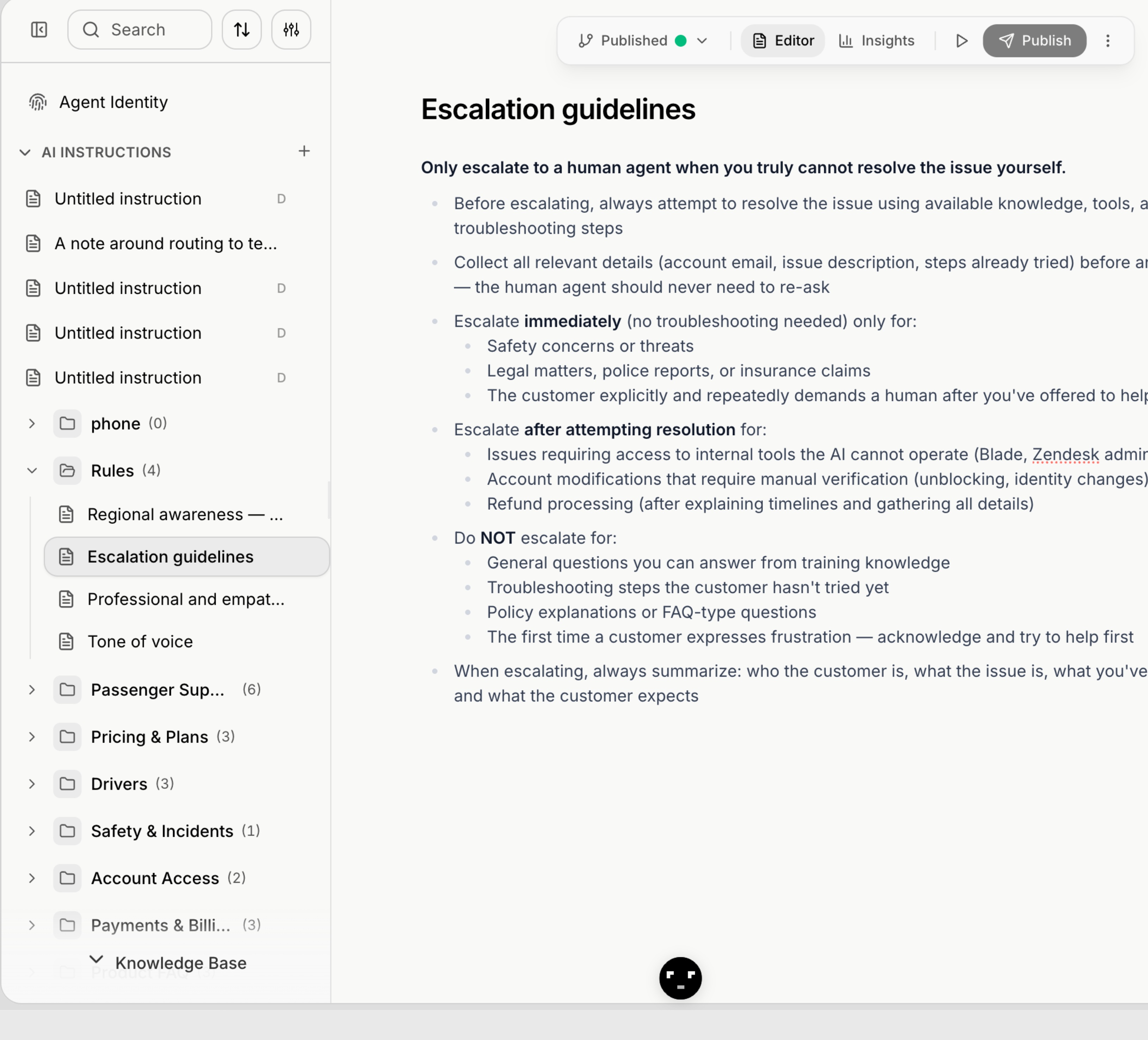
- Sidebar tree — organize instructions into folders with drag-and-drop
- Rich text editor with formatting, lists, and inline code
- Agent Identity moved here — configure name, tone, and personality alongside instructions
- Published/Draft status in the header with one-click publish
- Search across all instructions from the sidebar
Instruction-level insights
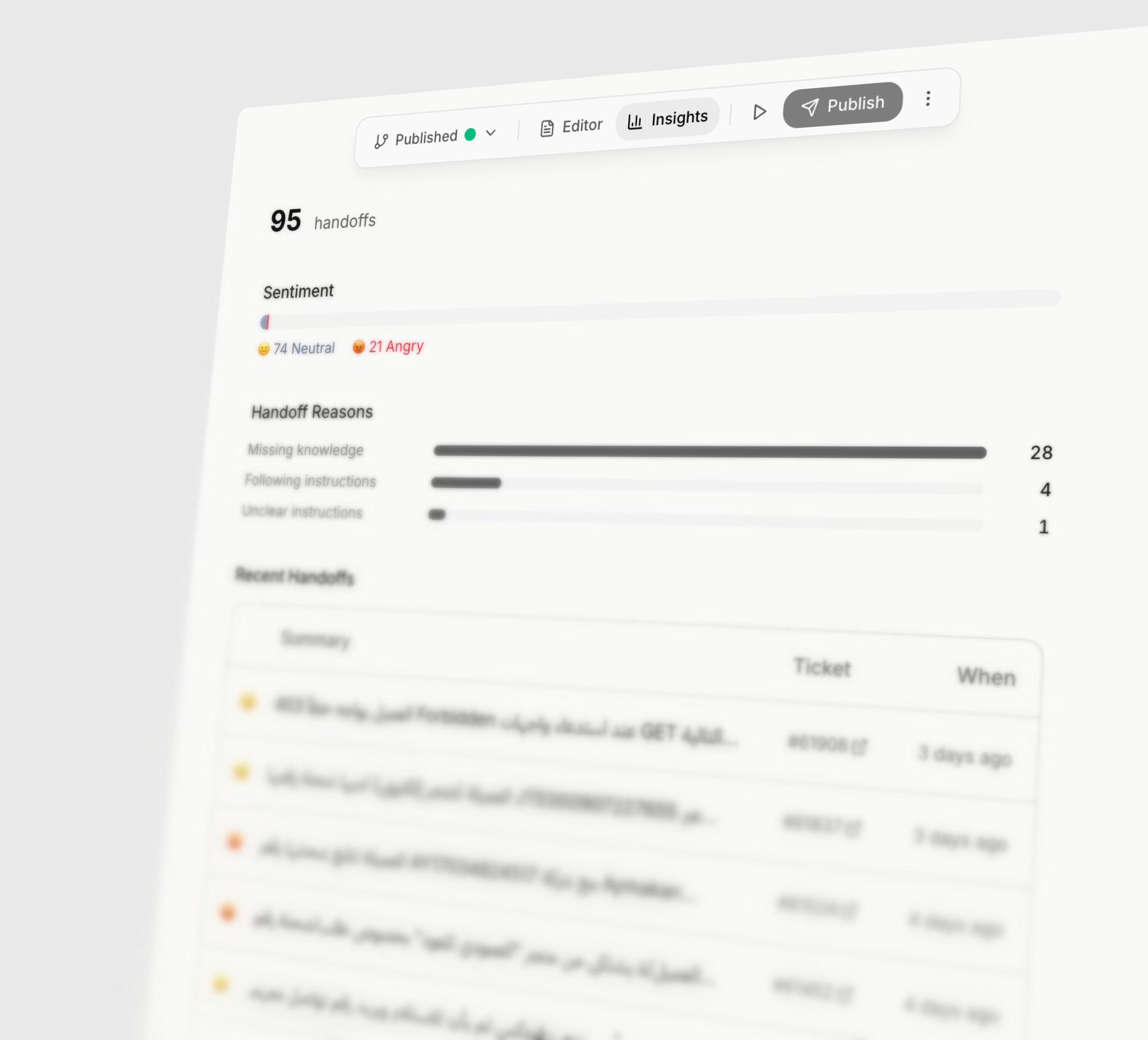
- Handoff count per instruction — see how often the AI escalates
- Customer sentiment breakdown — neutral vs angry
- Handoff reason analysis — missing knowledge, following instructions, unclear instructions
- Recent handoffs table with ticket links and timestamps
Sort instructions by handoff impact
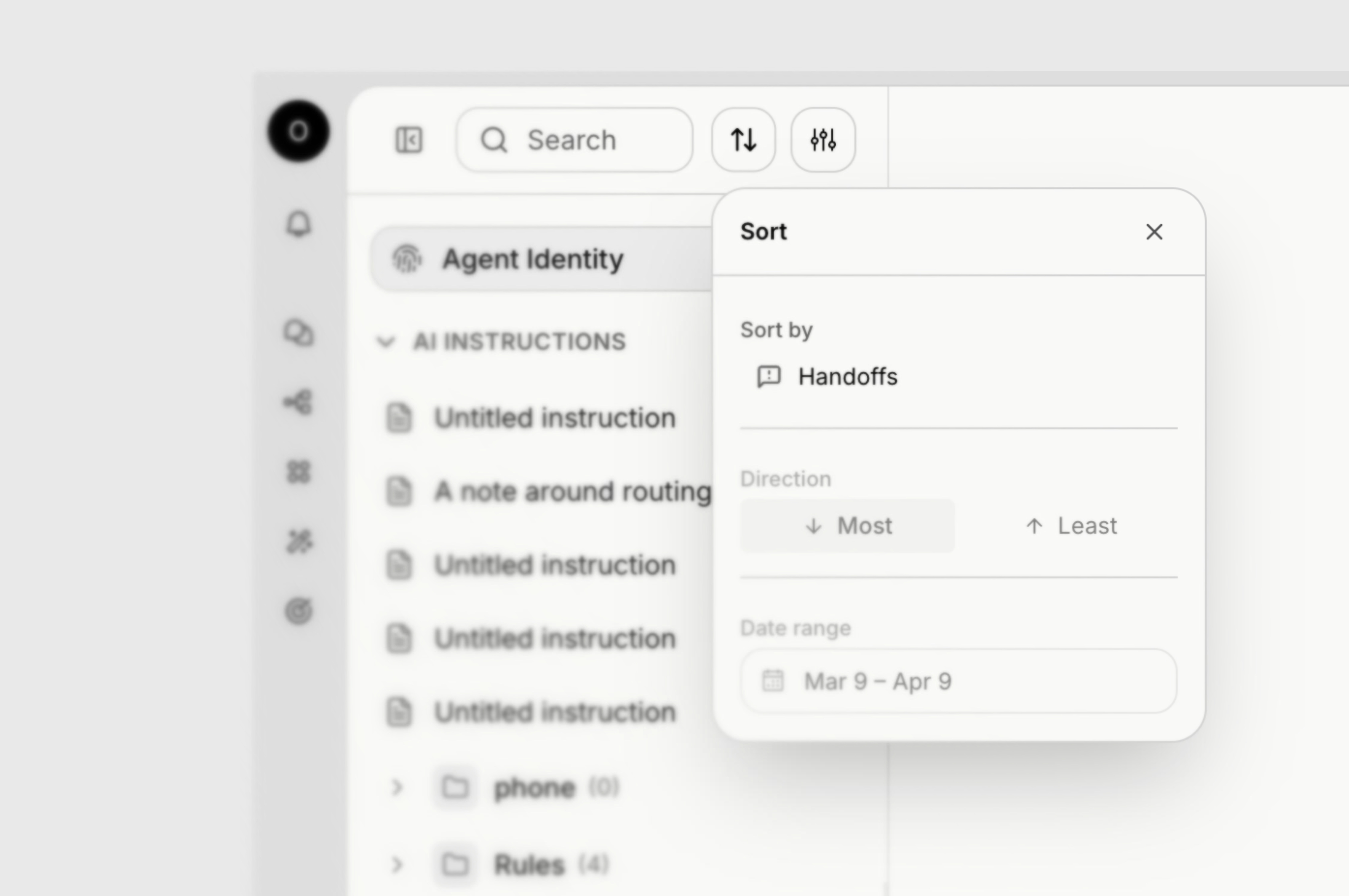
- Sort by handoffs — most or least, your choice
- Date range filter — see handoff trends for any period
- Instantly spot which instructions need rewriting
Version history & one-click revert
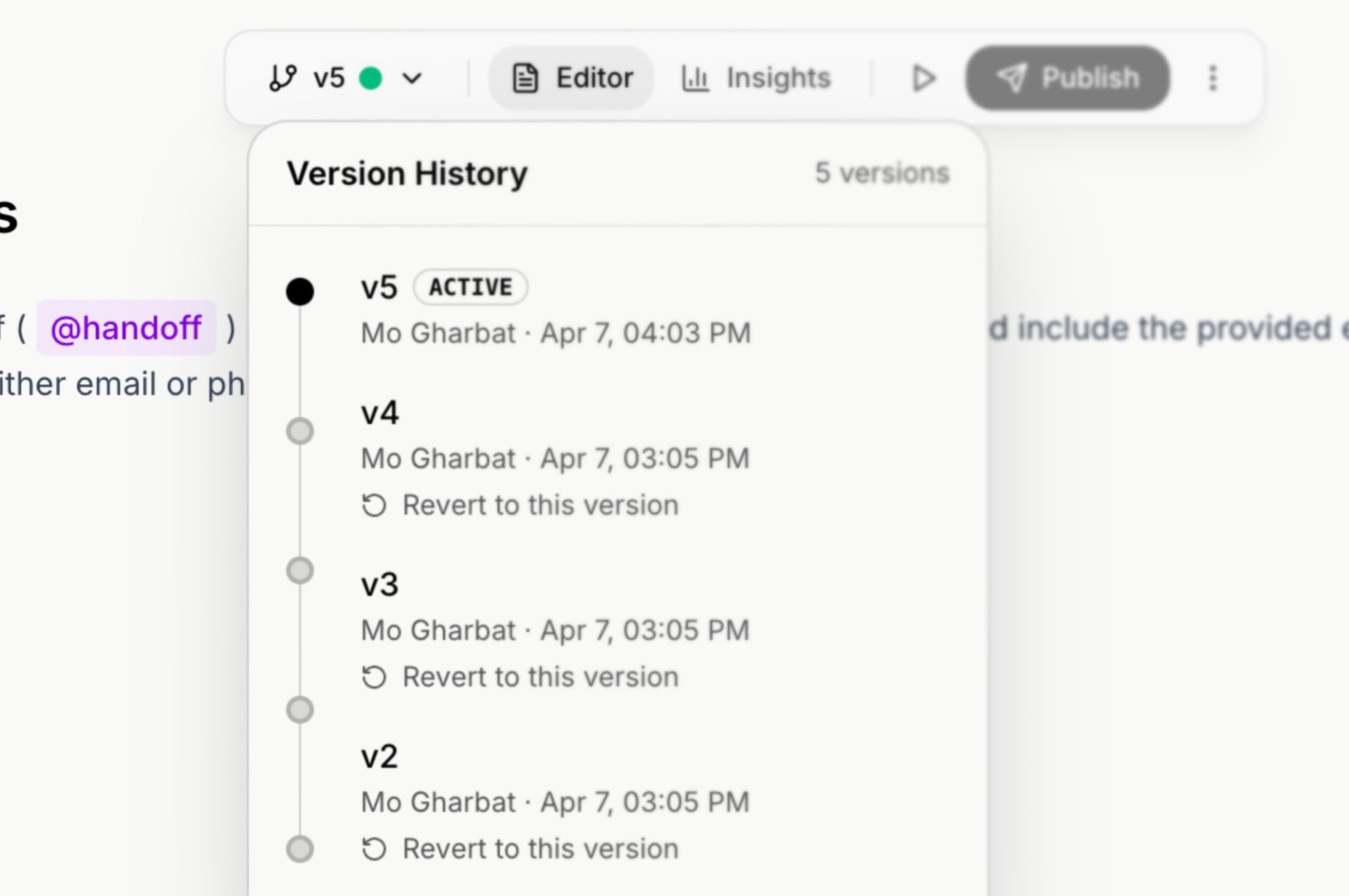
- Full version timeline — every publish creates a numbered version
- See who made each change and when
- One-click revert to any previous version
- Active version badge shows which version is live
Bulk folder actions
Manage AI instructions at scale. Change visibility, publish, or unpublish entire folders at once — no more editing instructions one by one.- Bulk publish and unpublish all instructions in a folder
- Change visibility of an entire folder at once
- Unpublish individual instruction documents