> ## Documentation Index
> Fetch the complete documentation index at: https://docs.open.cx/llms.txt
> Use this file to discover all available pages before exploring further.
# Import and export contacts
> Import contacts from a CSV file with column mapping and duplicate matching, or export them to CSV. Use when moving contact lists into or out of OpenCX.
Import a CSV file to create or update many contacts at once, and export contacts to a CSV file for use in another tool. Both run from the **Contacts** page.
> [!NOTE]
>
> **Contacts** in your [OpenCX dashboard](https://platform.open.cx/contacts). The page has no sidebar entry: press ⌘K (Ctrl+K on Windows) and choose **Contacts**. See [keyboard shortcuts](https://docs.open.cx/inbox/keyboard-shortcuts.md). Importing requires the **Contacts** permission with **Write**; exporting the list requires **Read**.
## Prepare your file
| Requirement | Detail |
| - | - |
| File type | A `.csv` file. Export spreadsheets as CSV first; other formats are rejected. |
| Header row | The first row holds the column names. Give every column a unique, non-empty name. |
| Size | Up to 5MB and 10,000 data rows. Split larger files. |
| Identity | Every row needs an email, a phone number, or a value for a property you match on. |
| Phone numbers | Include the country code, for example `+14155550123`. |
| Email addresses | Must be valid. They are stored in lowercase. |
Empty rows are skipped, and spaces around values are trimmed.
## Import contacts
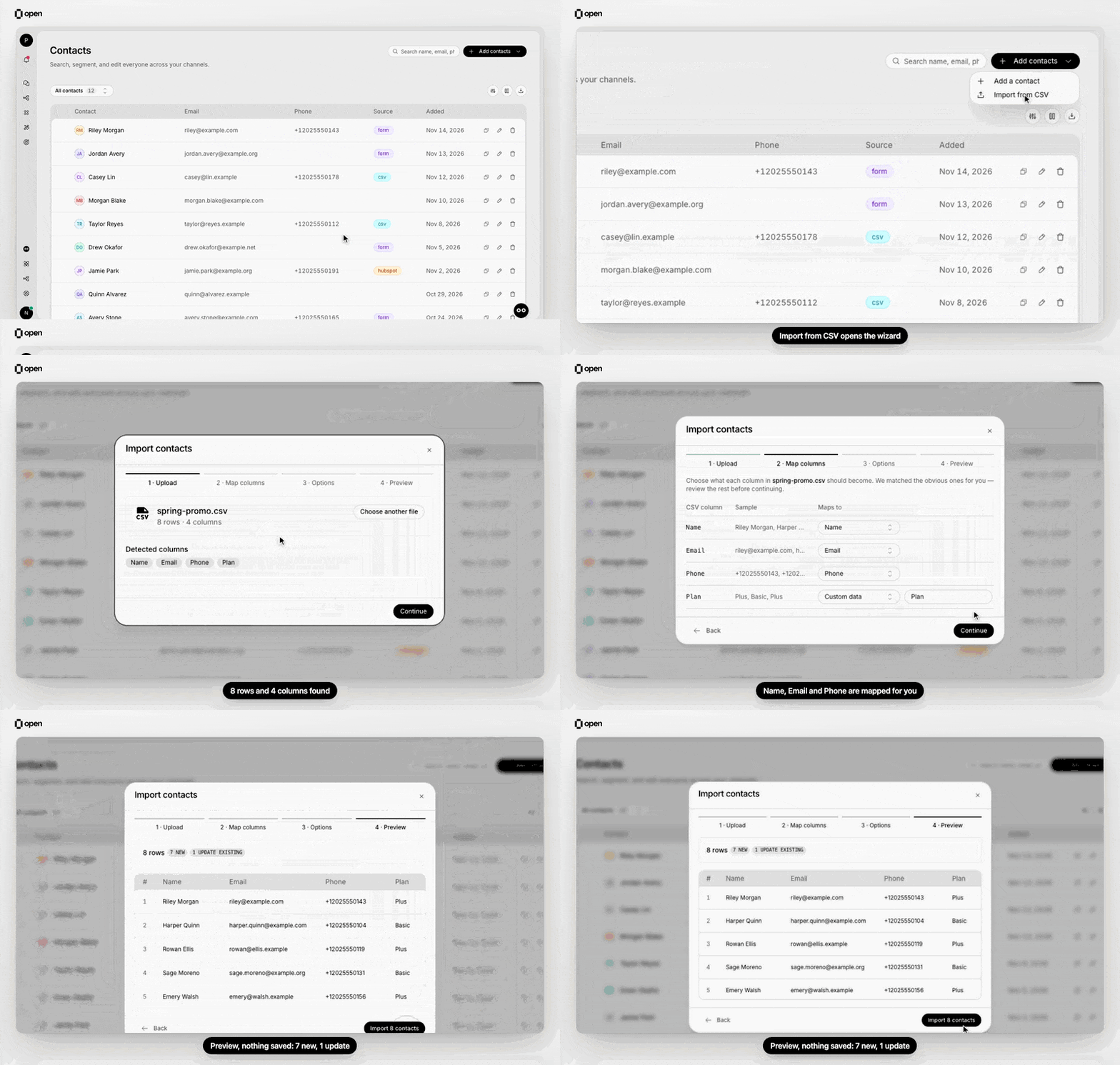
Upload, Map columns, Options and Preview: the preview counts new and updated contacts before anything is saved.
**1. Open the import**
On the **Contacts** page, select **Add contacts → Import from CSV**. On an empty contact list, **Import contacts** opens the same dialog.
**2. Upload**
Drop the file on the upload area or click to browse. The dialog shows the row count, the column count and the detected columns. Select **Choose another file** to start over.
**3. Map columns**
For each column, pick what it becomes: **Name**, **Email**, **Phone**, **Language**, **Custom data** (with a field key you can edit) or **Don't import**. Common headers such as Name, Email, Phone, Mobile, WhatsApp and Language are matched for you, and every other column starts as custom data named after its header. Map at least one column, and use each field and each custom data key only once.
**4. Choose options**
Set **Match existing contacts by**, **When a match is found** and **Only fill blank fields** (see [How rows are matched](#how-rows-are-matched)). Below them, you can tag every imported contact with the same custom data. An `import_batch` field is filled in for you with the date and file name, such as `2026-07-30-contacts`. Use **Add field** for more.
**5. Preview**
OpenCX checks the whole file without saving anything and shows how many rows are new, will update existing contacts, are duplicates within the file, or are invalid. Invalid rows and cells are highlighted in the first 50 rows. Select **Import N contacts** to start.
**6. Follow the import**
A progress bar shows rows processed. You can close the dialog: the import keeps running, a spinner shows on **Add contacts**, and a notification reports the totals when it finishes. **Cancel import** stops it; contacts already imported stay.
**7. Review the result**
The result lists contacts created, updated, skipped and failed, plus duplicates in the file and rows that matched more than one contact. Row errors are grouped by reason; up to 1,000 are listed, and the counts include every row. **Download error rows** saves those rows with their original columns plus an `error` column. Fix them, set the `error` column to **Don't import**, and import that file.
To find the contacts from one import later, filter the contact list on **Custom data** `import_batch` **equals** the batch value. Imported contacts show **csv** as their source.
## How rows are matched
**Match existing contacts by** is an ordered list. For each row, the first property in the list that the row has a value for decides which existing contact it is. Use **Add fallback** to add properties, shown as **then, if blank**. The default is **Phone number**.
For example, match by a custom field `customer_id`, then **Email**: rows with a customer ID match on it, and rows without one match on their email. At least one property in the list must be mapped to a column. **Don't match (always create)** turns matching off, and every row creates a new contact.
When a row matches an existing contact:
| Setting | What happens |
| - | - |
| **Update the existing contact** (default) | Values from the file replace the contact's name, email, phone and language. Custom data keys from the file are added or replaced; other keys on the contact stay. |
| **Skip it** | The contact is left unchanged and the row counts as skipped. |
| **Only fill blank fields** (off by default) | Only empty fields and custom data keys the contact doesn't have yet are written. |
A few rules apply to every import:
* **Blank cells never erase data.** An empty cell leaves the existing value alone.
* **Tags from the Options step are always written**, even with **Only fill blank fields** on, so every contact in the import carries the batch value. A row's own value for the same key wins over the tag.
* **Repeated rows are skipped.** A row with the same identity as an earlier row is listed as "Duplicate of row N".
* **Several matches use the newest.** If a row matches more than one contact, the most recently updated contact is used.
* **An email can't be taken from another contact.** A row that would give a contact an email another contact already has fails with "Email already belongs to another contact".
* **Matching needs distinct values.** If the property you match on is shared by more than 20,000 existing contacts, the preview stops and asks you to match on a property with distinct values per contact.
Imports don't start workflows: a contact created by an import doesn't fire contact triggers. [Segment](https://docs.open.cx/contacts/segments.md) membership is updated for every contact the import created or changed.
> [accordion] Import history and sequences
>
> In a sequence's **Audience** tab, when no contacts are targeted yet, the **Add contacts** menu offers **Bulk Import**, **Connect with CRM**, **Import via API** and **Import history**. An import started there points the sequence's audience at that import's batch when it completes.
>
> **Import history** lists your 20 most recent imports with their status, created and failed counts. Open a completed import to see its result and select **Target these contacts** to point the audience at that batch. Error rows downloaded from history list only the row number, column and message, not the original row data.
> [accordion] Other ways to add contacts in bulk
>
> The upload step links to **Settings → CRMs** to sync contacts from a connected CRM, and to the [create contact API](https://docs.open.cx/api-reference/contacts/create.md) for imports from your own systems.
## Export contacts
**1. Open the export**
On the **Contacts** page, select the export button in the list toolbar (**Export contacts**).
**2. Choose what to export**
**Current view** exports what the list shows: the selected view, search and filters, in the list's order. **All contacts** exports everyone and ignores filters. Each option shows its contact count.
**3. Choose columns**
**Contact ID**, **Name**, **Email**, **Phone**, **Source** and **Created at** are checked by default. Under **Custom properties**, every custom data key used on your contacts is listed and checked; uncheck the ones you don't need.
**4. Download**
Select **Export CSV**. The file is built in your browser and downloads as `contacts_export_.csv`. Keep the dialog open until the download starts.
One export holds up to 10,000 contacts, or the top 1,000 matches when a search is active. If the scope is larger, the file contains the first contacts and a warning asks you to narrow the scope with filters and export again.
To export a few contacts, select their rows and choose **Export CSV** in the selection bar. This downloads the selected rows from the current page with the fixed columns only, and requires **Write**.
## Troubleshooting
| Symptom | Likely cause | Fix |
| - | - | - |
| "isn't a CSV file" or "larger than the 5MB limit" | The file is a spreadsheet format, or too big | Export it as CSV, and split files over 5MB or 10,000 rows. |
| **Continue** stays disabled on the Options step | None of the match properties is mapped to a column | Map a column to one of them, or choose **Don't match (always create)**. |
| Preview fails with "Mapped columns not found in CSV header" | Two columns share a name, or a column has no header | Give every column a unique, non-empty header and upload again. |
| Rows fail with "Invalid phone number" or "Row has no email or phone identity" | Numbers without a country code, or rows with nothing to identify the contact | Fix them in **Download error rows** and import that file. |
***
## Related Documentation
> [card] [Manage contacts](https://docs.open.cx/contacts/manage-contacts.md)
>
> Find, filter and edit contacts.
> [card] [Segments](https://docs.open.cx/contacts/segments.md)
>
> Group contacts with saved conditions.
> [card] [Create a contact (API)](https://docs.open.cx/api-reference/contacts/create.md)
>
> Add contacts from your own systems.
> [card] [Sequences API](https://docs.open.cx/api-reference/sequences/index.md)
>
> Reach imported contacts with outbound sequences.
This documentation is built and hosted on [Mintlify](https://mintlify.com), a developer documentation platform.